When creating effects which read from the screen, URP provides the Scene Color node, which in turn reads the _CameraOpaqueTexture. This means you must run such effects in the Transparent queue, but it also means you won’t see transparent objects in this texture.
This asset pack contains an experimental _CameraTransparentTexture which contains the camera state after all transparent objects have been rendered. With this texture, if you can render some objects after the transparent queue, then you will be able to read transparent camera data for those objects. Please note that using this functionality will incur a performance cost.
This shader pack uses Universal Render Pipeline’s ScriptableRenderFeature for the _CameraTransparentTexture functionality. The Unity documentation will outline the basics of URP if you’re not familiar with how to create custom renderers.
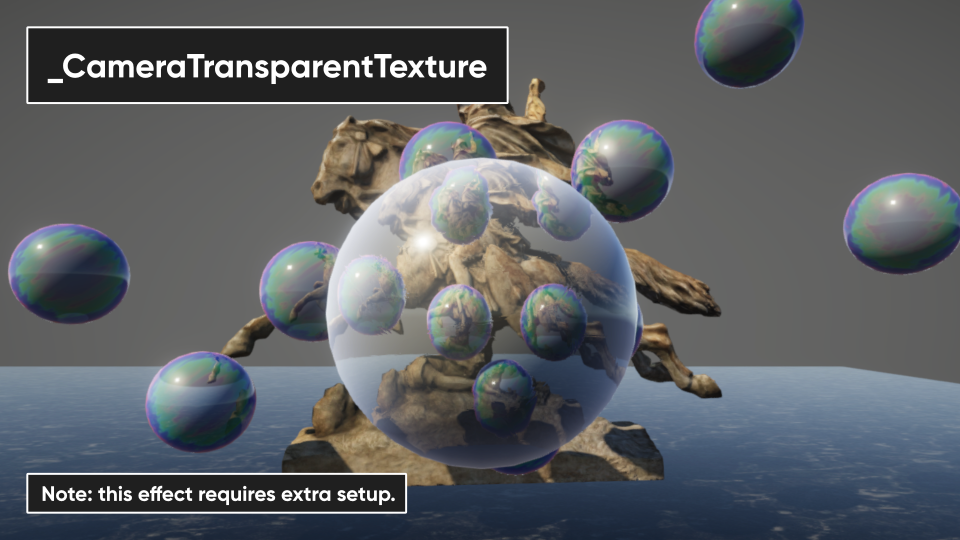
Using the transparent texture
Please follow these steps to read transparent camera data in your scene:
- Find your Universal Renderer Data and add the effect(s) you wish to use in the Renderer Features section at the bottom.
- This is most commonly found in the Assets/Settings folder if you created a new project using the URP template from the Unity Hub.
- This asset will be named something like UniversalRP-HighQuality (Unity versions 2022.3 and prior) or PC_RPAsset (Unity 6) by default.
- Shader Toolbox for URP also includes a ready-made asset named ShaderToolbox-Renderer in the Demo folder, which has the Camera Transparent Texture effect pre-added.
- Use the
_CameraTransparentTexturewhen rendering any object after rendering transparents. To do this:- Add these objects to a separate layer.
- Find your Universal Renderer Data again and remove this layer from the Transparent Layer Mask at the top.
- Add a new Render Objects feature to your Universal Renderer Data at the bottom.
- Set the Event setting to AfterRenderingTransparents.
- Set the Filters -> Queue to Transparent, and the Filters -> Layer Mask to the layer you originally added the objects to.
- Apply a material using a shader from Shader Toolbox for URP which has the option to read from
_CameraTransparentTexture, such as Glass or Bubbles. Or, use the SampleTransparentTexture subgraph to sample it in your own effects. You may also sample_CameraTransparentTexturedirectly in HLSL shaders.