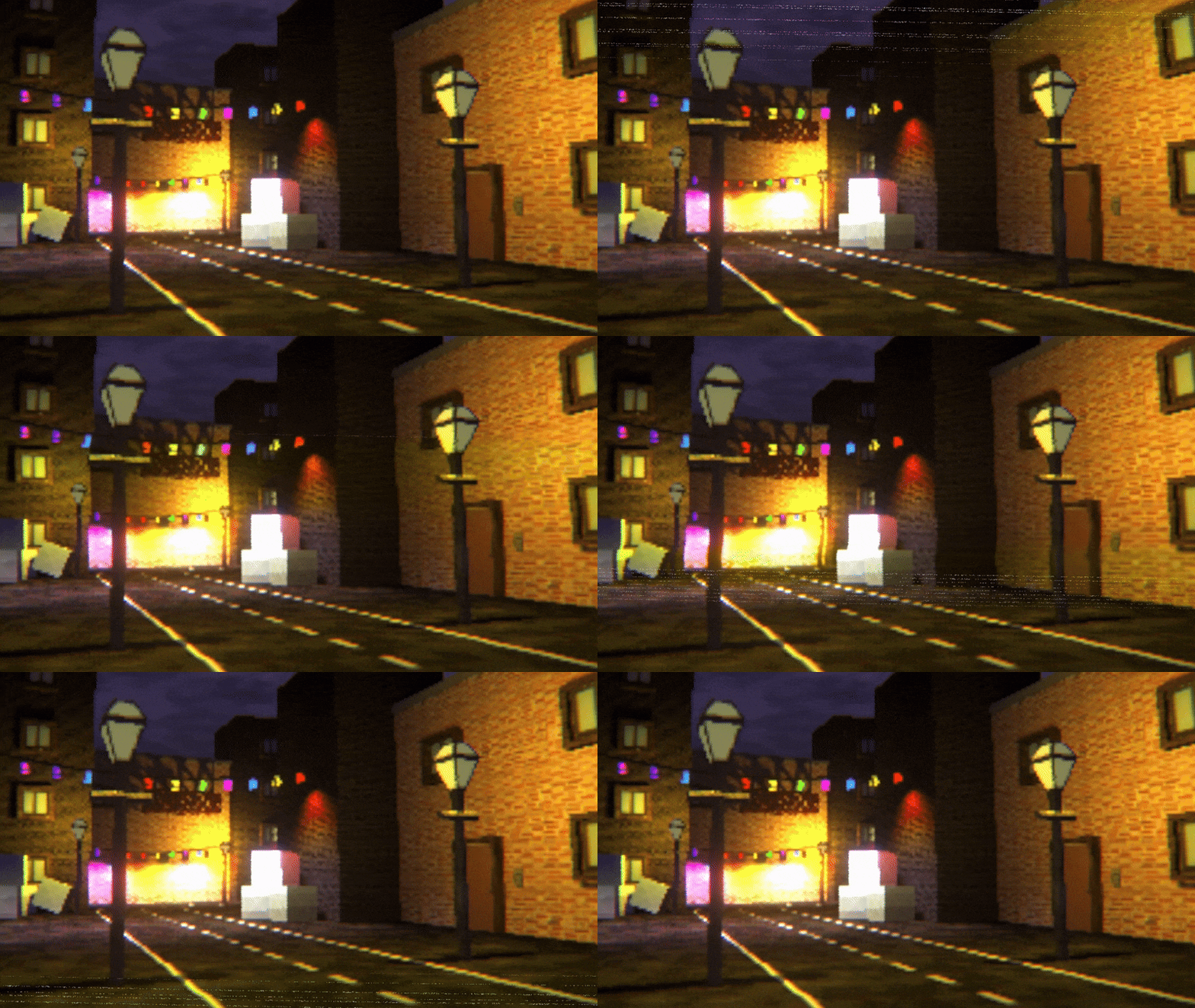
The CRT Post Process is a multi-featured screen filter which transforms the game from a modern HD LCD or LED panel to a classic CRT screen. It also supports extra VHS effects for an added layer of retro style.
Parameters
Basic Settings
- Show In Scene View - Tick to apply the CRT effect while in Scene View.
- Enabled - Tick to apply the CRT effect.
- Render Pass Event - Choose whether to run the CRT effect before or after URP’s internal post processing loop (which includes effects like Bloom).
Resolution & Fidelity
- Pixel Size - An integer value representing how pixelated the image becomes.
- Scale In Screen Space - Choose whether to scale the size of other parameters relative to a reference resolution. Enable this when you want pixelation/RGB properties to appear the “same size” on different resolution screens.
- Reference Resolution (Vertical) - Set this to the vertical screen resolution you are designing the game around. When Scale Parameters is enabled, each parameter remains unchanged when the screen is at this resolution.
- Force Point Filtering - Use nearest-neighbor filtering when upscaling the pixelated image back to full screen size. Disable to use bilinear filtering instead.
- Interlaced Rendering - If enabled, the effect will only render every other row of pixels this frame, and then it will render the remaining half of the rows the next frame, and so on.
Barrel Distortion
- Distortion Strength - Controls how strongly the edges of the screen warp inwards to form the shape of a CRT glass screen.
- Distortion Smoothing - How much blending there is between the areas ‘inside’ and ‘outside’ the screen. Leave as 0 for a hard border.
- Background Color - Color of the areas outside the distorted CRT screen shape.
RGB Subpixels & Scanlines
- RGB Subpixel Texture - Texture to use for the RGB subpixel effect. All pixels on the screen are multiplied by this texture such that the red, green, and blue screen colors appear separate to each other.
- An example of a texture to use for this is contained in Retro Shaders Pro/Resources/Textures/RGBTexture.png.
- RGB Subpixel Strength - How strongly the RGB subpixel effect is applied.
- Scanline Texture - Texture to use for the scanline effect. All pixels on the screen are multiplied by this texture such that scanlines appear scrolling over the image.
- An example of a texture to use for this is contained in Retro Shaders Pro/Resources/Textures/ScanlineTexture.png.
- Scanline Strength - How strongly the scanline effect is applied.
- Scanline/RGB Size - Larger values make the scanlines (and RGB subpixels) appear larger on-screen.
- Scanline Scroll Speed - How quickly the scanline texture scrolls over the screen.
VHS Artifacts
- Random Wear - Adds small, noisy UV distortions horizontally to simulate the fuzzy look common with old VHS tapes.
- Aberration Strength - How strongly chromatic aberration (color channel separation) is applied at the screen edges.
- Use VHS Tracking - Should the shader apply the following VHS tracking artifacts?
- Tracking Texture - A control texture for tracking artifacts.
- This should be an x-by-1 image.
- The red channel controls the strength of the tracking UV offsets.
- The green channel controls the presence of tracking lines overlaid onto the screen.
- An example of a texture to use for this is contained in Retro Shaders Pro/Resources/Textures/TrackingRamp.png.
- Tracking Size - How ‘zoomed in’ the tracking ramp is when scrolling over the screen.
- Tracking Strength - How strongly the tracking ramp red channel offsets the UVs of the screen horizontally.
- Tracking Speed - How quickly the tracking ramp scrolls across the screen. Use negative values to scroll upwards.
- Tracking Jitter - A random offset applied to the scrolling to make it appear jittery.
- Tracking Color Damage - Cycle the chrominance of the image slightly to look like the tape is damaged. The screen is converted to YIQ color space, and the offset is applied to the I and Q channels.
- Tracking Lines Threshold - A threshold for tracking lines to appear on screen. Higher values mean fewer lines.
- Tracking Lines Color - The color of the tracking lines, where the alpha channel acts as a global multiplier on the tracking line strength.
Color Adjustments
- Tint Color - A global tint applied to the entire CRT screen effect.
- Brightness - Global multiplier for the image colors before some effects are applied. A value of 1 preserves the image as-is.
- Contrast - Forces differences in colors to become more obvious. A value of 1 preserves the image as-is.
- Color Ramp Mode - Should the shader apply a color mapping to approximate the color palette of a retro console or computer? This setting comes with several presets.
- Color Ramp Texture - The ramp texture used to map screen input colors to new shader output colors.
- Red Levels – The number of possible values that the red channel can take on when Custom RGB Sliders mode is used.
- Green Levels – The number of possible values that the green channel can take on when Custom RGB Sliders mode is used.
- Blue Levels – The number of possible values that the blue channel can take on when Custom RGB Sliders mode is used.
- Use Dithering – Should the shader dither colors that fall between color values? Note that individual materials may already be using dithering for their colors, which may look strange when combined with this setting. Can be set when Custom RGB Sliders mode is used.
Color Ramp Presets
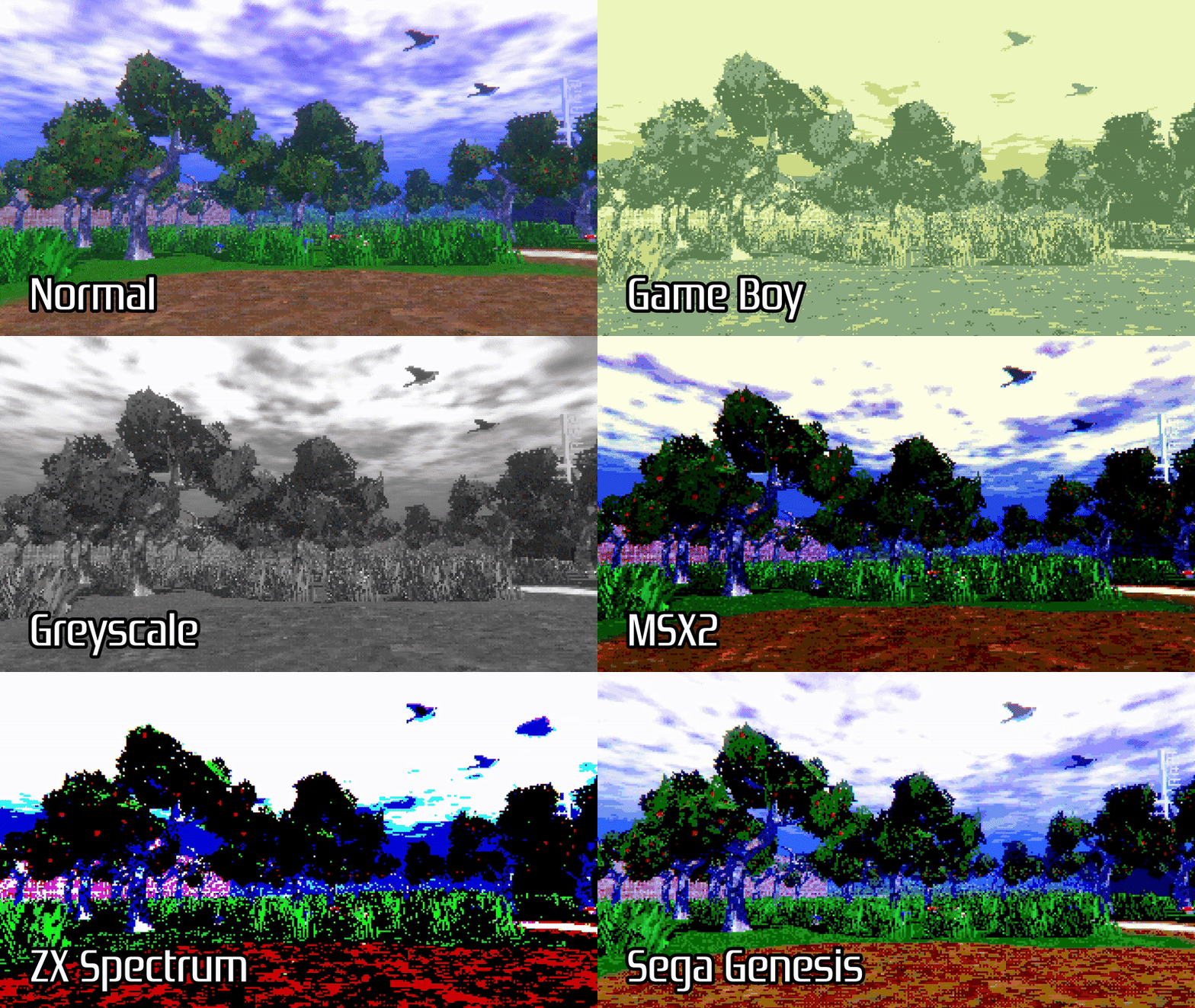
The color ramp functionality of the CRT effect only approximates the color palettes found in retro consoles and computers. For example, the SNES had a 15-bit RGB palette, but it could only display 256 colors simultaneously; this color mapper only implements the palette restrictions, not the simultaneous color restrictions, and some consoles only use a crude approximation.
The included presets implement the following:
- None – Don’t apply any mapping.
- Game and Watch – A 1-bit monochrome effect.
- Game Boy – Restricts the color to a 2-bit greyscale, tinted green.
- Game Boy Advance – Uses 5 bits per channel (15 total bits, 32,768 total colors).
- Nintendo DS – Uses 6 bits per channel (18 total bits, 262,144 total colors).
- Greyscale – Converts the image to greyscale based on pixel luminance.
- NES – Crude approximation, 3 available values for each channel (27 total colors).
- SNES – Same as GBA: uses 5 bits per channel (15 total bits, 32,768 total colors).
- MSX2 – Uses 3 bits for red and green, 2 bits for blue (8 total bits, 256 total colors).
- IBM PS/2 – Uses 5 bits for red and blue, 6 bits for green (16 total bits, 65,536 total colors).
- Amstrad CPC – Uses 3 levels for each channel (27 total colors).
- Teletext – Uses 1 bit per channel (3 total bits, 8 total eye-destroying colors).
- ZX Spectrum – Uses one bit per channel, plus additional ‘intensity’ bit (4 total bits, 16 total colors).
- Sega Master System – Uses 2 bits per channel (6 total bits, 64 total colors).
- Sega Genesis – Uses 3 bits per channel (9 total bits, 512 total colors).
- Sega Game Gear – Uses 4 bits per channel (12 total bits, 4096 colors).
You may also provide your own custom ramp textures to use for mapping.
- With Custom Luminance, the luminance of the image color is used to sample along the x-axis of the ramp texture to produce an output color.
- With Custom RGB, the individual red, green, and blue channels of the image color are used to sample along the x-axis of the ramp texture to produce individual output red, green, and blue colors.
- With Custom RGB+Intensity, the RGB channels are used as described above, then the luminance of the input color is used to sample along the alpha channel of the ramp texture – that value is used to multiply the output RGB value.
If you would rather use sliders rather than color ramps, then the Custom RGB Sliders mode exposes integer sliders for each color channel so you can easily set the number of possible color values per-channel.