You probably know me from my shader tutorials, but I find myself spending much more time on my asset packs these days. I recently pushed a major update for Retro Shaders Pro for Unity URP, my PSX-style shader pack (and my favorite asset that I’ve made), but I’ve never really talked in any detail about its features or what it’s like to publish on the Unity Asset Store and other storefronts.
So here I am, dipping my toes a bit into something more like a devlog. Hopefully this will give you some perspective on what goes into making asset packs and perhaps inspire you to try making your own! And maybe I’ll avoid making this feel like an advert along the way.
The Mission Statement
A good asset pack solves a real problem. Ideally it should be a problem that nobody else has solved yet, but I’m of the opinion that it’s fine to give people a choice between two things, as you will inevitably do things differently to any existing assets out there.
The ‘PSX aesthetic’ is based on the crusty low-fi visual style and retro gameplay of the PlayStation 1, named after a development codename for the console. Games implement the technical limitations of the PS1 to a varying degree, but since it’s rather time-consuming and technically difficult to recreate these effects in a shader, and many of these games are small in scope (e.g. many are made for game jams or hobby projects), it’s a very good candidate for a low-cost asset pack.
With Retro Shaders Pro, I wanted to respond to the subgenre of (usually) horror-esque games with a PSX aesthetic which has exploded in popularity on sites like itch.io. Obviously since these games are already being made, PSX assets for Unity must also exist, and a quick look on the Asset Store confirms this: there are plenty of PSX prop mesh collections and some very good PSX shaders, but most of those seem to support only the built-in render pipeline.
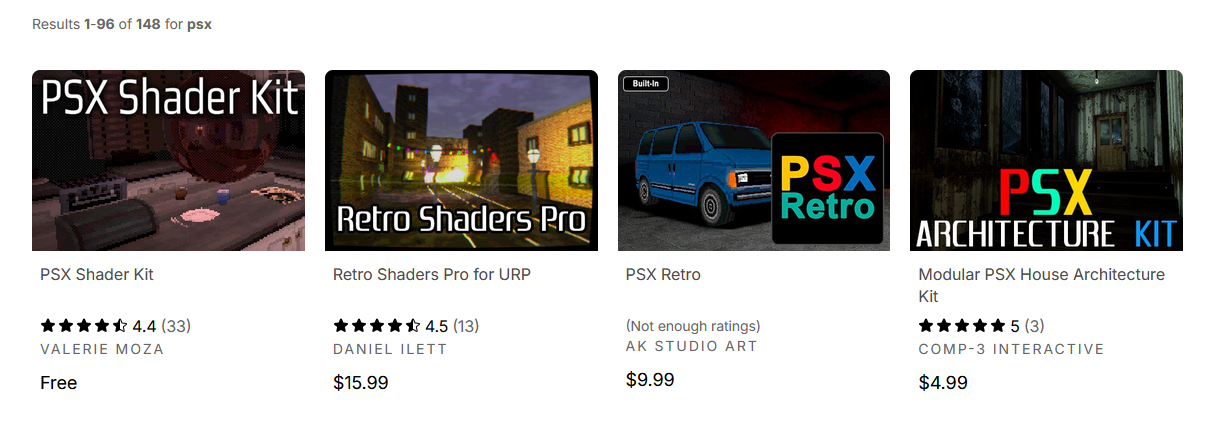
To set my asset pack apart, I chose to focus on URP like a hawk and forget about all other render pipelines, although that choice was primarily based on the PTSD I got from trying to support multiple pipelines with Snapshot Shaders Pro. With shaders, especially post processing shaders, that usually means rewriting everything multiple times with multiple APIs, and then those APIs change and break everything between major Unity versions anyway, and then you tear your hair out and cry a bit.
So, just URP this time. The API still changes more often than I change clothes, but at least it’s just one pipeline this time.
I also wanted this pack to be a one-stop shop for all the effects you might need for a PSX-style game, so I chose to broadly focus on a main PSX-style shader for regular objects and a post processing effect which mimics an old CRT screen. I can add new kinds of shader later, but those two should be the focus.
That’s the mission statement then. Some URP shaders which turn objects retro and a CRT screen effect. Now I just needed to draw the rest of the fucking owl.
PSX Shaders
The original PlayStation 1, being a console from 1994 (just slightly older than me!), has a lot of technical limitations compared to a modern console, and imitating those limitations forms the backbone of the PSX aesthetic. As technical artists, we sometimes put in a lot of effort to make things look worse intentionally. Thankfully, many of these imperfections are immediately visible when looking at PS1 gameplay on real hardware, and it’s a popular topic of discussion online, so we can break down the PSX aesthetic into a list of features.
Why do the vertices wobble?
One of the first visual characteristics you’ll notice is vertex imprecision, which makes it look like objects wobble around a little when you move them, or move the camera around them.
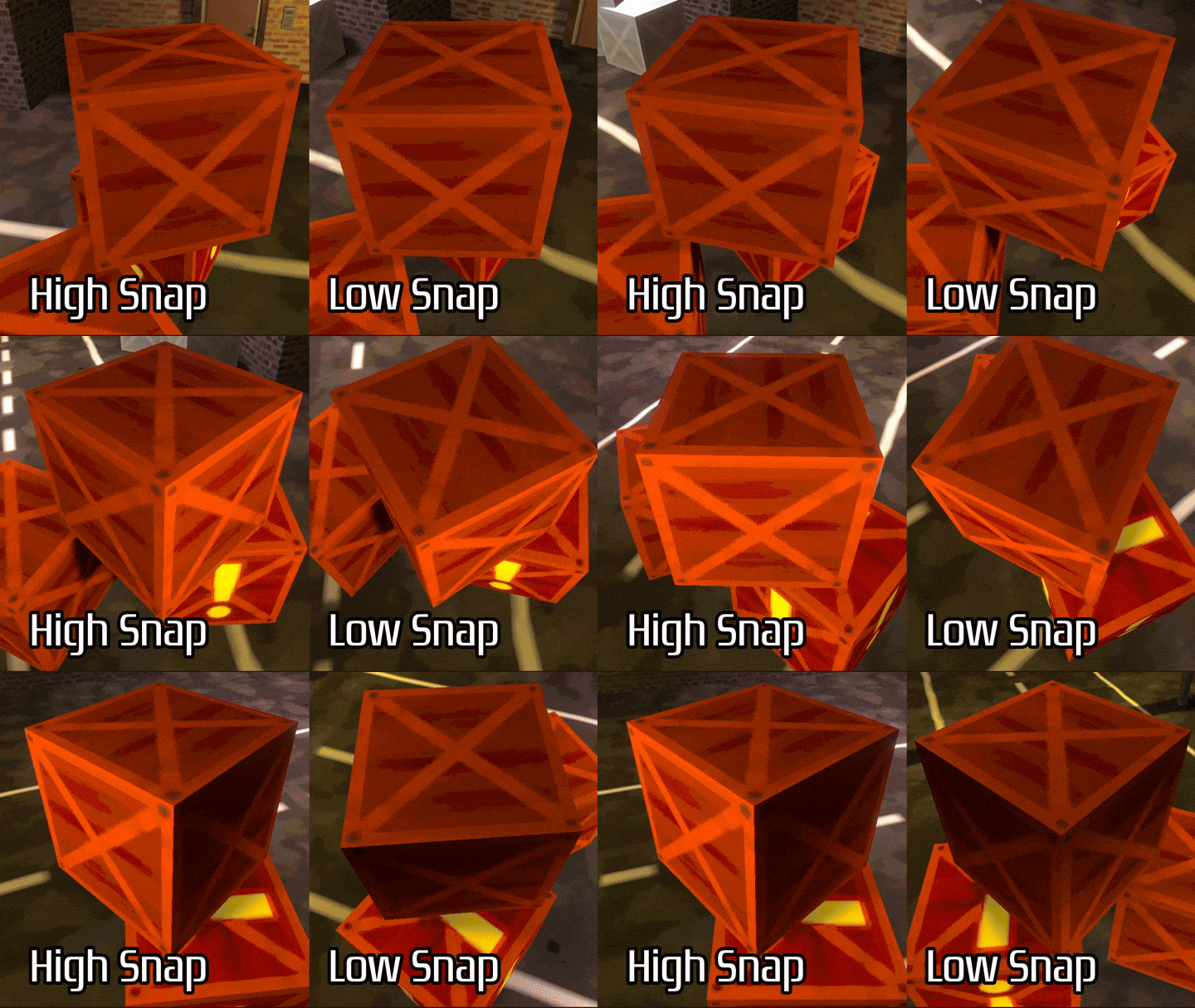
This happens in part because the PS1 did not support subpixel rasterization - internally, vertices have positions between the screen pixel grid (i.e. ‘subpixel’ positions) and move smoothly between frames, but they are rounded to the integer grid. Vertices which snap to one pixel on the grid might suddenly jump to the next spot on the grid when you make small camera movements, or you might see a stair-stepping effect when moving the camera diagonally (vertices jerk to the left, then up, then the left again, and so on, all in discrete steps). When combined with a small screen resolution, vertices move a noticeable distance across your physical screen between frames.
It gets worse in some cases where two triangles share an edge, but imprecise rounding means that one edge gets rounded down and the other gets rounded up, leaving a pixel-width gap between the edges.
Here’s where the first dollop of sleight-of-hand comes in. Some games suffered from this problem more badly than others, because some developers strategically designed their games to avoid the problem. Maybe you expand your meshes slightly to avoid pixel gaps, perhaps the camera movement is tuned to avoid noticeable jumps. Point is, we all remember this vertex snapping differently, depending on which games we played and how many decades it’s been since we played on an actual PS1. We could perfectly recreate the PS1’s vertex snapping behavior in the shader, but it’s easier to implement, and more powerful, to let the user customize the number of snapping points for the vertices.
In Retro Shaders Pro, my solution was to let the user set the number of possible points per meter that vertices could snap to. For example, if I set this value to something very low like 1, then vertices would snap to every Unity unit (which would look legitimately terrible). Setting it to 10 means that you get ten distinct points in between each Unity unit along each of the x-, y-, and z-axes. By default, the shader does the snapping in view space (relative to the camera) so that rotating the camera in-place would still produce vertex imprecision, but later I added a choice between view, world, or object space, or you can turn off vertex snapping completely.
Why do the textures stretch and distort?
The PS1 couldn’t perform perspective-correct texture mapping. To flatten a 3D scene into a 2D image on your screen, you must divide the x- and y-components of the vertex position by its z-component in a process called perspective projection, which makes things look smaller when they are further away. The PS1 obviously does this for positions, but it skips doing so for texture coordinates because division is expensive and the PS1 is trying to squeeze a little more blood from a rather primitive stone.
For a given triangle, if the camera is facing it head-on, then the z-value is roughly the same across the whole surface and the texture will look about right. However, if we view the triangle from a shallow angle, suddenly the z-value on one side is very different to the other side, so we see this warping effect. This kind of perspective-less projection is known as affine projection, so this iconic PS1 limitation is usually called affine texture warping or words to that effect.
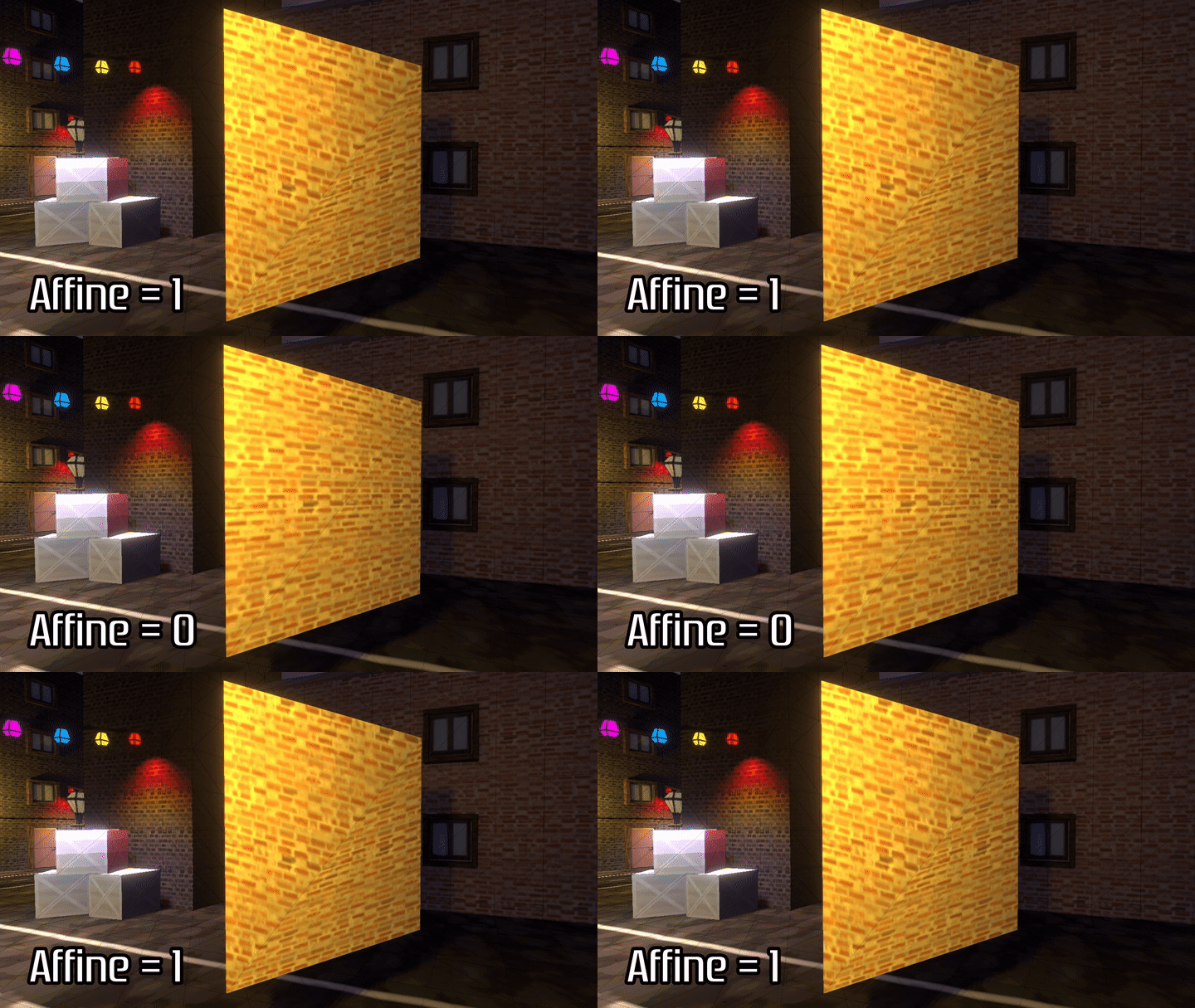
In this gif, you can see very clearly on the bottom-right triangle how the pixels near the top stay parallel with the bottom edge of the mesh when affine texture mapping is used.
This one is actually very easy to reproduce in modern shaders. Typically, the vertex-to-fragment struct contains a clip position, a set of UV coordinates, and maybe other data. It might look like this:
struct v2f
{
    float4 positionCS : SV_POSITION;
    float2 uv : TEXCOORD0;
};
If you want to toggle affine texture mapping, then modern shading languages including HLSL come with a noperspective keyword that you can put in front of an interpolator to skip the perspective division step.
struct v2f
{
    float4 positionCS : SV_POSITION;
    noperspective float2 uv : TEXCOORD0;
};
I do something slightly more involved in Retro Shaders Pro so that I can smoothly transition between affine and perspective projection, as seen in the gif above, but it basically amounts to undoing the division step in the fragment shader.
Where did all my pixels go?
The PS1 had a very small amount of video memory - a 1MB frame buffer and 2KB texture cache - and accordingly, it could only support low output resolutions and small textures. It’s obviously not feasible to literally implement a 2KB texture cache into a Unity game, but the next best thing is giving people the ability to cap the base texture resolution on each material.
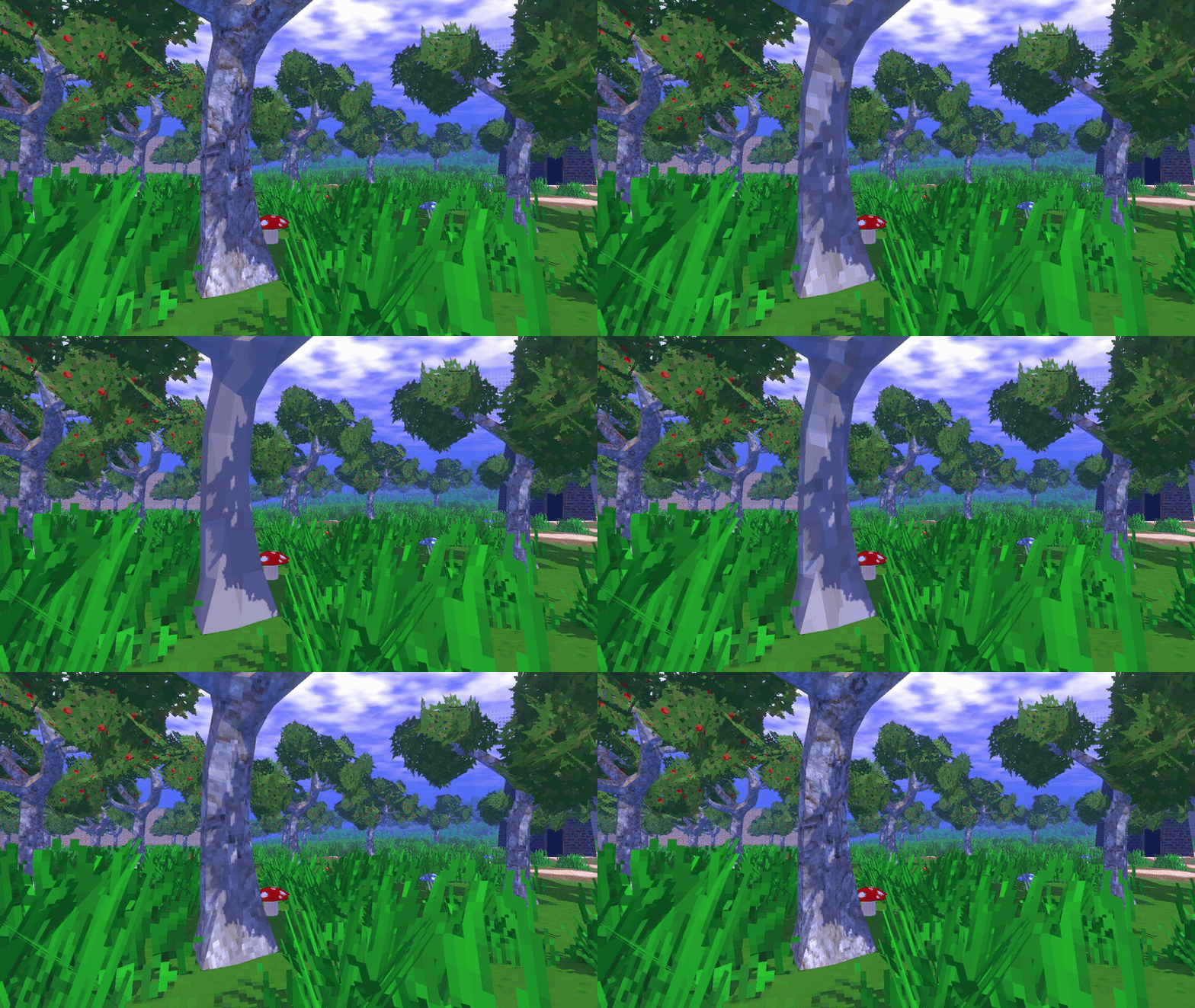
The easiest way to do so is with mip levels. Typically, mipmapping is used when a texture is viewed far away or at a grazing angle, where a section of an object with a high resolution texture takes up only a few pixels on the screen. It is more performance-intensive to sample a high-resolution texture than a lower-resolution one, so Unity generates a mip chain, where the original texture is mip level 0, then the texture resolution is halved along both axes to form mip level 1, then halved again for mip level 2, and so on. This also increases the texture memory required to store the texture in VRAM by 33% (ironically, given what we are about to use these mip levels for).
The regular texture sampling function uses these mip levels automatically based on the proportion of the screen taken up by the object you are drawing and the original size of the texture, but we can also manually sample a specific mip level with the LOD texture sampling functions, short for “level of detail”.
float4 baseColor = _BaseColor * SAMPLE_TEXTURE2D_LOD(_BaseMap, sampler_PointRepeat, uv, lod);
By setting a resolution cap value, we can take the base-2 logarithm of both the original texture resolution and the resolution cap and the difference between them is the LOD level we should set. Mipmaps need to be enabled on the texture for this to work, but in the most recent update, I added a little warning in the Inspector window if they aren’t.
We have now successfully increased our VRAM usage to emulate a console that used smaller textures to save on VRAM, and my irony meter is broken. Of course, you could just design your textures to be about 256x256 max, but I think this gives more flexibility to repurpose textures from elsewhere without adding more busywork to your workflow.
Speaking of textures, another important feature of the PS1 is that it only supported nearest-neighbor filtering (also known as point filtering), resulting in blocky textures. Modern systems can use bilinear filtering, where texture color values are interpolated across the u- and v-axes if you sample a point partway between four texel centers. I decided to include both. If you want to be accurate to the original hardware, use point filtering.
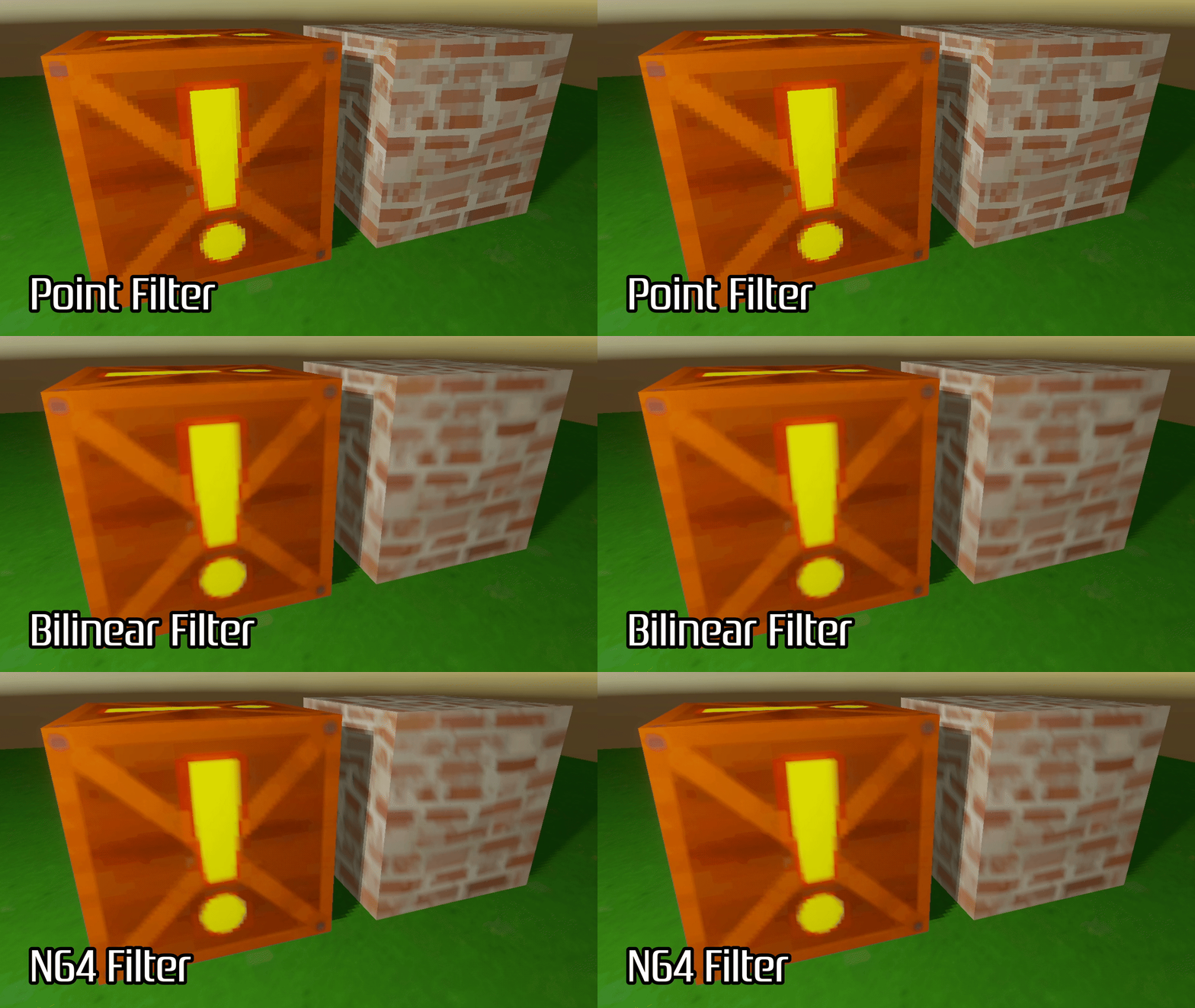
In a later update, I also decided to include some shaders inspired by the Nintendo 64, which had its own characteristic visual oddities different to those of the PS1: namely, the N64 supported perspective-correct texture mapping, as well as a unique kind of sort-of-bilinear filtering where it would interpolate between three texels, instead of the four that modern bilinear filtering can do. This webpage gives a very good breakdown of how it works.
Combined with the limited cartridge size of the Nintendo 64 (maximum 64MB compared to 660MB for a CDROM), which meant that textures were oftentimes smaller in an N64 game compared to an equivalent PS1 title, the result was often blurry textures which are emblematic of the Nintendo 64. Originally I made separate versions of the core shaders which used this kind of filtering, but with the Version 1.5 update, I rolled them all into a parameter for the Retro Lit shader.
Where did all my colors go?
As I found out much later on when developing another feature for this asset pack, many consoles can’t give you an easy answer to the question “how many colors do you support”, because they often used different color modes for different purposes. The PS1 is one of those consoles - apparently, it supported truecolor (8 bits per color channel, 16.7 million total colors) for video and still images, but only 5 bits per color channel for texture-mapped objects (32,768 total colors). Put simply, most textures used modern game development use 8 bits per color channel, so we’ll need to limit the number of color values artificially in the shader.
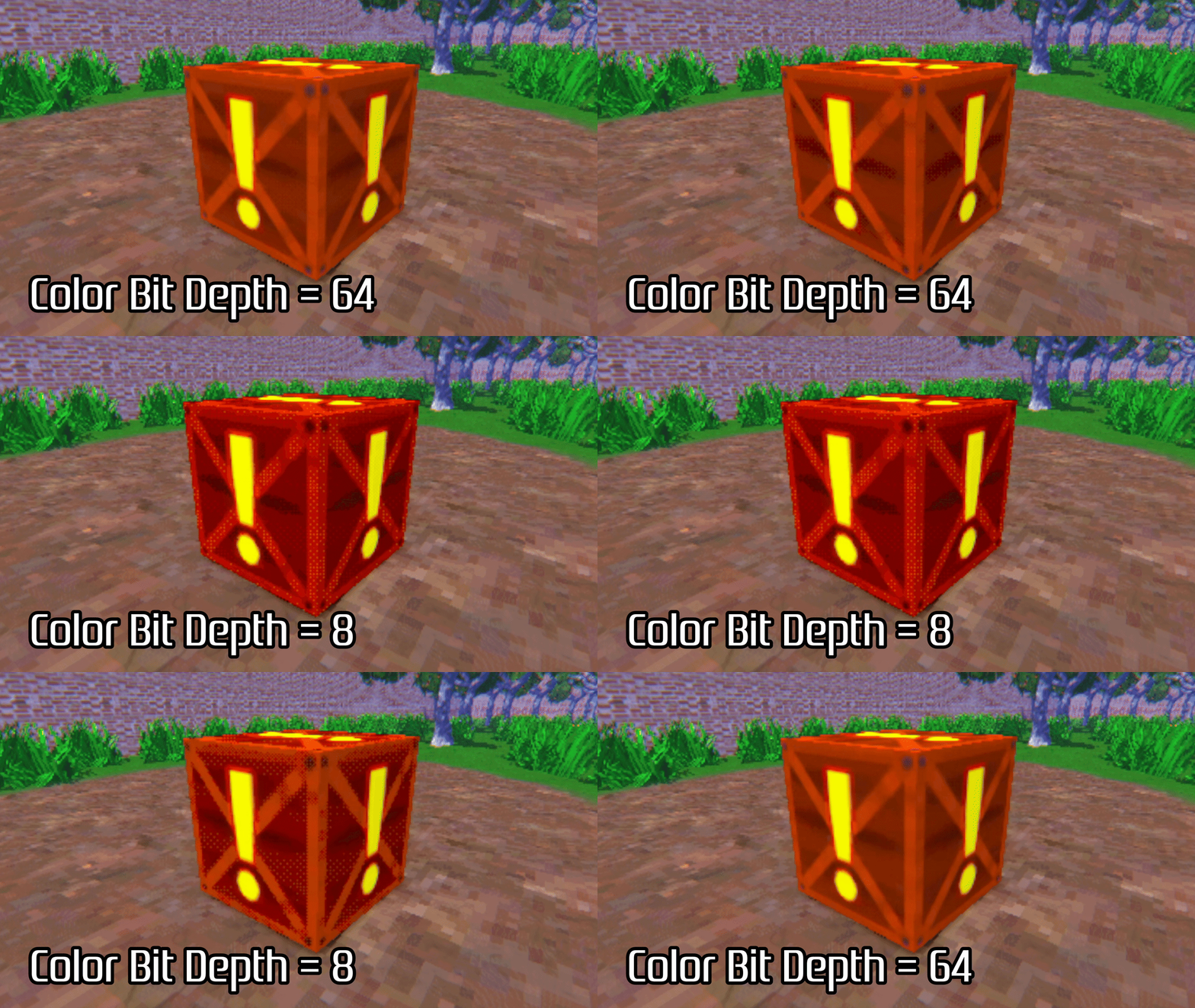
8 bits gives us 256 possible values for each color channel, whereas 5 bits would be 32 possible values, so we could hard-code that as the cap and be done with it. However, user customization is the name of the game when you’re creating an asset like this, and I thought it would be far better if we could configure this value per-material. After all, this also makes it easier to emulate the look of retro consoles other than the PS1.
I chose to implement this as a cap on the number of possible values for all color channels, so setting a value of 64 would correspond to 6 bits per color channel, for example. Internally, the shader rounds each color channel value down to the next ‘step’ based on the number of steps you specified, which can have a darkening effect on the overall color, so I also implemented an offset parameter which lets you brighten the color by a fraction of a ‘step’, e.g. an offset of 0.5 adds \(\frac{1}{bit depth} \times 0.5\) to each color channel.
Lights, camera, action
The PS1 supported very basic shading, with a choice of Gouraud shading, where lighting is evaluated at the vertices and interpolated for each of the pixels (in modern contexts, this might be called vertex lit), or flat shading, where lighting is evaluated only once for each primitive triangle and is uniform across that triangle. You could also choose not to shade objects, so they would appear fully bright at all times.
Lighting is one of the features of Retro Shaders Pro that changed the most drastically between updates. At the start, I split the core shader into three: the Retro Lit, Retro Vertex Lit, and Retro Unlit shaders, which supported per-pixel, per-vertex, and no lighting respectively. Although the PS1 didn’t support per-pixel lighting evaluation, I still thought it was worth including in the Retro Lit shader because sometimes we’re allowed to take creative liberties. If someone thinks their PSX-style game feels better to play and looks more appealing with per-pixel lights, then it’s worth including, even if it’s not technically accurate. And besides, maybe they’d like to use these shaders to emulate the look and feel of a different retro console! Power to the players, to steal a phrase.
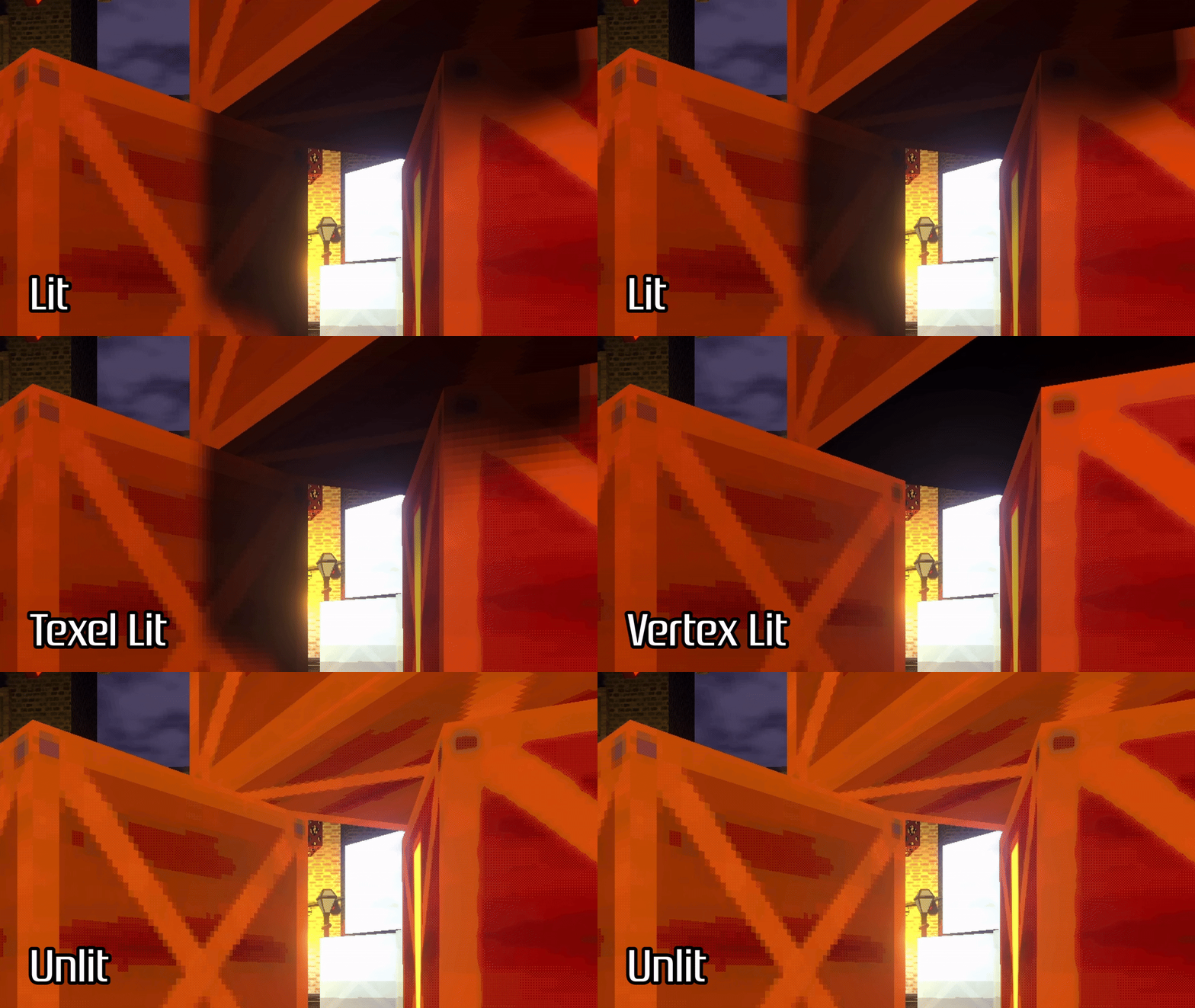
Later, I added a toggle to evaluate shadows once per texel, for an effect you might call ‘texel lighting’, ‘texel-aligned shadows’, or maybe just ‘pixelated lighting’. It’s something I first saw as part of Minecraft’s Vibrant Visuals, and then revisited when I did some contract work for someone who wanted exactly those kinds of shadows. They pointed me in the direction of this forum post where people were discussing the effect, and ended up implementing a solution which involves taking partial derivatives (with the ddx and ddy functions in HLSL) to ‘nudge’ the position of each pixel to the midpoint of a texel, then use that position in shading calculations. It’s a really cool concept and it works flawlessly.
It also put me in a bit of an ethical dilemma, since the user who contributed most to the discussion, GreatestBear, commented that they were unhappy with some asset pack developers who seemed to just slap their code onto the URP Lit shader and upload it as-is without attribution, which is honestly a bit of a scam, so I’ve tried to do my best to make it clear that I learned about this technique from that post - after all, I can’t really unlearn it once I’ve seen it, and I was really struggling to piece it together from first principles.
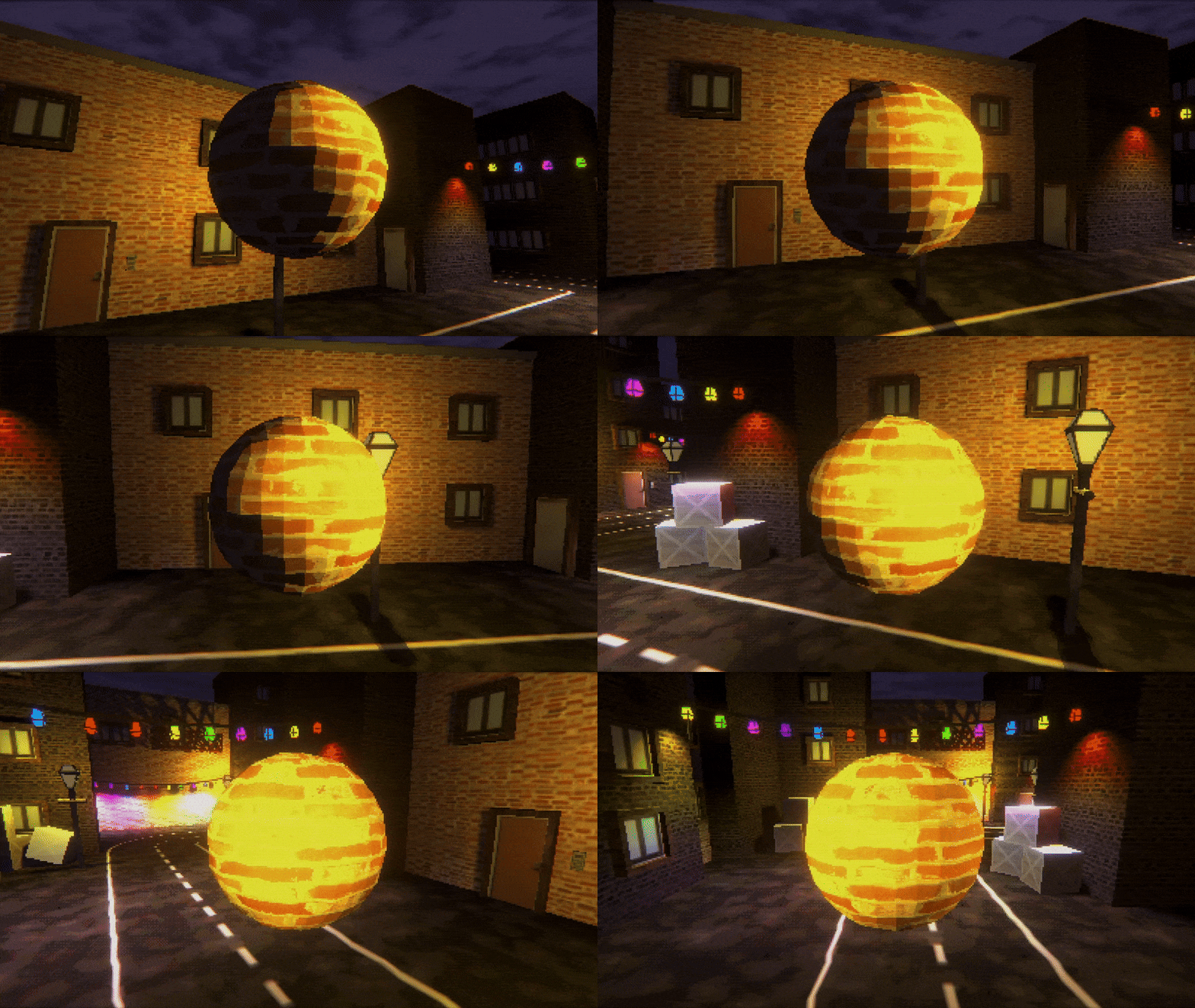
As part of the Version 1.5 update, I scrapped the individual Lit, Vertex Lit, and Unlit variants and the texel-aligned shadow toggle and unified the lighting types into just one Retro Lit shader with a single lighting mode parameter.
Maybe it’s a bit of an oversight on my part, but you originally couldn’t do flat-shading either. I finally added that as a toggle parameter in the latest update in response to an itch.io user’s reasonable request to add it as a feature.
What about shiny objects?
To simplify, lighting can be split into two components: diffuse lighting and specular lighting. By default, the lit shading modes will apply diffuse light, where the amount of lighting is proportional to the angle between the light source and the surface normal direction. In the Version 1.5 update, I added the option to add specular lighting, which is strongest wherever the viewing direction matches the light reflecting off the surface - essentially, specular lighting models the shiny highlight on an object.
This gif (which primarily shows off a reflective cubemap) also shows off a specular highlight from a street lamp to the left.
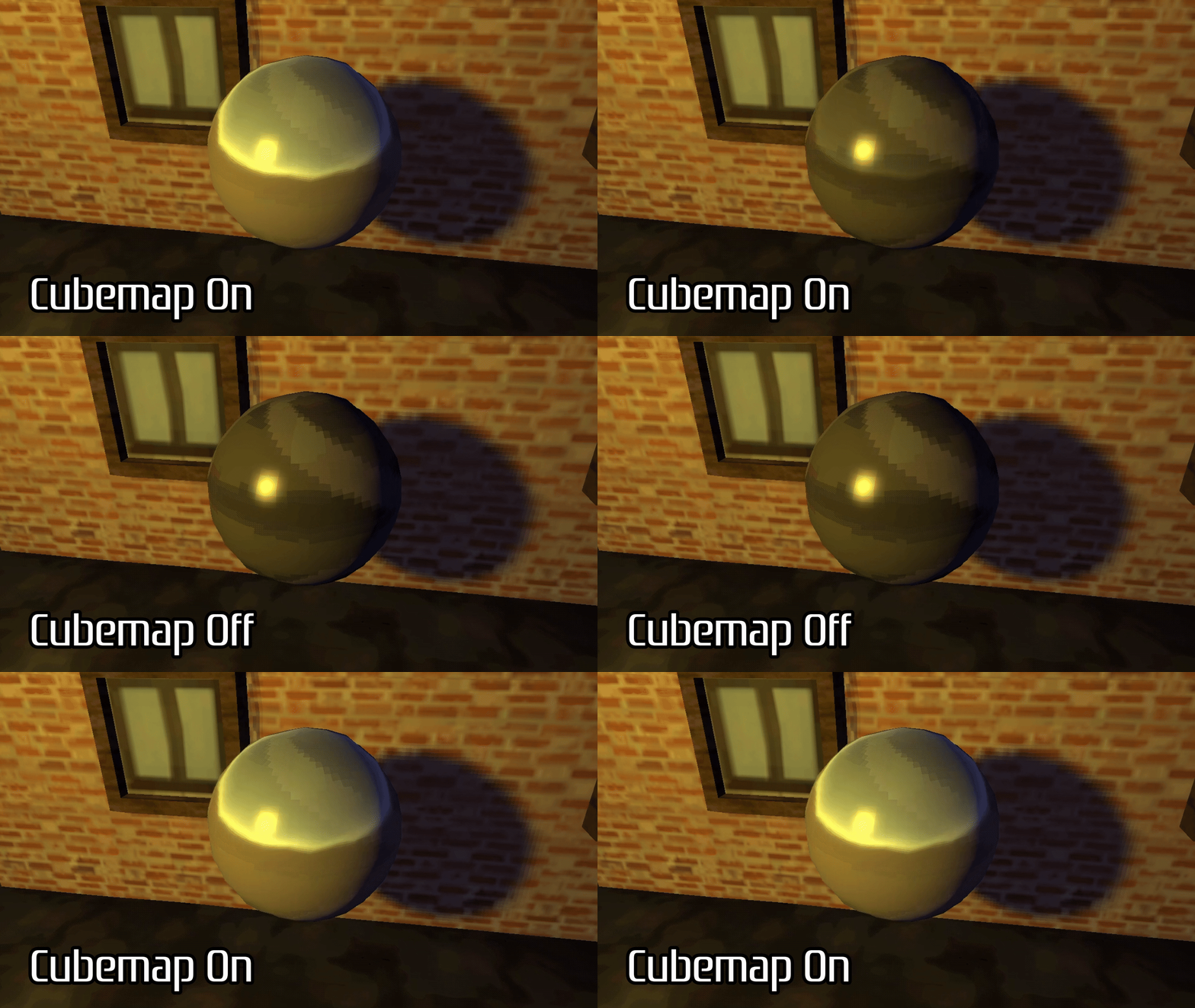
I don’t really do anything special here! The PS1 could handle specular lighting, albeit with Gouraud shading where lighting is only evaluated at the vertices, but the Retro Lit shader can also handle per-pixel lighting. You can change the size of the specular highlight with a glossiness parameter, where higher values make the highlight smaller, like you would see on a shiny object in real life.
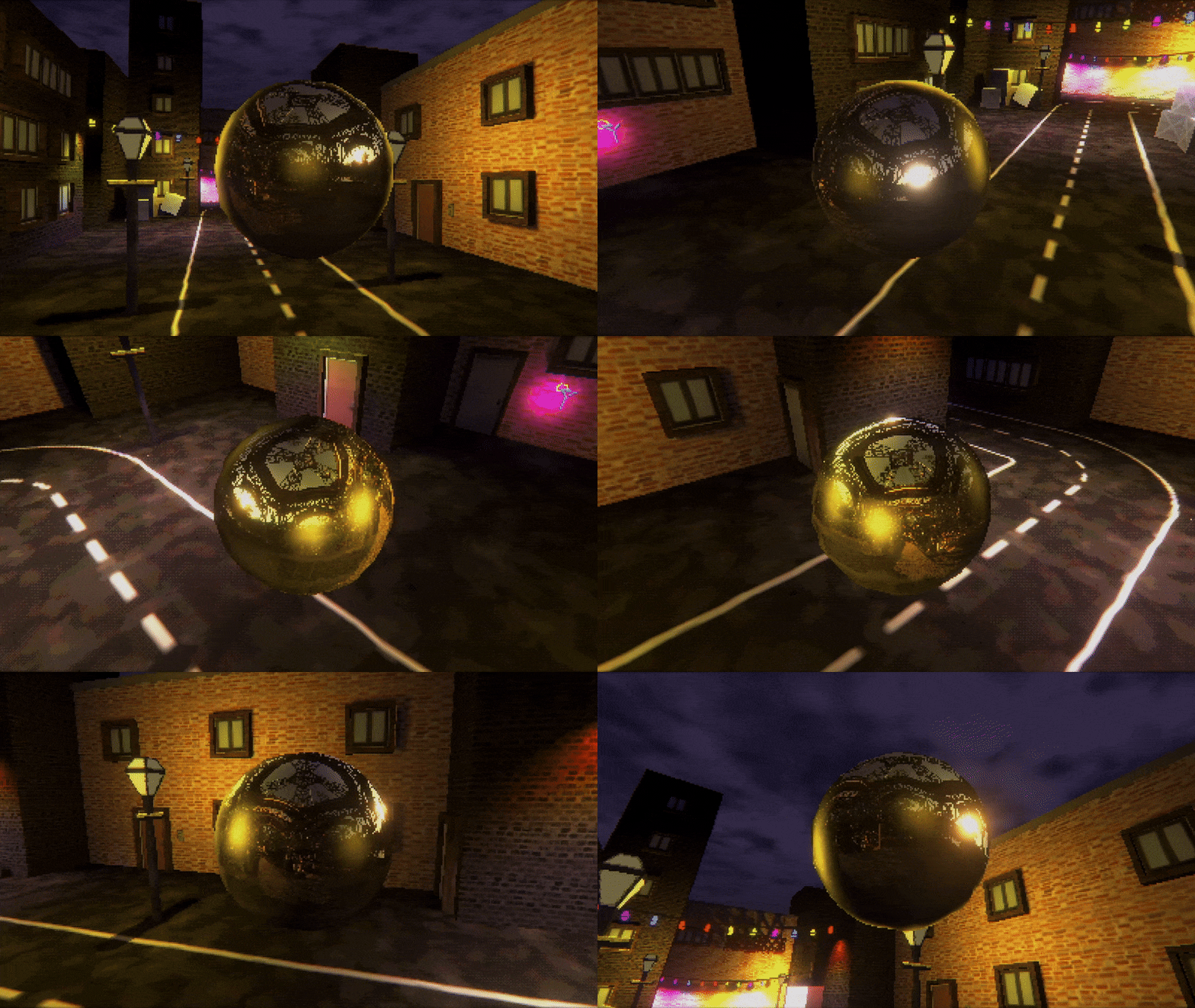
Speaking of reflective cubemaps, the PS1 could support these for reflective or metallic surfaces, although the texture sizes were rather low. A cubemap, conceptually, is made up of six square textures that you assemble into a cube shape and then sample by pointing a vector outward from the center of the cube and reading whichever part of one of the six flat textures you hit. If we take the view vector and reflect it in the normal of the surface of the object, then use that reflected vector to sample the cubemap, then we will see a cheap but effective environmental reflection on our object.
Where did all my color banding go?
Okay maybe this bit I’m doing with the headings is getting a little old.
As mentioned, the PS1 supported 15-bit color (5 bits for each channel) for most regular objects in the game, but as developers working in the modern age, we probably create assets with 24-bit color and display everything on a 24-bit screen. When this happens, there will be visible banding artifacts wherever a smooth color transition in 24-bits is quantized to 15-bits. There will be a hard stair-stepping color transition which may appear as bands of color.
To avoid this, the PS1 used dithering, where the edges of the bands are disrupted by adding small color offsets to each pixel on the screen in a specific pattern, usually a Bayer matrix. That means a smattering of pixels along the ‘hard edge’ will be quantized to the next color up and the transition from dark to light colors becomes slightly smoother.
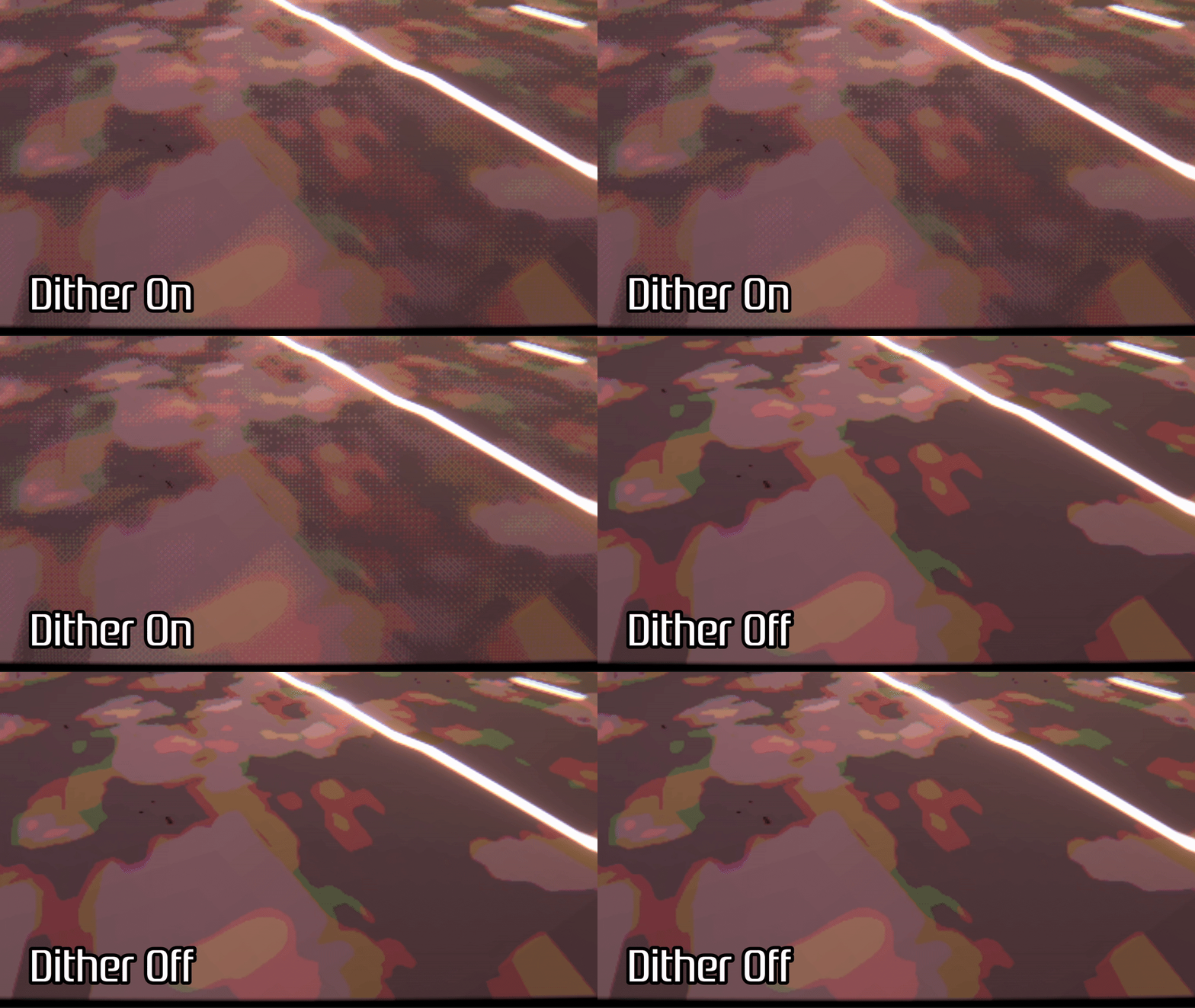
With dithering, the color transition will never look as smooth as if we had used 24-bit colors from the start, but it’s evidently better than nothing! And it’s very iconic of the PS1.
Originally, Retro Shaders Pro mapped the dither pattern to the texels of the base texture, but I eventually decided that you should be able to also map it in screen-space. This caused a bit of a headache for me - I’d chosen to let users set the bit depth per-material, but now I needed access to the pixel size used by the CRT post processing effect so that I could properly align the dither pattern to the new chunky screen pixels. I ended up just using a shader global variable which gets set during the CRT post process, which is a bit lazy, but it works.
Oh no I dropped all my pixels on the floor
I wanted Retro Shaders Pro to be as expansive as possible, so I wanted to make sure it supported terrains as well as regular objects. The terrain shader is fairly complex, but it isn’t too difficult to copy Unity’s URP terrain shader and essentially mod the PSX stuff into it. After all, at its core, the terrain shader is a bit like a lit shader that samples from up to four base textures, using a control map to provide weights for each of those four texture layers. I was able to implement the majority of the PSX features into the terrain variant, with some notable exceptions.
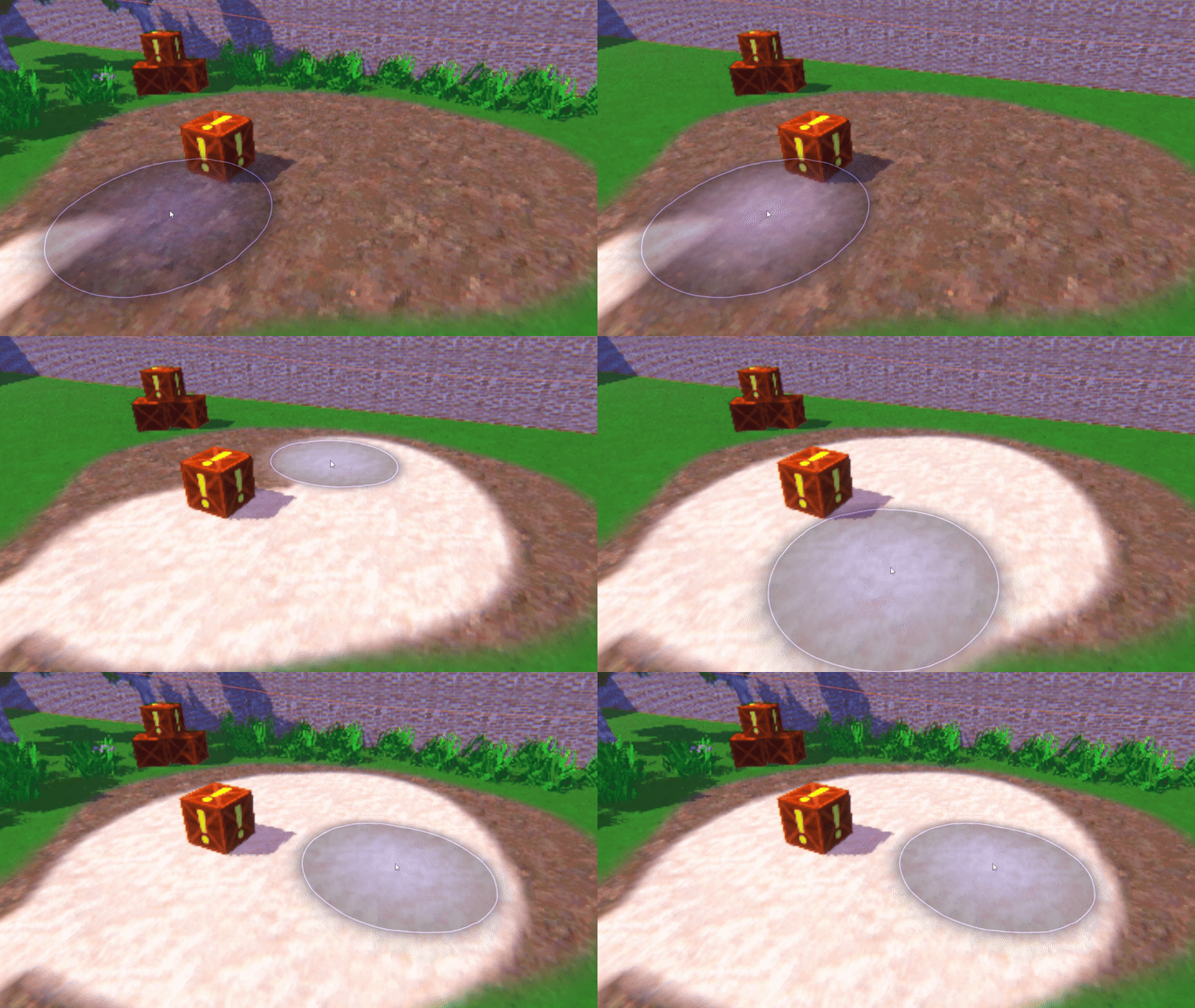
Firstly, I decided not to include affine texture warping into this shader, since Unity terrains already subdivide the mesh into smaller sections whenever the camera gets close to a part of the terrain. That’s an actual trick developers used in PS1 games to hide the most egregious occurrences of warping - the smaller a triangle, the less the z-value can differ across the surface of that triangle, hence the less obvious the perspective-less texture mapping will be.
Secondly, I decided to lock some of the behavior to the first texture layer, such as the resolution cap. Internally, the shader calculates the mip level to use for sampling using the texel size of that first layer and applies it to all four texture layers to save on computations. The same is true for texel-aligned shading. It’s best to use the same texture size for all texture layers if possible.
The URP terrain shader already needs to use a lot of interpolators (data passed from the vertex stage to the fragment stage), but my retro parameters required a few more so I increased the shader model target level to 3.5 (equivalent to OpenGL ES 3.0) so that I would have access to up to 15 interpolators. Currently I use up to 13, so I might be hampered if I want to add more retro parameters in the future - indeed, this limit would have made it difficult to include affine texture warping as a slider value rather than a binary toggle.
Oh no all my pixels just flew into the sky
A skybox is sort of like a massive sphere that you render behind everything else. The only real input you have access to is the view direction of each point on the sphere, so it’s common to use that to sample a cubemap texture, like we discussed for the reflection cubemaps but without the ‘reflection’ part.
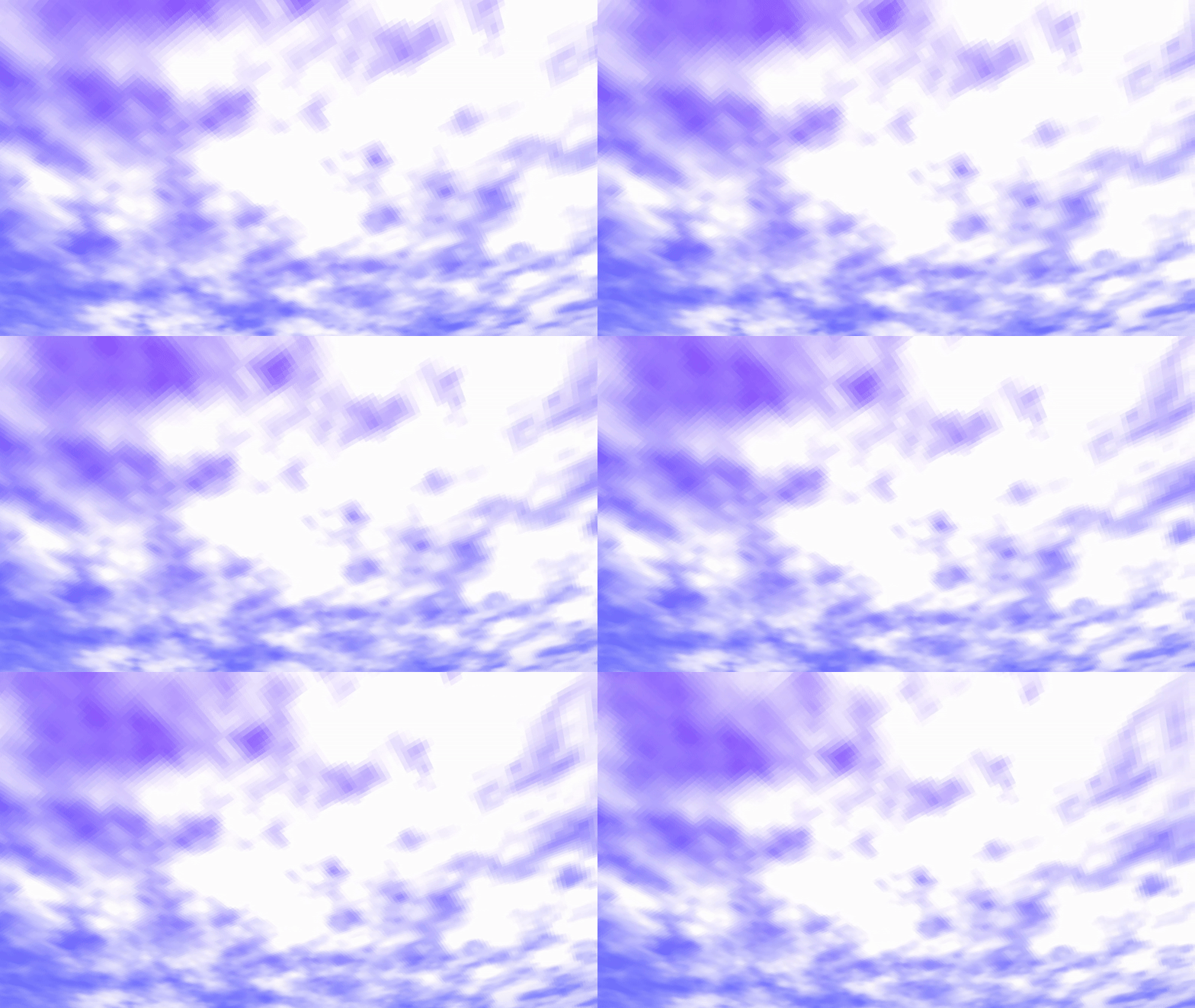
In the initial release, I decided to ship two skybox shaders: one would sample a cubemap and slap that onto the sky sphere, and the other would generate a cloud texture using Perlin noise and scroll it across into the sky. The cubemap variant was simple to create, but the procedural clouds use some fancy vector math to project the view vector onto a 2D plane raised above the horizon
I ended up combining them into one shader in Version 1.5, so you can do both, as well as pick between a cubemap or a color gradient for the sky background.
The skyboxes in real PS1 games were usually a mesh surrounding the scene objects, or just a plain color. I fondly remember games like Spyro, which used vertex-blended colors to make simple color gradient skies with basic shapes like clouds or the sun. I’m considering adding some sort of skybox mode which feels like those skyboxes, although I’m unsure how to recreate them yet.
What if my screen looked way worse?
PS1 games were not played on LCD or LED panels which, statistically speaking, you are reading these words on right now. The display technology that essentially everybody used back in the late 90s was the Cathode Ray Tube (CRT) screen, which were made of an electron gun that swept across the screen in lines to shoot a beam of electrons with fluctuating intensity to light up an RGB-colored phosphor screen. They didn’t have very high screen resolutions, and besides, the PS1 couldn’t output high enough resolutions for that to matter.
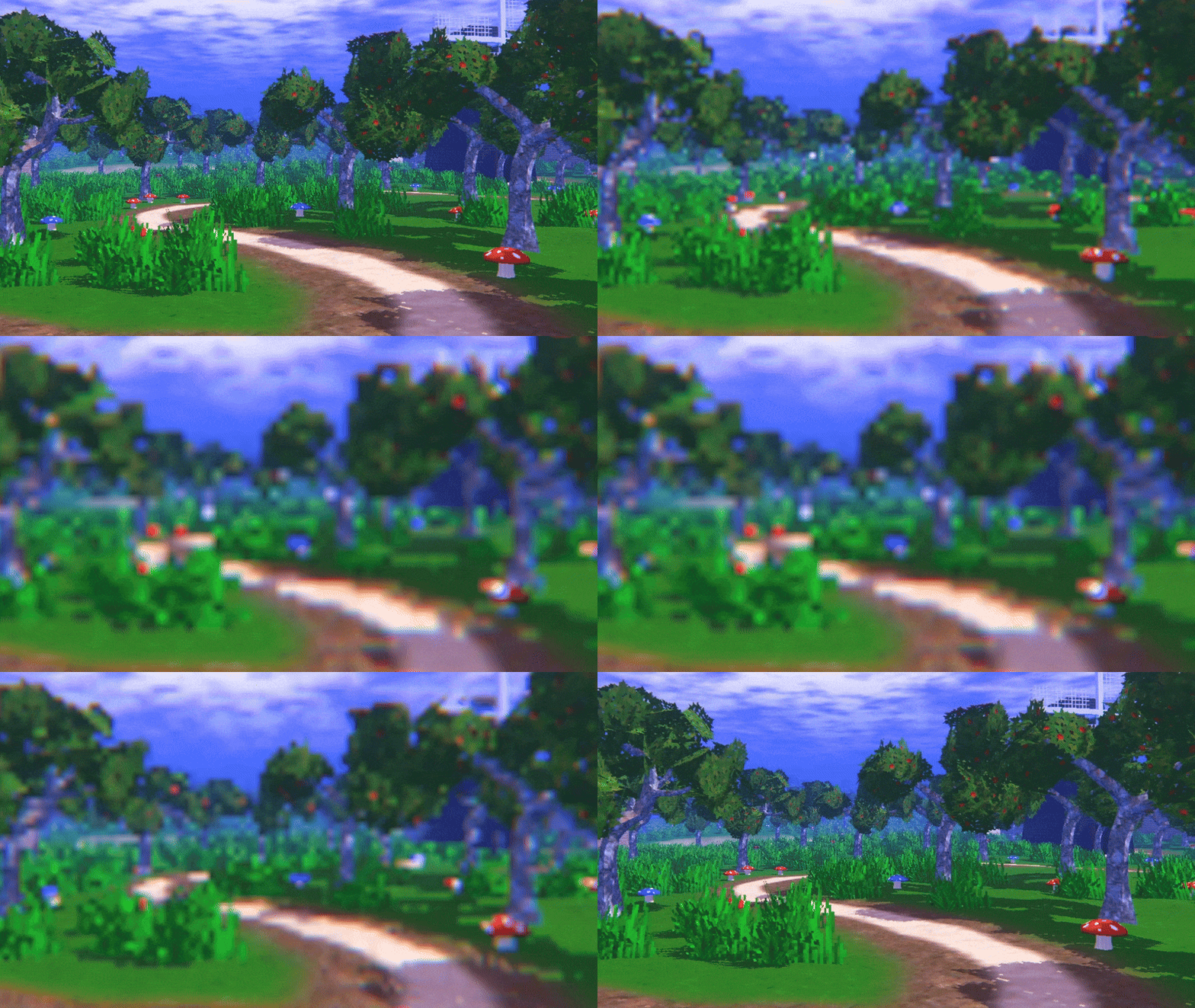
If the Retro Lit shader is the first core half of Retro Shaders Pro, then the CRT post processing shader is the second. First and foremost, you can reduce the output resolution of the game by downsampling the rendered game image and upsampling it back onto the screen. You can choose what type of sampling to use when upsampling - point filtering for sharp output pixels, or bilinear for a smooth, softened image.
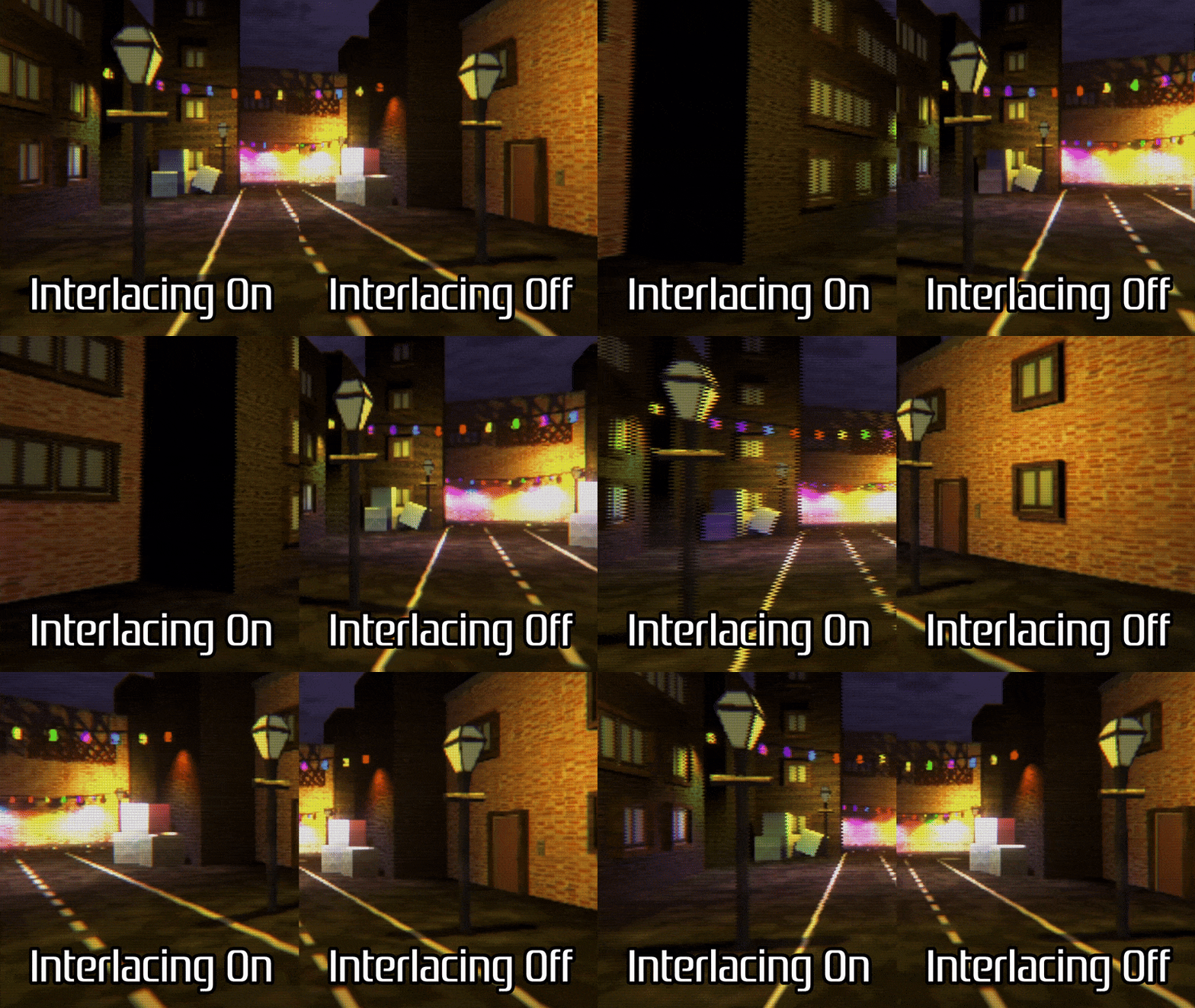
The PS1 could use interlaced rendering, where every other line of pixels is rendered on the first frame, and then the skipped lines are rendered on the second frame, alternating each frame. This technique is less performance-intensive than progressive scan, where all the pixels get rendered each frame. I was able to implement this perfectly in the CRT post process by holding onto a secondary screen buffer which saves the output of the previous frame, and actually only rendering alternating lines each frame.
Another characteristic of CRT screens (which is still present in modern display technologies) is that the output color is a mix of red, green, and blue components, and each output pixel uses individual red, green, and blue subpixels. You can see these with the naked eye, especially if you played games as close to the TV as I did. How I escaped childhood without needing glasses is beyond me.
The CRT effect is able to mimic the look of these subpixels by splitting each ‘chunky pixel’ into separate components according to a subpixel texture that you can specify. On top of that, you can emphasize the separation between scanlines on the screen using a separate scanline texture. When combined with a Bloom effect (which comes with URP) you can make the subpixels blend together a little bit, like they would on a bright CRT screen, for a subtler separation between the color channels.
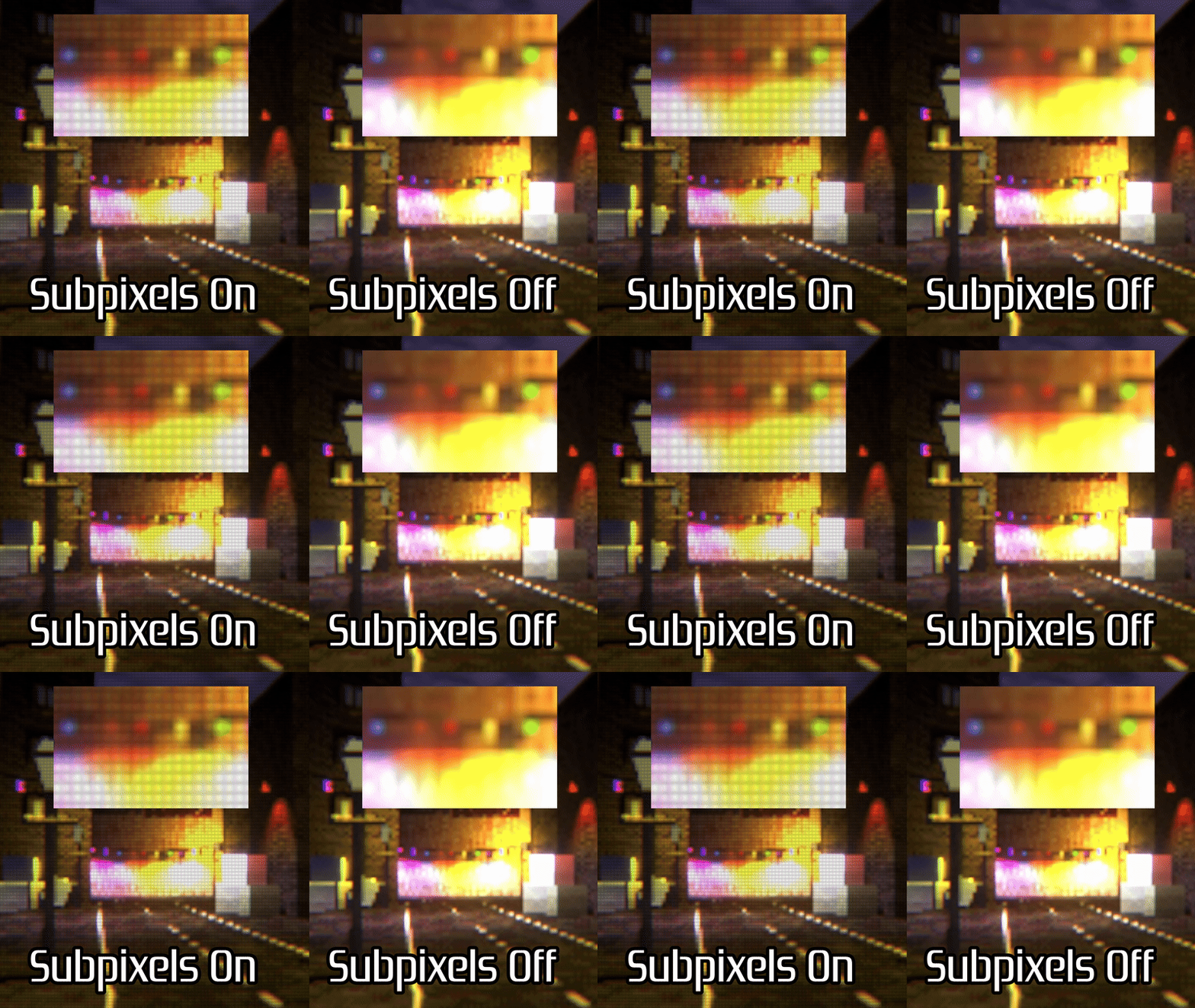
Later, I decided that you should be able to apply these effects to a regular object in your game, so that you could have a cool-looking CRT TV screen in the world. I ended up creating an unlit shader which works pretty much the same as the post process effect, but without any screen resolution-related parameters.
What if I want my image quality to degrade irreversibly?
When the PS1 came out, the prevailing home video format was the VHS tape, because DVD hadn’t been invented yet. It would take one more generation before the PS2 would come out as the best DVD player on the planet, and I guess it could also play videogames or something. Of course, the PS1 didn’t have anything to do with VHS tapes, but this is Retro Shaders Pro, and VHS tapes certainly feel retro.
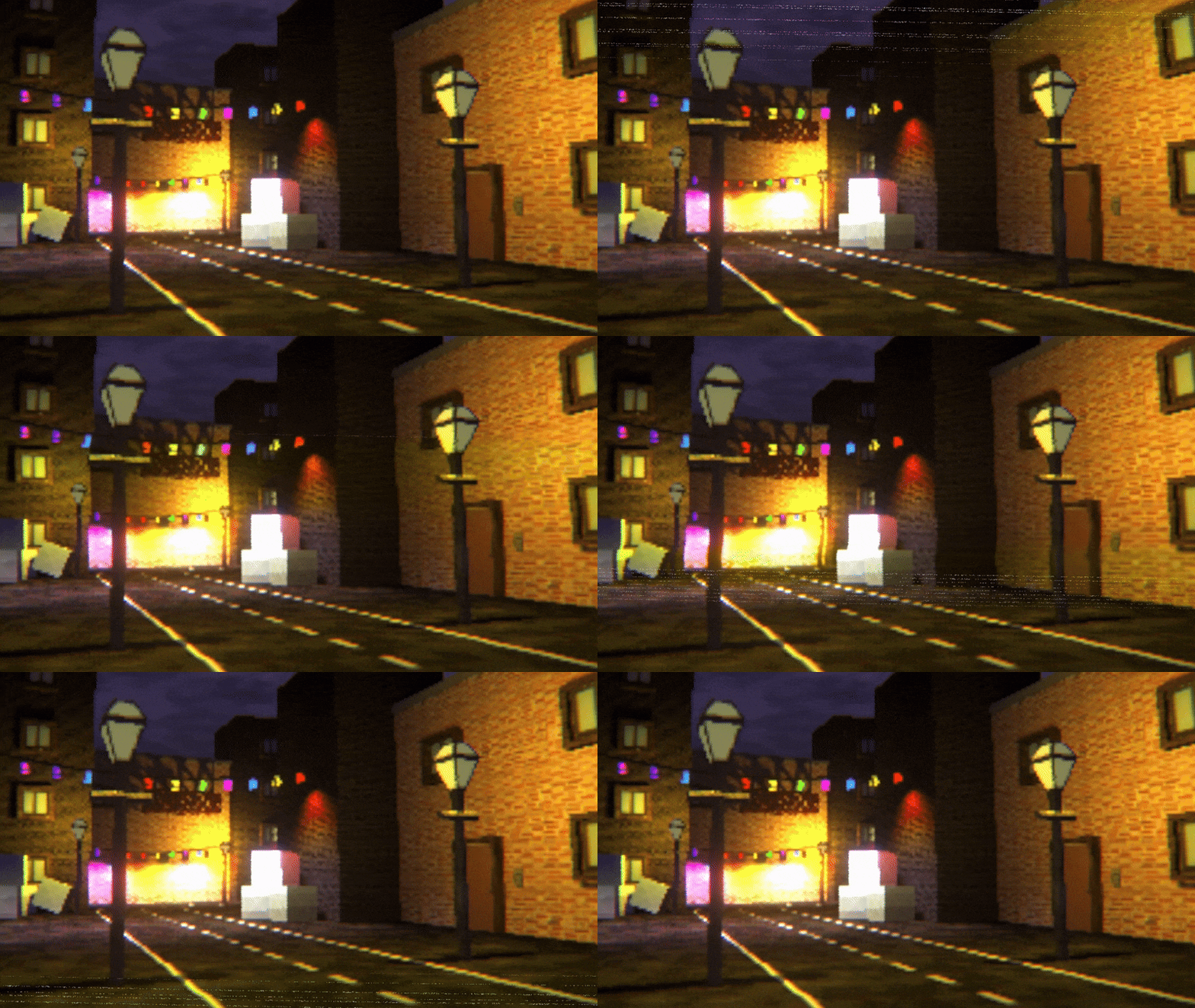
VHS tapes were infamous for their shoddy image quality, as they were made up of magnetic tapes that were mechanically operated and could easily be damaged over time. The tapes suffered from various kinds of visual artifacts, but I chose to focus on VHS tracking, which occurs whenever the playback head of the VCR reading the tape is misaligned with the tape itself. It can cause fuzzy horizontal lines, color damage, and image warping.
It’s pretty difficult to recreate all of these effects faithfully, because the severity of these artifacts varied wildly based on the quality of the VCR and the age of the tape. I tried to implement each of these visual flaws as closely as I could, with many parameters for the speed, size, and severity of the distortions. It can actually be quite hard to use random numbers in a shader since you only have access to a relatively small amount of data passed into the shader, so we often use hashing algorithms with something like a screen position as the seed to get pseudorandom values. I used those values for the screen fuzz effects and random jittery movement.
What if I want to be even more retro-y than the PS1?
There are dozens of retro consoles in existence, and it probably wouldn’t be feasible to put together a shader pack which could faithfully recreate the quirks and oddities of each one, but it is possible to at least approximate the color palettes of some of them as part of the CRT post process. That is easier said than done. For example, let’s read Wikipedia’s explanation of how the Nintendo Entertainment System works:
The Picture Processing Unit (PPU) used in the Nintendo Entertainment System generates color based on a composite video palette.[5]
The 54-colors can be created based on four luma values, twelve combinations of I and Q chroma signals and two series of I = Q = 0 for several pure grays. There are two identical whites, one of the blacks has less-than-zero brightness, and one of the lighter grays is within 2% of another, so sometimes the palette has been reported to have 52 to 55 colors.
In addition to this, it had 3 color emphasis bits which can be used to dim the entire palette by any combination of red, green and blue. This extends the total available colors to 448, but inconveniently divided into 8 variations of the base 56. Because it affects the whole palette at once it may be considered more of a filter effect applied to the image, rather than an increased palette range.
How do we map 24-bit color onto this strange color setup in realtime inside the shader? That’s the neat part - you don’t. When I added color filters to the CRT effect, I decided that some of the filters would just be approximations of the real color ranges possible on a given console. The NES filter crudely supports three color values for each color channel for a total of 27 colors (which is the furthest from the true range the console supports out of all the filters I added).
Other consoles restrict the total size of the palette, with an additional restriction on the number of simultaneous colors shown on screen. The SNES used a 15-bit palette with a total of 32,768 possible colors, but could only support 256 colors on screen at once. For consoles like that, I only implemented the total palette size restriction, since it would be quite difficult to find a way to optimally pick just 256 colors which can represent the original image and apply them to the screen, all in realtime.
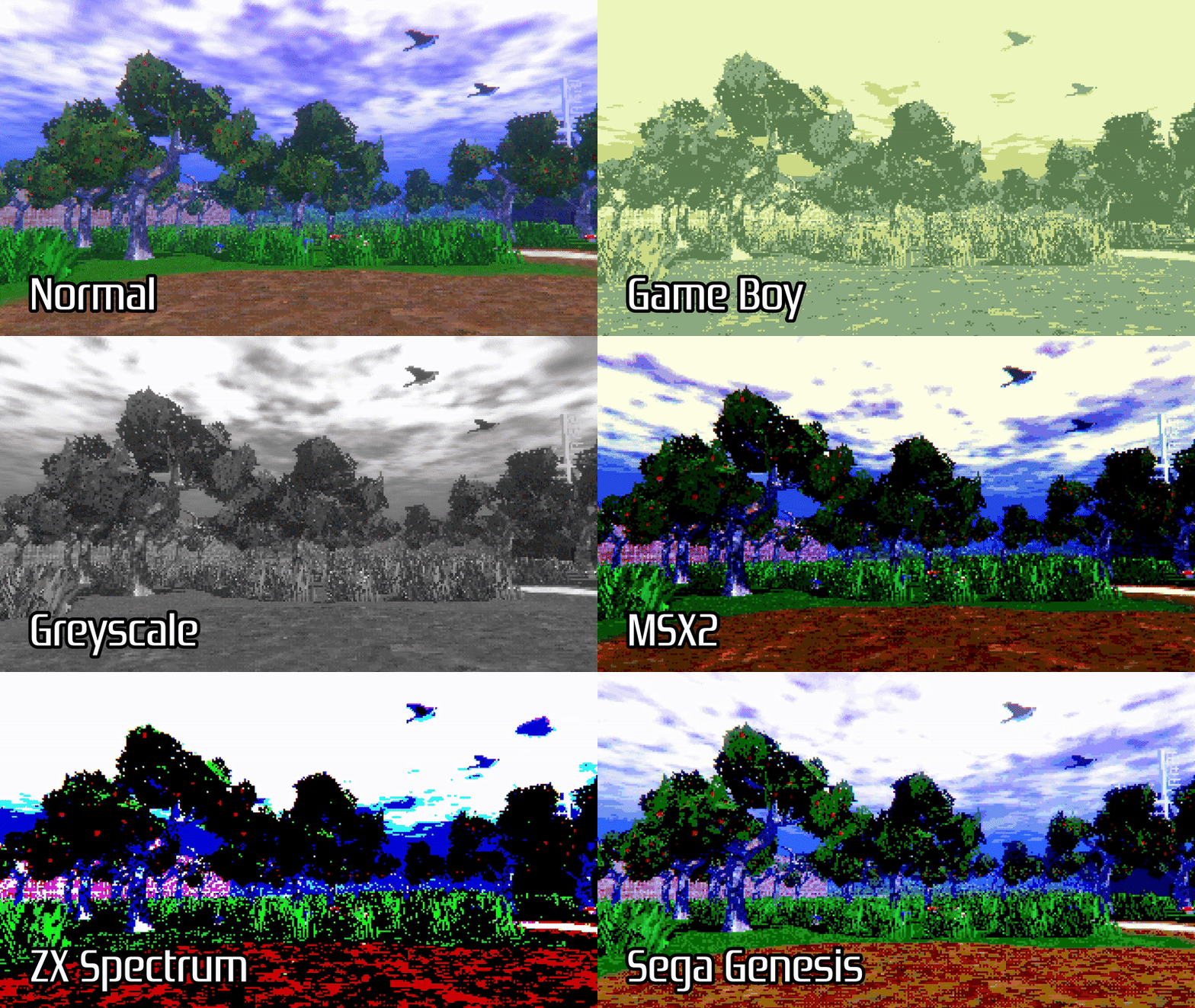
I was able to implement a wide range of palettes: the Game and Watch, Game Boy, Game Boy Advance, Nintendo DS, NES, SNES, MSX2, IBM PS/2, Amstrad CPC, Teletext, ZX Spectrum, Sega Master System, Sega Genesis, and Sega Game Gear are all here, plus a Greyscale mode. Embarrassingly, and I’m only noticing this now that I’m writing out this list, I’m missing the PlayStation 1, which is very funny. It’s the same as the SNES.
What about stuff other than regular objects?
Although the original release and many of the subsequent updates focused on the core Retro Lit and CRT shaders, I thought it was worth expanding the kinds of shader offered in the pack. Firstly, I added a Retro Decal shader which works with the URP Decal Projector to overlay a texture onto whichever objects in the scene you’d like.
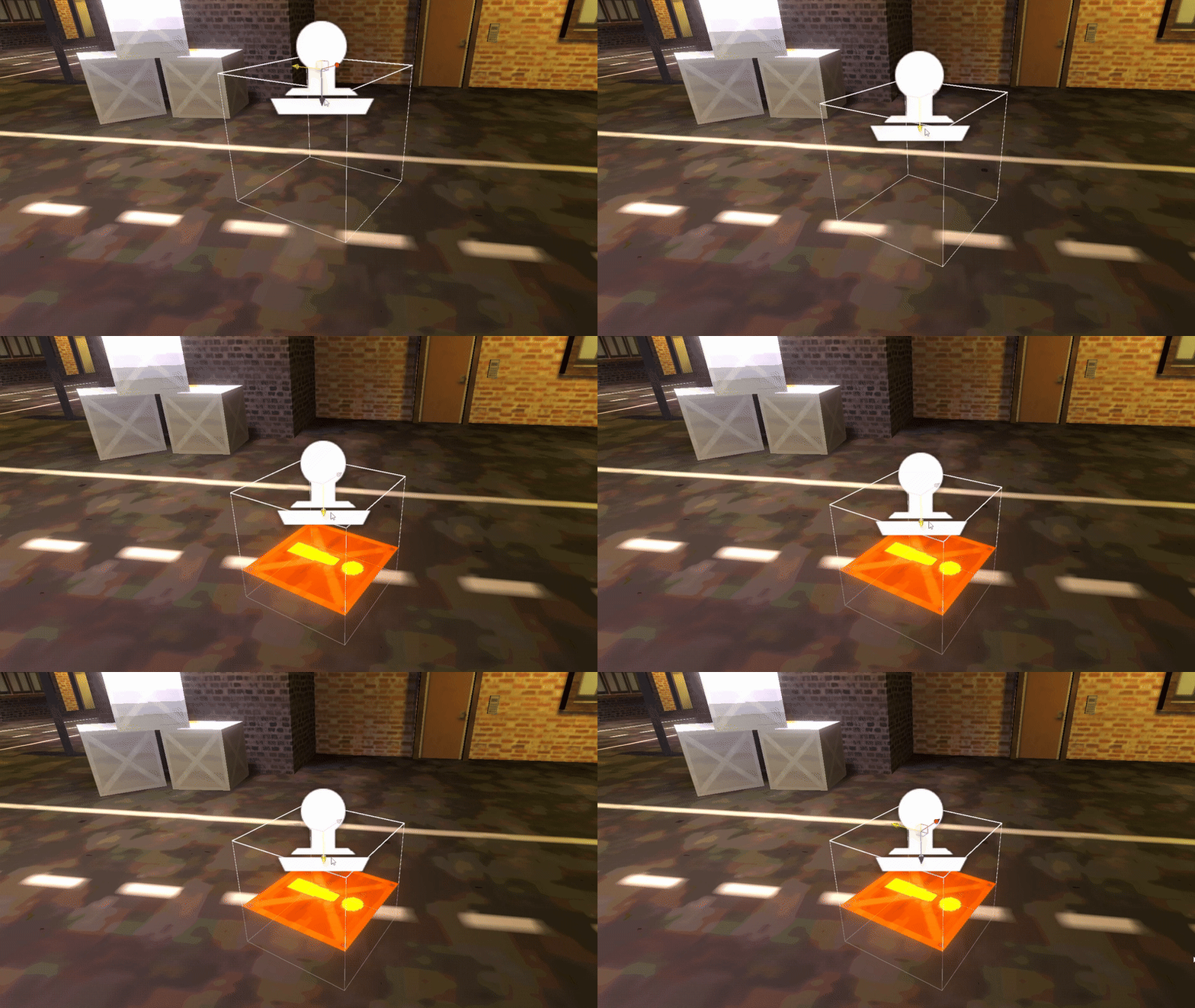
I haven’t included many of the retro parameters in the decal shader so far - mainly just the resolution limit, color bit depth cap, and dithering toggle - but I’m looking into expanding the features of this shader in the future. It is implemented in Shader Graph, rather than HLSL like most of the effects in the pack.
Speaking of Shader Graph, I included a couple of graph versions of the Retro Lit and (now discontinued) Retro Unlit shaders, so that it would be easier for shader newcomers or those who are more experienced with Shader Graph over code-based shaders to modify and add their own features to the retro-style shaders already in the pack. Although once again, I couldn’t include every retro feature, since Shader Graph makes it a little hard to do so in some cases, I think it’s worth making things a little easier for anyone wishing to extend the capabilities of the asset pack.
I also decided to include a basic outline shader in a recent-ish update. One of the simplest techniques is called inverted-hull outlines, because all you need to do is render the mesh a second time with a second material, flipping the facing direction of each triangle and expanding the mesh slightly by moving each vertex along its normal direction.
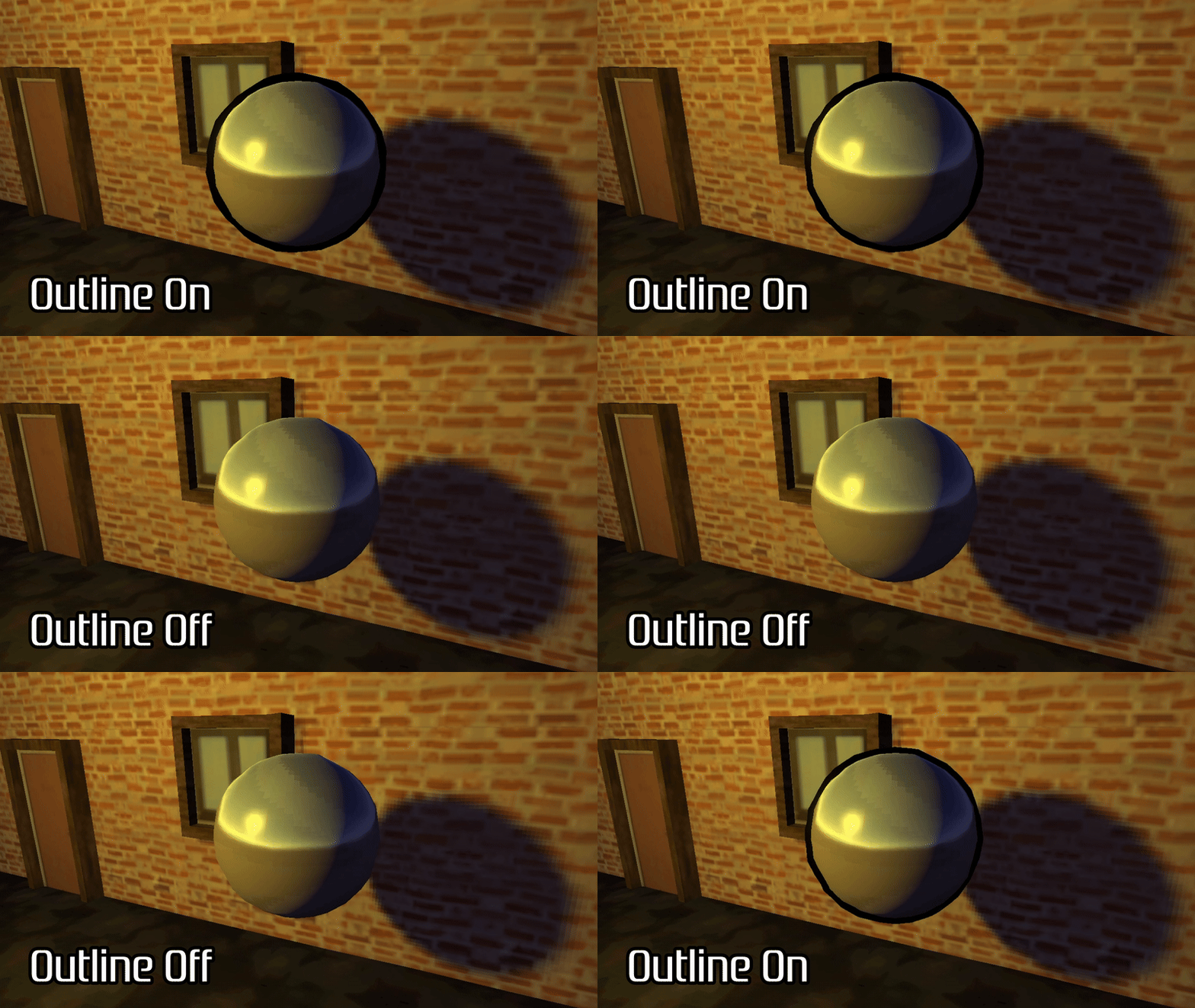
The only real retro-style property to implement is the vertex snapping functionality, so that the vertices wobble about along with the base object you’re outlining. I think this style of outline was much more common on the PS2 rather than the PS1, but I think it’s worth including as a little bonus!
Woah all my editor windows are fancy schmancy
One final feature that I didn’t want to go overlooked is the custom editor windows that come with Retro Shaders Pro. Many of the shaders in the pack internally use several keyword toggles and hidden properties which look messy when displayed in the Inspector with the default material GUI, so I put a lot of work into cleaning up these editor windows a bit and, where possible, hiding some parameters whenever another toggled parameter makes them redundant or inactive.
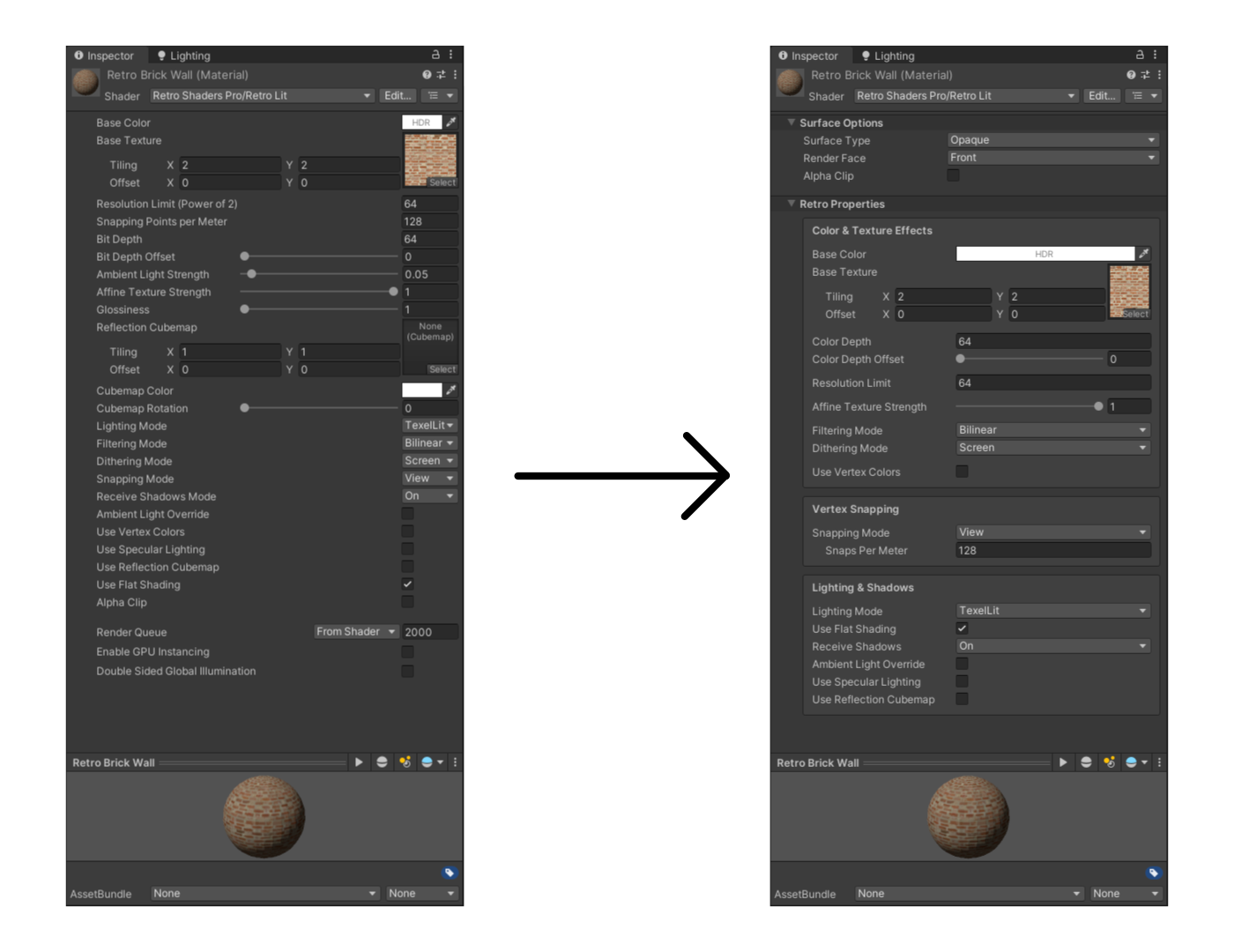
Unity’s editor scripting capabilities are very powerful, so if you do choose to make an asset pack, I would strongly recommend putting in a little bit of time to learn about it! I’m able to do automatic checks, set or unset keywords, and validate input, and it’s possible to add warning or error messages and even buttons to auto-correct problems right there in the editor (although I do that more often in some of my other asset packs like Snapshot Shaders 2). When I merged all of the Retro Lit variants into one shader in Version 1.5, I was able to implement a button in the editor which lets you auto-update deprecated shaders like Retro Vertex Lit to the new Retro Lit - in that example, the script would set the lighting mode to Vertex Lit as needed.
Publishing
Once you’ve created everything to go in your asset pack, you’ll need to think about all the extra bits: writing documentation, creating promo images, and writing about everything your asset pack offers so that you can create the store page. Try to put yourself in the shoes of someone who knows nothing about your asset at all: does your description accurately portray what your asset pack offers? Would the screenshots entice you to try it out? This can be pretty difficult, and I probably don’t hit the mark every time with my assets, but I’ve tried my best to at least make it clear what Retro Shaders Pro can do, and what it is for.
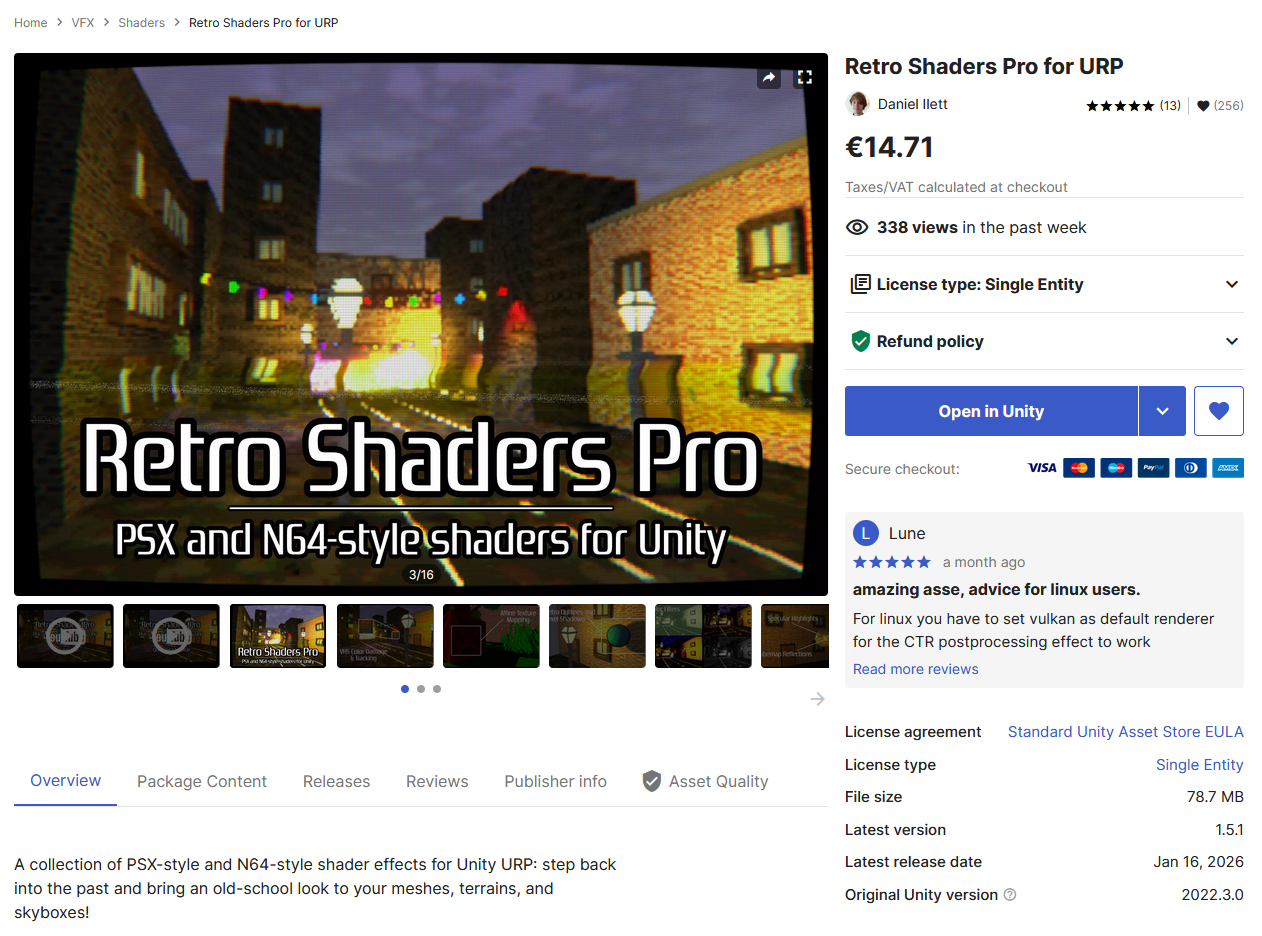
When your store page is ready to go and you hit submit, Unity will review the asset and decide whether it can go up on the store. This can take a surprisingly long time! There have definitely been times in the past where a one month wait wouldn’t be surprising, although it might be better now. I will say, your experience will improve if your first asset is decently popular, as the Asset Store has a system where once you reach specific sales thresholds, you are put into a faster queue for certain operations: first, you can update metadata quicker, then updates to existing assets, and finally submissions for new asset packs.
If your asset is rejected, that usually doesn’t mean it will never be allowed on the store. It probably just means they want you to make some changes, which they will tell you about. When you use the Asset Store uploader tool, it runs a few checks for common mistakes, such as improperly setting prefabs, using lossy-compressed images, or missing documentation - try and make sure there are no warnings, or you have a good reason for breaking any of the checks.
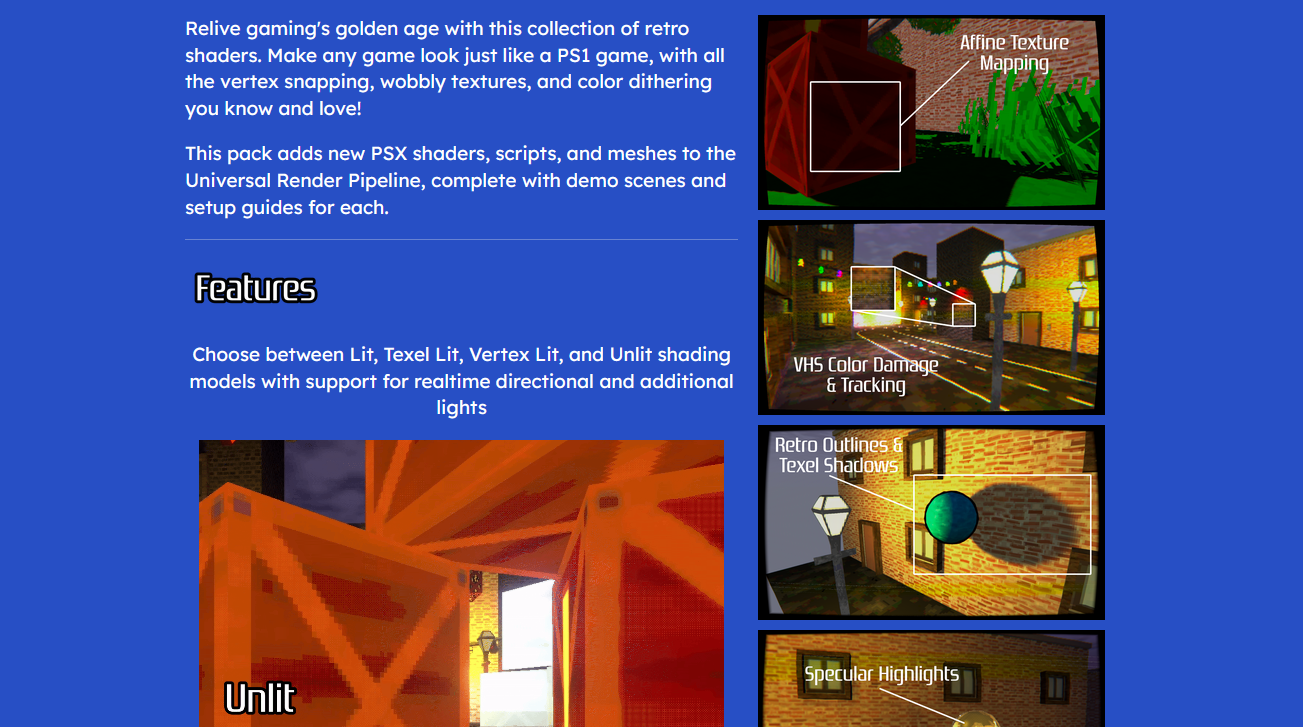
It’s also worth thinking about other storefronts and tailoring your pages to each one. I also publish on itch.io, Gumroad, and Fab, and while those latter two are largely the same as the Unity Asset Store page for Retro Shaders Pro, the itch.io page is vastly different because I was able to embed gifs directly on the page (although I needed to host them on my own site).
I have, unfortunately, had some negative experiences with the Asset Store, which were quite annoying to deal with.
Name Changes
The first annoying thing is unlikely to apply to you unless you get unlucky, but long story short, I had to change the name of my asset to get it onto the store. Short story long, it was originally called PSX Shaders Pro (and the URL for the version on itch.io still reflects as such, since I guess they’re less strict with names over there), but my asset was rejected because Unity were worried about ‘PSX’ being a trademarked name.
That’s a fair enough point, and that’s legitimately on me for assuming ‘PSX’ was some sort of community-driven name for the general visual aesthetic of PlayStation 1-esque games. I don’t have a legal team (I am just three geese in a trench coat, after all) and it’s probably a good sign that Unity check more than just the package contents in service of creating a healthier asset ecosystem. Or something like that.
It would be easier to think that if there weren’t dozens of assets on the store with ‘PSX’ right there in the name, some of which released after my asset. I accept that this is a personal frustration of mine, one that doesn’t matter all that much in the grand scheme of things, and in a way, changing the name to Retro Shaders Pro did open the door to expanding the pack into N64, VHS, and console color palette effects, so maybe I should thank them.
I was still really annoyed when it happened.
Reviews
The second annoying thing, which you probably will need to handle if your asset gets popular enough, is that you’ll sometimes receive feedback that you think is a little wonky. Take reviews for example. These are really helpful for deciding whether to buy an asset if the people leaving them are accurately representing that asset. Sometimes, though, people seemingly use one-star reviews to vent frustration. I’ve had a small handful of instances where I’ll find out about a problem with one of my assets via a review - please don’t do that!
I’m saying this with no particular disrespect to anyone who has done this, but it really sucks when this happens. Asset Store developers don’t get notified when they receive a review, so you’ll receive help with your problem much more slowly than by reaching out to the developer in basically any other way. I include my contact email on my store developer page and in the README which comes with every asset pack I make, use that! I need to stumble upon the review page to even have a chance of seeing the problem, and then I can’t easily ask for any additional details about when the problem happens, or which version of the asset or Unity you were using, or what platform you are building your game for, all of which is useful context for finding the source of a bug.
And then sometimes even if you find and fix the bug swiftly, the person will just leave that unflattering review up for the past five years because fuck me, I guess. I try not to be annoyed by it, and I try to respond cordially when this happens - after all, I really do want to solve these problems and I don’t want people to feel like they spent money on something that broke - but it is rather frustrating.
I feel as though the Asset Store could really use a more streamlined system to log an issue right there in the Unity Editor or the Asset Store website which opens a dialogue between the publisher and the user. That would also solve, or at least alleviate, the problem where sometimes emails just land in my spam folder, and somebody gets (understandably) upset that I missed their support request.
That said, the overwhelming majority of reviews are polite, and when you do get a bad review, try not to take it personally and make your best effort to address what the person was complaining about, and that review may just change to four or five stars or get deleted.
Wrapping things up like it’s Christmas Eve
The Unity Asset Store and other marketplaces like it are fantastic sources of models, code, textures, animations, and shaders which will help you to prototype your game faster, or cover parts of development that you don’t quite have the know-how or time to do yourself. With Retro Shaders Pro, I’ve made my best attempt at giving people the power to recreate the unique oddities of the PS1’s visual style, with a heap of extra features thrown in there to expand into retro-style assets beyond just the PS1.
I hope this has given you some insight into the decisions I needed to make while creating this asset pack! This turned out far longer than I had planned because I had much more to talk about than I thought, but I’m happy to put some of my thoughts onto digital paper in the hopes someone finds it interesting or feels inspired to try making shaders or assets of their own.
Until next time, have fun making assets!
Oh and if you liked this article, it would be swell if you grabbed a copy of Retro Shaders Pro! There’s a (slightly different) version for Godot Engine, too.