In Part 3, we learned about transparency, and how we need to sort transparent objects back-to-front before rendering to ensure the correct color result because transparent shaders blend their color with the existing screen contents. In Part 4, we’re going to learn about the depth buffer, and how it ensures that objects are drawn in the correct order.
Sometimes when Unity draws an object, all or part of it should be obscured by another object that was already drawn in the scene. But how do we know which one should be drawn over the other? It’s not sufficient to just draw each object in full in a back-to-front order, because some oddly shaped objects can have parts which appear both in front of and behind another object. The ordering needs to be done in a per-pixel manner, which is where the depth buffer comes in.
The depth buffer is essentially a secondary image with the same dimensions as the color buffer (the one you see on the screen when everything has been rendered), but it only contains one channel of data. Whenever we successfully draw an opaque object to the color buffer, we also store its distance from the camera inside the depth buffer, using the z-component of its clip-space position. For this reason, the depth buffer is also referred to as the z-buffer.
When we attempt to draw part of an object, if its z-value is less than the z-value inside the z-buffer, then we know this object is closer to the camera than the previously-drawn thing at this screen position, so we can draw it and overwrite the screen color and the z-value inside the depth buffer. Otherwise, we can discard this part of the object, because it is hidden. This comparison step is called depth testing or z-testing.
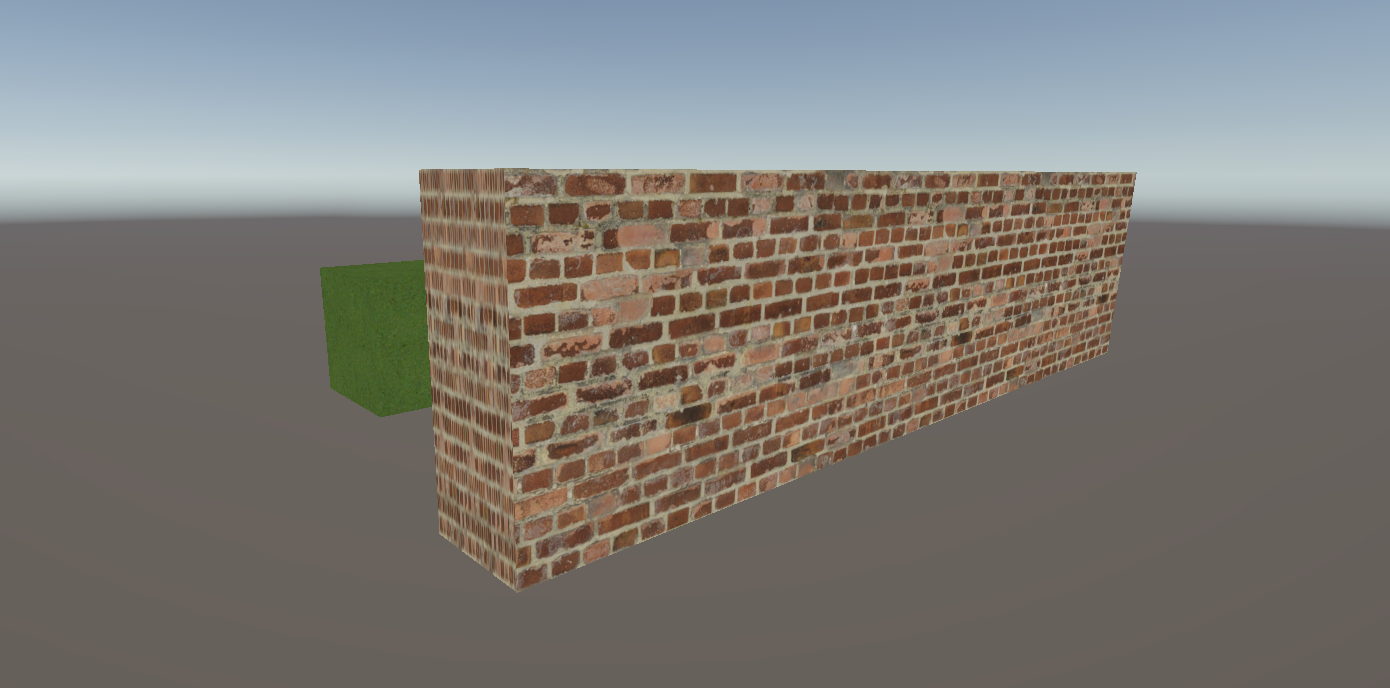
In this example, even though the center point of the large wall is behind that of the small cube, the wall still obscures the cube because the depth buffer works per-pixel:
Transparent objects also use the depth buffer, but they typically only do depth testing to check if they should be visible, and they don’t overwrite the depth buffer values by default (although you may choose to enable depth writes for transparent objects if you wish).
In the hopes of capitalizing on the performance gains you can get by skipping the fragment shader, opaque objects are usually sorted in a front-to-back order so that we draw objects likely to actually appear on-screen first and fill the depth buffer with their z-values, and then we’re more likely to discard fragments when we draw objects later in the list. This incurs a CPU performance hit, but usually comes with GPU gains.
You may have noticed that the opaque shaders we have written so far already exhibit this behavior without us needing to add depth tests to the shaders, because Unity applies them by default, but let’s explicitly add depth testing to see how it works. I’m going to directly modify the BasicTexturing shader from Part 2, but you can do this in any opaque shader you want. We’ll talk about transparent objects later. Here’s what I’m starting with:
Shader "Basics/BasicTexturing"
{
    Properties
    {
        _BaseColor("Base Color", Color) = (1, 1, 1, 1)
        _BaseTexture("Base Texture", 2D) = "white" {}
    }
    SubShader
    {
        Tags
        {
            "RenderPipeline" = "UniversalPipeline"
            "RenderType" = "Opaque"
            "Queue" = "Geometry"
        }

        Pass
        {
            HLSLPROGRAM
            #pragma vertex vert
            #pragma fragment frag

            #include "Packages/com.unity.render-pipelines.universal/ShaderLibrary/Core.hlsl"

            CBUFFER_START(UnityPerMaterial)
                float4 _BaseColor;
                float4 _BaseTexture_ST;
            CBUFFER_END

            TEXTURE2D(_BaseTexture);
            SAMPLER(sampler_BaseTexture);

            struct appdata
            {
                float4 positionOS : POSITION;
                float2 uv : TEXCOORD0;
            };

            struct v2f
            {
                float4 positionCS : SV_POSITION;
                float2 uv : TEXCOORD0;
            };

            v2f vert(appdata v)
            {
                v2f o = (v2f)0;

                o.positionCS = TransformObjectToHClip(v.positionOS.xyz);
                o.uv = TRANSFORM_TEX(v.uv, _BaseTexture);

                return o;
            }

            float4 frag(v2f i) : SV_TARGET
            {
                float4 textureColor = SAMPLE_TEXTURE2D(_BaseTexture, sampler_BaseTexture, i.uv);
                return textureColor * _BaseColor;
            }

            ENDHLSL
        }
    }
}
Inside the Pass block in ShaderLab, right before the HLSLPROGRAM block, we can add two new commands. The first is ZWrite, which lets us choose whether to write z-values to the depth buffer whenever the shader passed the depth test. By default, opaque objects (including those in the AlphaTest queue) use ZWrite On, and transparent objects use ZWrite Off.
The second command is ZTest, which specifies the comparison operator to use for the depth test. The default value is ZTest LEqual, which performs the check that I described above: if the object is closer to or the same distance from the camera than any previously drawn object, then the depth test passes and the object gets drawn.
Pass
{
    ZWrite On
    ZTest LEqual

    HLSLPROGRAM

    ...
}
There are many options for the depth test, such as Greater which passes if the current object is further away than any existing object, Always which passes every time regardless of the depth, and Never which fails every time. Most of the rest are Boolean operations which should be self-explanatory.
NeverLessEqualLEqualGreaterNotEqualGEqualAlways
We’ll see later how we can use different depth tests for visual effects like x-ray vision.
Reading the Depth Texture to Make Silhouettes
You may be thinking that we can read the depth buffer contents and use them somehow inside the fragment shader, but sadly, we can’t. At least, not directly. Unity copies the contents of the depth buffer into a texture called _CameraDepthTexture just before starting to render transparent objects (this is a half-truth but I’ll explain later), and as a result, it contains the depth information of all the opaque objects in the scene. But only the opaque objects.
Practically, this means that only transparent shaders can read from the depth texture and do anything useful with its contents, and only opaque objects will be represented in the depth texture. I’m going to use the depth texture to create a silhouette effect, where objects near the camera use a foreground color, which gets blended with a background color more strongly as you get further from the camera.
I’ll create a new Silhouette shader file, and we’ll start with a basic transparent shader with no properties and an empty fragment function:
Shader "Basics/Silhouette"
{
    Properties
    {

    }
    SubShader
    {
        Tags
        {
            "RenderPipeline" = "UniversalPipeline"
            "RenderType" = "Transparent"
            "Queue" = "Transparent"
        }

        Pass
        {
            HLSLPROGRAM
            #pragma vertex vert
            #pragma fragment frag

            #include "Packages/com.unity.render-pipelines.universal/ShaderLibrary/Core.hlsl"

            CBUFFER_START(UnityPerMaterial)

            CBUFFER_END

            struct appdata
            {
                float4 positionOS : POSITION;
            };

            struct v2f
            {
                float4 positionCS : SV_POSITION;
            };

            v2f vert(appdata v)
            {
                v2f o = (v2f)0;

                o.positionCS = TransformObjectToHClip(v.positionOS.xyz);

                return o;
            }

            float4 frag(v2f i) : SV_TARGET
            {

            }

            ENDHLSL
        }
    }
}
First, let’s add two new Color properties for the _ForegroundColor and _BackgroundColor, setting the foreground to black and the background to white by default.
Properties
{
    _ForegroundColor("Foreground Color", Color) = (0, 0, 0, 0)
    _BackgroundColor("Background Color", Color) = (1, 1, 1, 1)
}
We also need to redefine these properties inside the HLSLPROGRAM block, inside the CBUFFER.
CBUFFER_START(UnityPerMaterial)
    float4 _ForegroundColor;
    float4 _BackgroundColor;
CBUFFER_END
Next, let’s give our shader access to the _CameraDepthTexture. We can include a file from the URP shader library for this - a file called DeclareDepthTexture.hlsl. Not only does this include file set up the _CameraDepthTexture for us, it also provides a few functions which simplify the way we sample the texture. A texture like this can sometimes work differently on some platforms or graphics APIs, and future Unity updates might change the behavior of the texture under the hood, so it’s nice to use abstractions like these library functions to avoid needing to think about any of that.
#include "Packages/com.unity.render-pipelines.universal/ShaderLibrary/Core.hlsl"
#include "Packages/com.unity.render-pipelines.universal/ShaderLibrary/DeclareDepthTexture.hlsl"
This texture works a little differently than the types of texture we saw in Part 2, where we applied textures to a mesh using the mesh UV coordinates. This time, the depth texture is a screen-space texture, so we will use screen UVs to sample the texture at the same pixel location that we’re trying to draw an object at.
To that end, I’m going to calculate a new screen coordinate value in the vertex shader and pass it to the fragment shader, which means we need to add a new entry to the v2f struct. It’s a float4 called positionSS, which is short for “screen-space”, and the semantic will be TEXCOORD0. Although this is a position rather than a UV coordinate per se, the TEXCOORD semantics can be used to send any arbitrary data from vertex to fragment. I could use these semantics to pass a vector, color, or float value if I wanted. But in this case, it’s a position vector.
struct v2f
{
    float4 positionCS : SV_POSITION;
    float4 positionSS : TEXCOORD0;
};
In the vertex shader, I will use a function called ComputeScreenPos and pass in positionCS as a parameter. This functions gives us the screen-space coordinate of the vertex, which is exactly what we needed.
v2f vert(appdata v)
{
    v2f o = (v2f)0;

    o.positionCS = TransformObjectToHClip(v.positionOS.xyz);
    o.positionSS = ComputeScreenPos(o.positionCS);

    return o;
}
Then, in the fragment shader, we can compute a new screenUV from it. We take the xy components and divide through by the w component to get our screenUV. That seems a bit strange, but there’s a lengthy and technical explanation for doing this division step that I will explain another time. Sorry, I know that’s probably not very satisfying!
float4 frag(v2f i) : SV_TARGET
{
    float2 screenUV = i.positionSS.xy / i.positionSS.w;

    ...
}
Now we have the screenUV, we can pass it into one of the helper functions from DeclareDepthTexture called SampleSceneDepth. This returns a float value between 0 and 1, where 0 represents an object as close to the camera as possible, and 1 means the objects is as far away as it can be.
float2 screenUV = i.positionSS.xy / i.positionSS.w;
float rawDepth = SampleSceneDepth(screenUV);
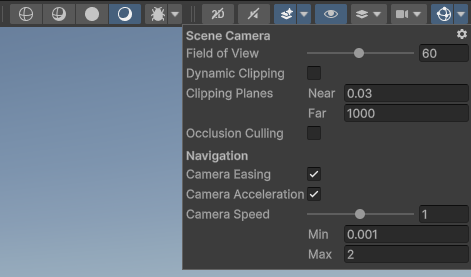
I think it’s worth mentioning that you can change what the nearest and furthest possible distances are by changing the Near and Far distances on the Camera component, but the Scene View camera uses different values that can be accessed with a little button in the top-right of the Scene View window.
We can use this depth value to interpolate between the _ForegroundColor and _BackgroundColor. For this, we can use a function called lerp, short for linear interpolation, which mixes two inputs together based on a third input between 0 and 1 which controls the mixing proportion of the first two inputs along a straight line. If the mixing proportion is 0, we output the first parameter, and if the mixing proportion is 1, we output the second parameter. Anything between 0 and 1 outputs a mix of the two input values.
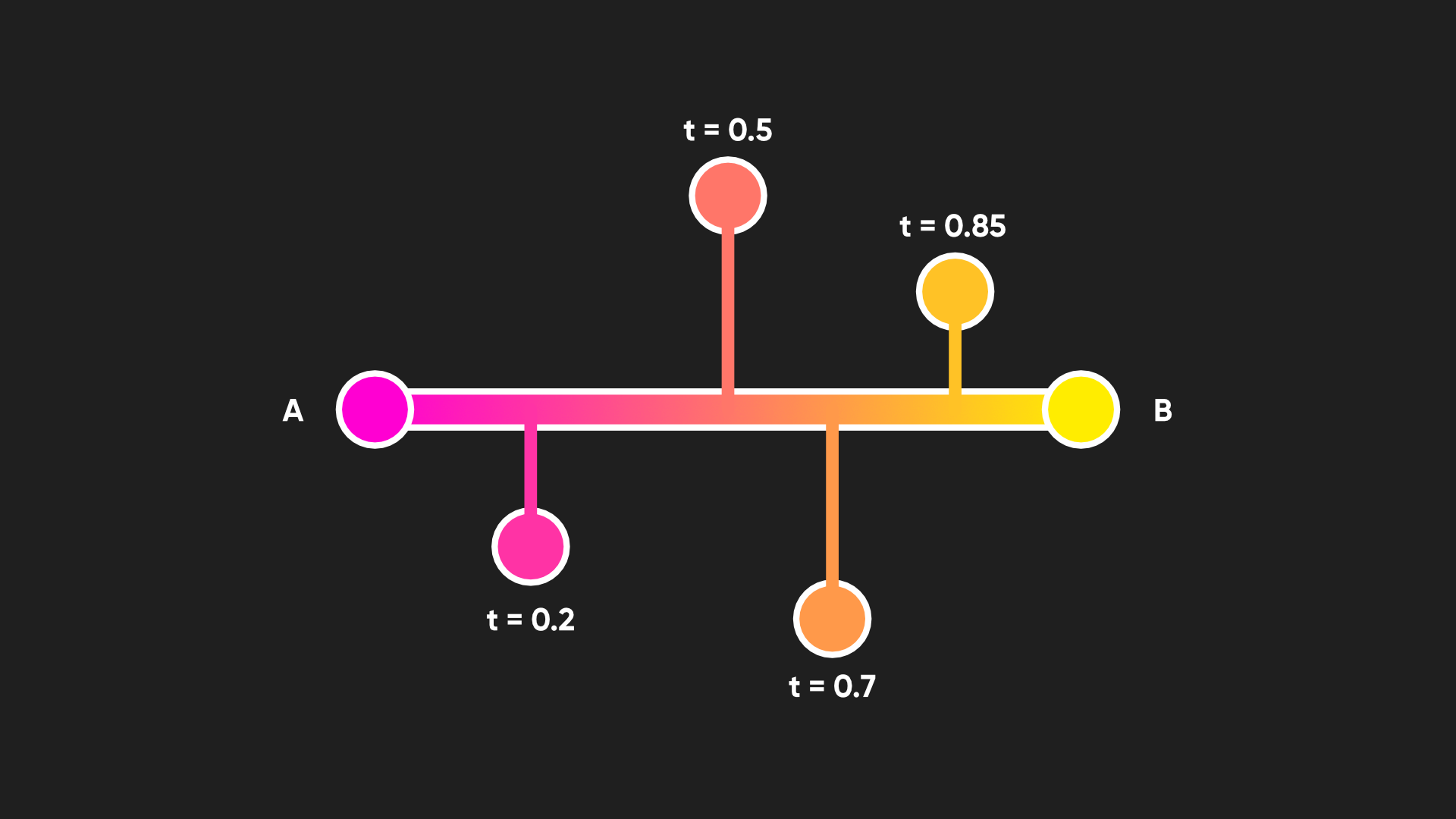
Our two input parameters to the lerp function will be the two color properties, and since the depth value is always between 0 and 1, it’s perfect to use for the interpolation factor, that third parameter.
float4 frag(v2f i) : SV_TARGET
{
    float2 screenUV = i.positionSS.xy / i.positionSS.w;
    float rawDepth = SampleSceneDepth(screenUV);

    return lerp(_ForegroundColor, _BackgroundColor, rawDepth);
}
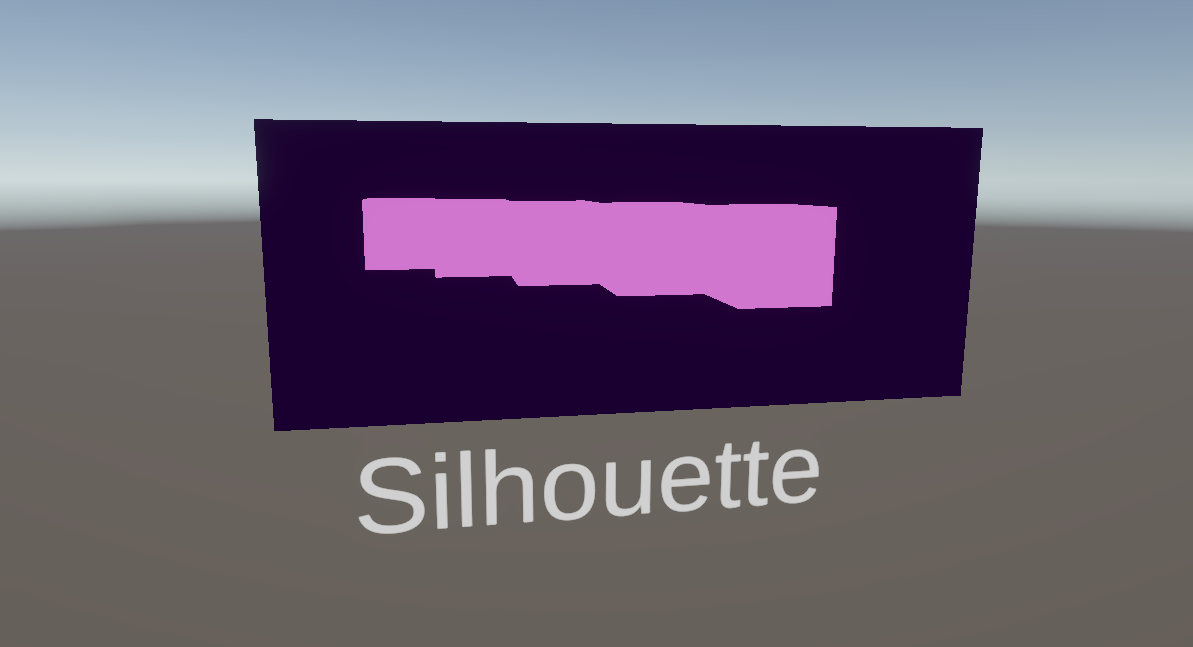
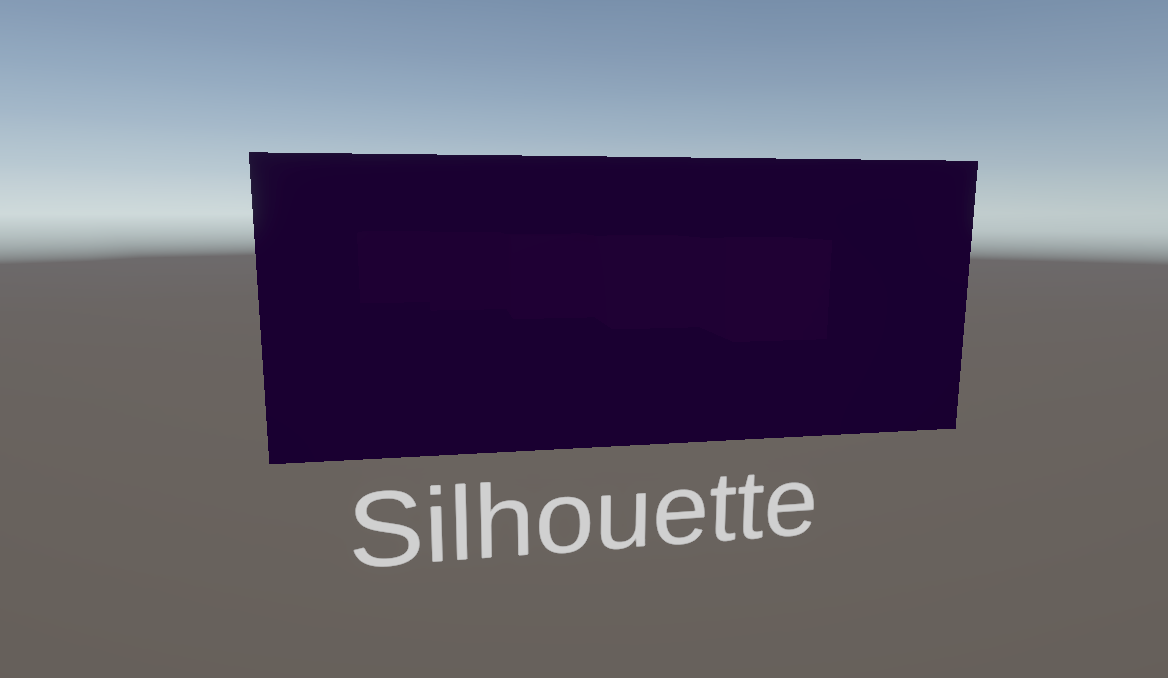
Looking at the Scene View, I’ve added a cube which uses the URP Lit shader, and in front of it, let’s have another cube which uses my Silhouette shader. When I move the silhouette cube in front of the regular cube, we can see the silhouette effect in action. If you move the cubes further apart, then the silhouette changes color, but it’s quite difficult to see the color change unless your camera far distance is very low.
Subscribe to my Patreon for perks including early access, your name in the credits of my videos, and bonus access to several premium shader packs!

Raw, Linear, and Eye Depth Values
We can probably improve the readability of this effect when the far clip distance is higher. The reason it’s hard to see right now is because the depth buffer doesn’t store depth values linearly. For example, a pixel exactly halfway between the near and far clip distances won’t be stored in the depth buffer (and therefore the depth texture) with a value of 0.5, or 50% grey. When we are drawing objects, it’s much easier to see sorting imprecision errors and artifacts on close objects, so it’s a good idea to prioritize those objects. To that end, depth values are sorted non-linearly inside the depth buffer with the following formula:
\[depth = \frac{\frac{1}{z} - \frac{1}{near}}{\frac{1}{far} - \frac{1}{near}}\]where \(z\) is the distance from the camera.
It means that for the default camera clip settings, where the near clip distance is 0.3 and the far clip distance is 1000, 80% of the depth buffer range is used to represent objects that are under 1.5 meters from the camera. That’s fantastic for depth sorting the important objects precisely, but it means our color mix gets skewed towards very close objects.
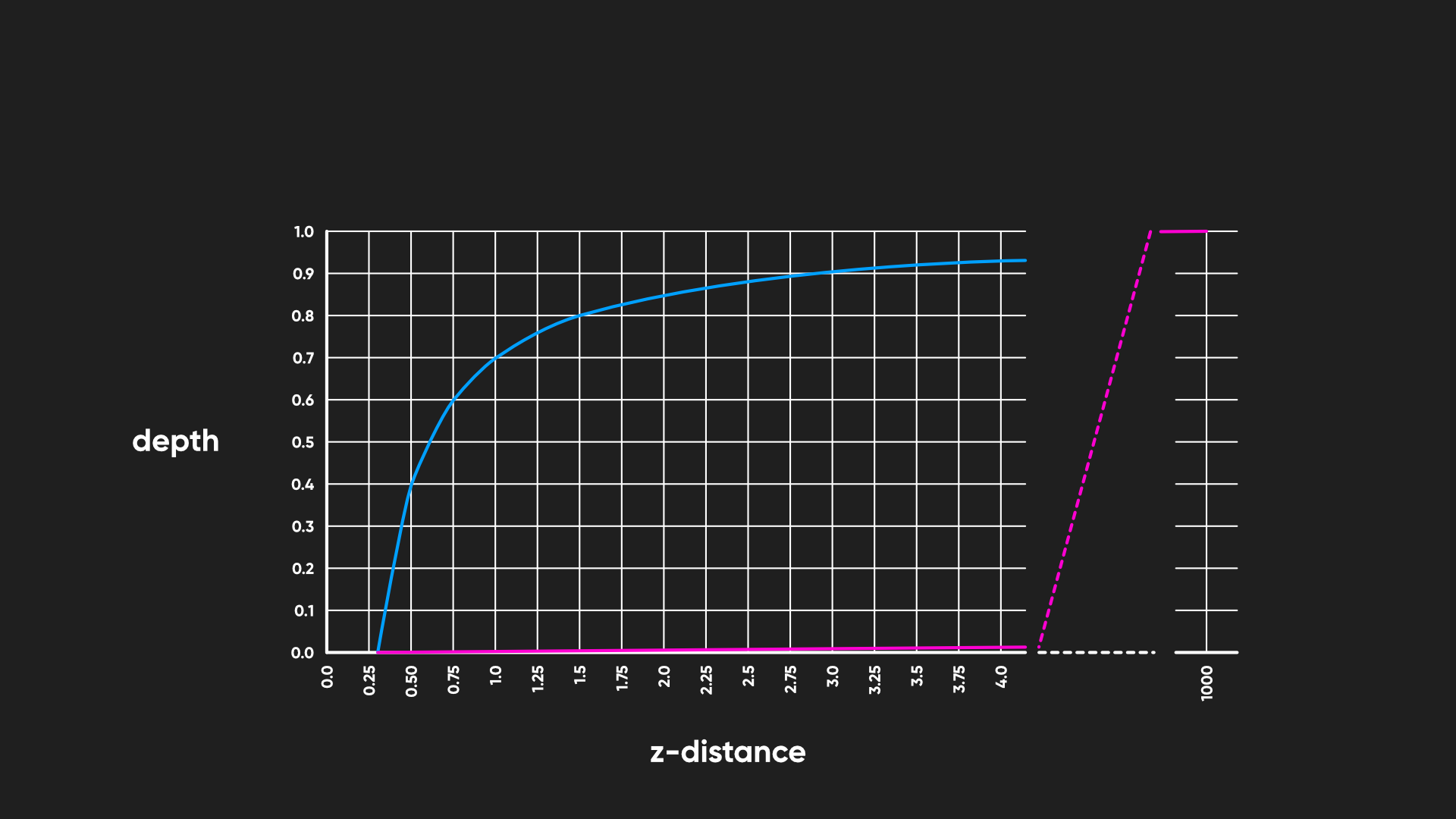
You might want that behavior for your own silhouette effect, but we can undo the curve inside the shader and get back a linear value to give us a different color transition. In the Silhouette shader, I’m going to feed my rawDepth value into a new function called Linear01Depth, which does exactly what it sounds like: we convert the depth into linear values which are between 0 and 1. This function takes a second parameter called _ZBufferParams which is provided by Unity, and it contains information about the near and far clip distances which Linear01Depth requires for converting the curve. We can then pass this new linearDepth value into the lerp function instead of rawDepth.
float4 frag(v2f i) : SV_TARGET
{
    float2 screenUV = i.positionSS.xy / i.positionSS.w;
    float rawDepth = SampleSceneDepth(screenUV);

    float linearDepth = Linear01Depth(rawDepth, _ZBufferParams);

    return lerp(_ForegroundColor, _BackgroundColor, linearDepth);
}
In the Scene View, we should instantly see a change in the way the silhouette works.
However, if we hover the silhouette effect in front of any of the shaders we wrote in previous parts of this series, they won’t appear in the silhouette, so we’ll need to add more code to those shaders. Here’s the full Silhouette shader:
Shader "Basics/Silhouette"
{
    Properties
    {
        _ForegroundColor("Foreground Color", Color) = (0, 0, 0, 0)
        _BackgroundColor("Background Color", Color) = (1, 1, 1, 1)
    }
    SubShader
    {
        Tags
        {
            "RenderPipeline" = "UniversalPipeline"
            "RenderType" = "Transparent"
            "Queue" = "Transparent"
        }

        Pass
        {
            HLSLPROGRAM
            #pragma vertex vert
            #pragma fragment frag

            #include "Packages/com.unity.render-pipelines.universal/ShaderLibrary/Core.hlsl"
            #include "Packages/com.unity.render-pipelines.universal/ShaderLibrary/DeclareDepthTexture.hlsl"

            CBUFFER_START(UnityPerMaterial)
                float4 _ForegroundColor;
                float4 _BackgroundColor;
            CBUFFER_END

            struct appdata
            {
                float4 positionOS : POSITION;
            };

            struct v2f
            {
                float4 positionCS : SV_POSITION;
                float4 positionSS : TEXCOORD0;
            };

            v2f vert(appdata v)
            {
                v2f o = (v2f)0;

                o.positionCS = TransformObjectToHClip(v.positionOS.xyz);
                o.positionSS = ComputeScreenPos(o.positionCS);

                return o;
            }

            float4 frag(v2f i) : SV_TARGET
            {
                float2 screenUV = i.positionSS.xy / i.positionSS.w;
                float rawDepth = SampleSceneDepth(screenUV);

                float linearDepth = Linear01Depth(rawDepth, _ZBufferParams);

                return lerp(_ForegroundColor, _BackgroundColor, linearDepth);
            }

            ENDHLSL
        }
    }
}
Subscribe to my Patreon for perks including early access, your name in the credits of my videos, and bonus access to several premium shader packs!
Writing to the Depth Texture
We didn’t write any of previous shaders incorrectly or anything, but they’re not complete yet. Unity doesn’t always copy depth information directly from the depth buffer to the depth texture after rendering opaques (this is the half-truth I mentioned earlier). For instance, an effect like screen-space ambient occlusion, which I believe is on by default for a new URP project, requires depth and normals information, which is a problem because it also needs to be run before the opaque meshes are drawn.
In cases like that, Unity draws a depth pre-pass, and our custom shaders are missing that pass at the moment. Actually, there are two depth pre-passes which Unity may use in different scenarios: a DepthOnly pass which draws depth directly into _CameraDepthTexture, and a DepthNormals pass which draws the normal vector at each point on an object’s surface into a special _CameraNormalsTexture, and as a side effect, also draws depth into _CameraDepthTexture.
Let’s modify the BasicTexturing shader from earlier in this Part to add those passes. To begin, I think it would be useful to start explicitly labelling each of our passes, including the existing pass, to tell Unity what it will be used for. We already saw that we can add a Tags block to a SubShader, but we can also add Tags to each Pass. For the existing Pass block, we will add a Tags block which contains a tag called LightMode, which Unity uses to determine what the purpose of the pass is. If we don’t specify this tag, then Unity will automatically apply a LightMode tag called SRPDefaultUnlit under the hood. It’s perhaps not the snappiest name in the world, but we can use this tag for unlit color passes, which is what this pass is doing.
Pass
{
    Tags
    {
        "LightMode" = "SRPDefaultUnlit"
    }

    ZWrite On
    ZTest LEqual

    ...
}
Next, we are going to add a second Pass block to the shader, which will go inside the same SubShader block but below the existing Pass block. This one also needs a LightMode tag, and this time we’ll use DepthOnly as the value because this pass is going to write depth data directly into _CameraDepthTexture.
SubShader
{
    Tags
    {
        // SubShader tags go here.
    }

    Pass
    {
        // Existing SRPDefaultUnlit pass goes here.
    }

    Pass
    {
        Tags
        {
            "LightMode" = "DepthOnly"
        }
    }
}
This Pass needs ZWrite to be On (obviously!) and then we’re going to use a new ShaderLab command called ColorMask, which restricts the output of the pass to specific color channels. Since we are writing only depth data, which is a single float value, we only need one color channel, so we can say ColorMask R to render only to the first channel. After that, we will add the HLSLPROGRAM block.
Pass
{
    Tags
    {
        "LightMode" = "DepthOnly"
    }

    ZWrite On
    ColorMask R

    HLSLPROGRAM

    ENDHLSL
}
Inside HLSLPROGRAM, I’ll start by assigning the names of the vertex and fragment shader functions, which will be depthOnlyVert and depthOnlyFrag respectively, then add the Core.hlsl include file. The appdata and v2f structs and the vertex shader function for this pass are quite simple since we only need to transform position data from object space to clip space, exactly the same as the HelloWorld shader we created in Part 1.
Finally, the fragment shader can use just a single float for its return type instead of float4, since we are only writing to the first color channel. Inside the function body, all we need to do is return the z-component of the clip space position, which is the planar distance from the camera expressed as a value between 0 and 1, and we’re done with the DepthOnly pass!
HLSLPROGRAM
#pragma vertex depthOnlyVert
#pragma fragment depthOnlyFrag

#include "Packages/com.unity.render-pipelines.universal/ShaderLibrary/Core.hlsl"

struct appdata
{
    float4 positionOS : POSITION;
};

struct v2f
{
    float4 positionCS : SV_POSITION;
};

v2f depthOnlyVert(appdata v)
{
    v2f o = (v2f)0;

    o.positionCS = TransformObjectToHClip(v.positionOS.xyz);

    return o;
}

float depthOnlyFrag(v2f i) : SV_TARGET
{
    return i.positionCS.z;
}

ENDHLSL
Below this pass, we can also define a third Pass block for the DepthNormals pass. As we saw with the DepthOnly pass, we need to use a new LightMode tag called DepthNormals so that Unity uses this pass when trying to draw normal vector data into _CameraNormalsTexture. It also needs ZWrite On, but this time we will use each color channel of the output so we don’t need any ColorMask.
Pass
{
    Tags
    {
        "LightMode" = "DepthNormals"
    }

    ZWrite On

    HLSLPROGRAM

    ENDHLSL
}
The vertex and fragment shader functions will be named depthNormalsVert and depthNormalsFrag respectively. The appdata and v2f structs can handle position data just like the passes we have written so far, but we’re also going to read normal vector data from the mesh and pass it on to the fragment shader, so the appdata struct needs an extra float3 variable called normalOS, which will use a new semantic called NORMAL. In the v2f struct, we’re going to pass the normal vector along to the fragment shader in world space, so I’ll name it normalWS accordingly. There is no NORMAL semantic when passing data to the fragment shader, but I can use TEXCOORD semantics for arbitrary data. Since we aren’t using any of those interpolators so far, I’ll put it in TEXCOORD0.
HLSLPROGRAM
#pragma vertex depthNormalsVert
#pragma fragment depthNormalsFrag

#include "Packages/com.unity.render-pipelines.universal/ShaderLibrary/Core.hlsl"

struct appdata
{
    float4 positionOS : POSITION;
    float3 normalOS : NORMAL;
};

struct v2f
{
    float4 positionCS : SV_POSITION;
    float3 normalWS : TEXCOORD0;
};
The vertex shader calculates the clip-space position as usual, but now we need to handle the normal vectors too. Core.hlsl includes a pair of helper functions called TransformObjectToWorldNormal, which transforms vectors from object to world space, and NormalizeNormalPerVertex, which ensures the resulting vector is always normalized before it is processed by the rasterizer.
v2f depthNormalsVert(appdata v)
{
    v2f o = (v2f)0;

    o.positionCS = TransformObjectToHClip(v.positionOS.xyz);
    float3 normalWS = TransformObjectToWorldNormal(v.normalOS);
    o.normalWS = NormalizeNormalPerVertex(normalWS);

    return o;
}
In the fragment shader, we can retrieve the new per-pixel normal vector and run it through another library function called NormalizeNormalPerPixel to once again ensure it is normalized properly, and finally we can output the normal vector from the fragment shader. It is a three-element vector but we are outputting it to a four-channel texture, so we can tack on an extra 0 as the fourth component. I don’t think this has come up before, but the float4 constructor will accept any combination of float or vector inputs to create a new vector, as long as the total number of input components adds to four. We could do (float3, float) or (float2, float, float) or (float, float, float, float). The same logic applies to the float3 and float2 constructors.
float4 depthNormalsFrag(v2f i) : SV_TARGET
{
    float3 normalWS = NormalizeNormalPerPixel(i.normalWS);
    return float4(normalWS, 0.0f);
}
Now if we hop into the Scene View and try out our Silhouette effect once more, passing a BasicTexturing object behind it, you’ll see those objects represented in the silhouette. In most cases, if you are not manipulating the position of the vertices in the vertex shader (for something like a wave shader) or clipping any pixels away from the mesh shape (like the AlphaCutout shader), you can copy these DepthOnly and DepthNormals passes into other shaders like the HelloWorld shader from Part 1. The GitHub repository includes these passes in each shader.
Unfortunately, because an effect like Silhouette relies on the depth texture, transparent objects typically won’t be represented in it since transparent objects don’t usually write depth information (ZWrite is Off). It is possible to make transparent shaders write depth if you want, but it can cause visual glitches where some transparent objects get wrongly culled, so usually we don’t.
If you want to modify the AlphaCutout shader to include DepthOnly and DepthNormals passes, you can do mostly the same work, but just be sure to clip pixels using the alpha component like we did in Part 3 inside those passes too (you will also need to include the same CBUFFER as the main pass or Unity will complain). I’ll leave that as homework, but I’ve made sure to include my solution in the GitHub versions of the AlphaCutout shader.
Here’s the complete BasicTexturing shader after adding DepthOnly and DepthNormals passes:
Shader "Basics/BasicTexturing"
{
    Properties
    {
        _BaseColor("Base Color", Color) = (1, 1, 1, 1)
        _BaseTexture("Base Texture", 2D) = "white" {}
    }
    SubShader
    {
        Tags
        {
            "RenderPipeline" = "UniversalPipeline"
            "RenderType" = "Opaque"
            "Queue" = "Geometry"
        }

        Pass
        {
            Tags
            {
                "LightMode" = "SRPDefaultUnlit"
            }

            ZWrite On
            ZTest LEqual

            HLSLPROGRAM
            #pragma vertex vert
            #pragma fragment frag

            #include "Packages/com.unity.render-pipelines.universal/ShaderLibrary/Core.hlsl"

            CBUFFER_START(UnityPerMaterial)
                float4 _BaseColor;
                float4 _BaseTexture_ST;
            CBUFFER_END

            TEXTURE2D(_BaseTexture);
            SAMPLER(sampler_BaseTexture);

            struct appdata
            {
                float4 positionOS : POSITION;
                float2 uv : TEXCOORD0;
            };

            struct v2f
            {
                float4 positionCS : SV_POSITION;
                float2 uv : TEXCOORD0;
            };

            v2f vert(appdata v)
            {
                v2f o = (v2f)0;

                o.positionCS = TransformObjectToHClip(v.positionOS.xyz);
                o.uv = TRANSFORM_TEX(v.uv, _BaseTexture);

                return o;
            }

            float4 frag(v2f i) : SV_TARGET
            {
                float4 textureColor = SAMPLE_TEXTURE2D(_BaseTexture, sampler_BaseTexture, i.uv);
                return textureColor * _BaseColor;
            }

            ENDHLSL
        }

        // DepthOnly and DepthNormals passes added in Part 4.

        Pass
        {
            Tags
            {
                "LightMode" = "DepthOnly"
            }

            ZWrite On
            ColorMask R

            HLSLPROGRAM
            #pragma vertex depthOnlyVert
            #pragma fragment depthOnlyFrag

            #include "Packages/com.unity.render-pipelines.universal/ShaderLibrary/Core.hlsl"

            struct appdata
            {
                float4 positionOS : POSITION;
            };

            struct v2f
            {
                float4 positionCS : SV_POSITION;
            };

            v2f depthOnlyVert(appdata v)
            {
                v2f o = (v2f)0;

                o.positionCS = TransformObjectToHClip(v.positionOS.xyz);

                return o;
            }

            float depthOnlyFrag(v2f i) : SV_TARGET
            {
                return i.positionCS.z;
            }

            ENDHLSL
        }

        Pass
        {
            Tags
            {
                "LightMode" = "DepthNormals"
            }

            ZWrite On

            HLSLPROGRAM
            #pragma vertex depthNormalsVert
            #pragma fragment depthNormalsFrag

            #include "Packages/com.unity.render-pipelines.universal/ShaderLibrary/Core.hlsl"

            struct appdata
            {
                float4 positionOS : POSITION;
                float3 normalOS : NORMAL;
            };

            struct v2f
            {
                float4 positionCS : SV_POSITION;
                float3 normalWS : TEXCOORD0;
            };

            v2f depthNormalsVert(appdata v)
            {
                v2f o = (v2f)0;

                o.positionCS = TransformObjectToHClip(v.positionOS.xyz);
                float3 normalWS = TransformObjectToWorldNormal(v.normalOS);
                o.normalWS = NormalizeNormalPerVertex(normalWS);

                return o;
            }

            float4 depthNormalsFrag(v2f i) : SV_TARGET
            {
                float3 normalWS = NormalizeNormalPerPixel(i.normalWS);
                return float4(normalWS, 0.0f);
            }

            ENDHLSL
        }
    }
}
X-ray Effect with Render Objects
This part of the tutorial isn’t about shaders per se, but we are working in URP so we have access to some tools which make it quite easy to implement an effect where we can see objects if they are obscured behind a wall. We can even apply a different material to those parts of the object entirely! This functionality is called Render Objects, and it will allow us to inject a custom pass into the URP loop. We are going to make URP render specific layers of objects only if they are obscured by another object.
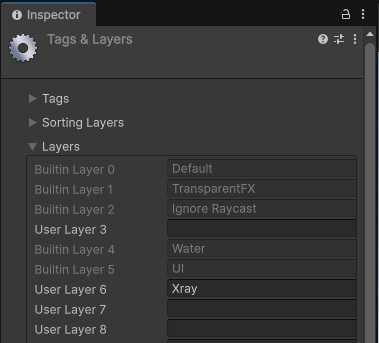
First, I’ll set up a dedicated layer for objects which will be using the x-ray effect. That’s as simple as using the Layer menu at the top of the Inspector window whenever you select any GameObject, then choosing Add Layer, and filling in one of the empty layers with the name “Xray”.
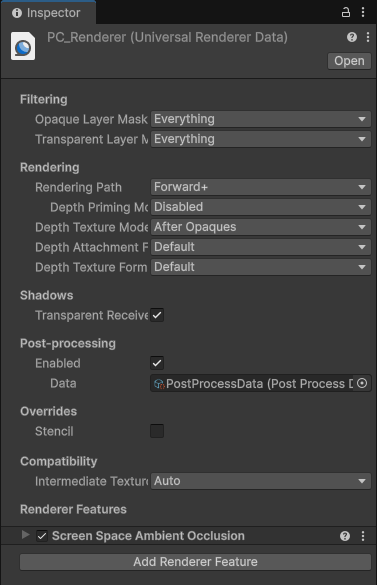
Then, I can assign some cubes to the Xray layer and add a wall in the Default layer which obscures those cubes. Next, we need to find what’s called the Universal Renderer Data asset. If you created your Unity project with the URP 3D template, this asset can be found under Assets/Settings/PC_Renderer, and it looks like this when selected.
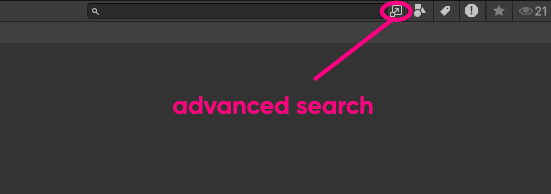
If you’re struggling to find it, you might be using a Unity version before 6.0, or you may have renamed it, but you can search your Project folder using this tiny icon in the top-right of the Project View next to the search bar, which brings up a more powerful search window.
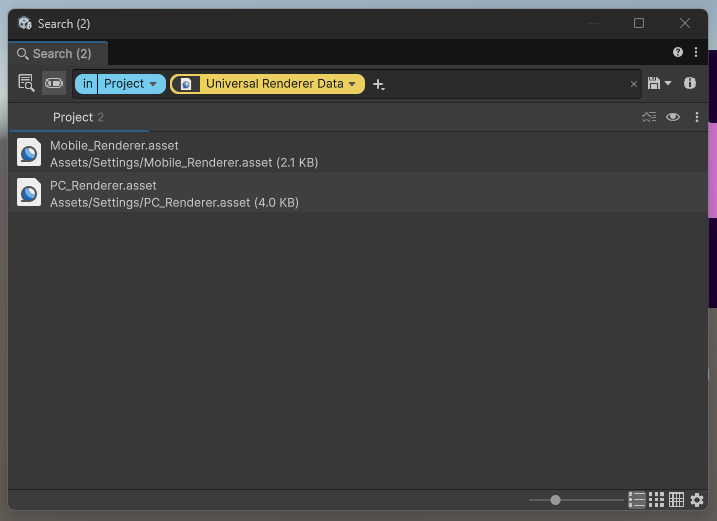
You can filter by type, which once again is Universal Renderer Data, and all of the assets of that type should appear in the list. One of them will be tied to your project’s current URP settings.
Once you’ve found it, go to the bottom of its Inspector window and click Add Renderer Feature -> Render Objects. This is a special pass which we can insert into specific parts of the URP render loop to do all sorts of crazy things.
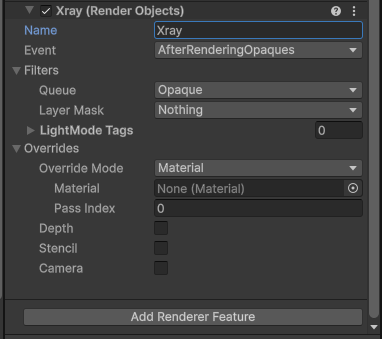
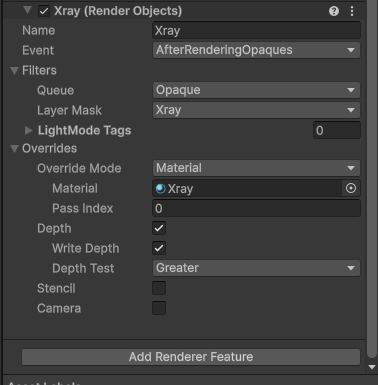
I’m going to name this Render Objects pass “Xray” for easy recognition if I need to change this pass later or add other passes to the list, and I will keep its Event field as AfterRenderingOpaques. This pass will therefore be inserted directly after URP finishes rendering all the opaque objects in the scene. There are many places where you can inject this pass into the URP loop:
BeforeRenderingPrePasses(pre-passes likeDepthOnly)AfterRenderingPrePassesBeforeRenderingGBuffer(the Deferred rendering basic pass)AfterRenderingGBufferBeforeRenderingDeferredLightsAfterRenderingDeferredLightsBeforeRenderingOpaquesAfterRenderingOpaquesBeforeRenderingSkyboxAfterRenderingSkyboxBeforeRenderingTransparentsAfterRenderingTransparentsBeforeRenderingPostProcessingAfterRenderingPostProcessingAfterRendering
I can use some of the other settings to filter out which objects I want to target with this pass. I want it to run over Opaque objects so I can use that for the Queue, and I want to restrict the effect only to things in my new Xray layer so I can select only that layer in the Layer Mask.
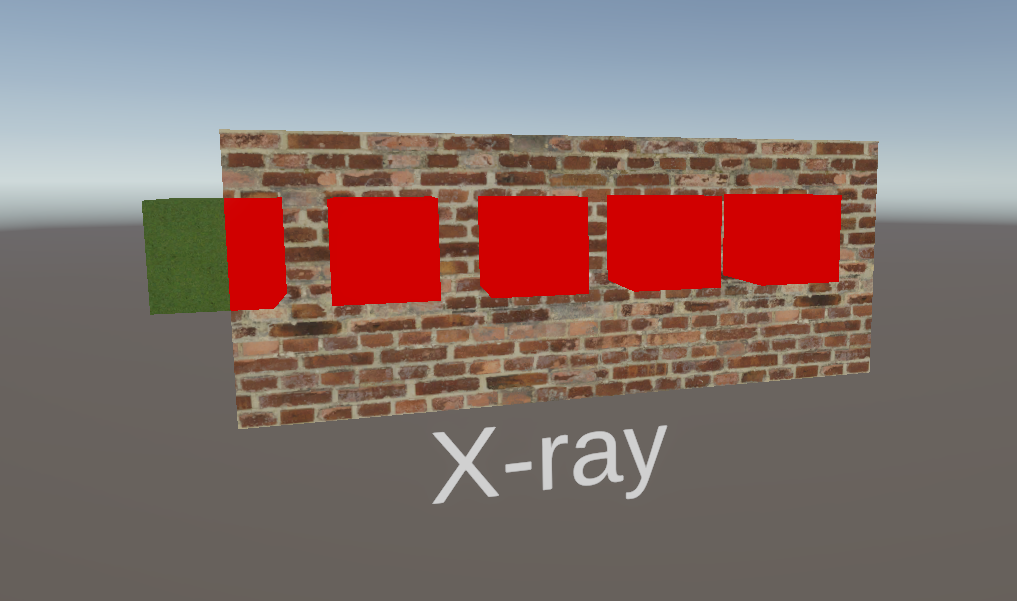
Next, let’s expand the Overrides section. Currently, this pass is just rendering the cubes a second time with the same material, so I will swap out the Material field with an unlit red material which uses my HelloWorld shader. When I do that, all the x-ray cubes in the scene which are still visible will turn red. I only want them to do that if they are obscured by another object such as a wall, so I will override the depth test next.
It doesn’t really matter too much whether we Write Depth, but more importantly, we can swap out the Depth Test for another option like Greater, and now the x-ray cubes will only appear red when they are obscured by something else!
Panning the camera to the side so that parts of the cubes can be seen normally and parts are obscured by the wall, you’ll see that the x-ray effect is working as intended! You can use a fancier material for the override if you have one, but I wanted to use something vivid to demonstrate the effect.
In Part 5 of this series, we will create some more interesting vertex shaders which are capable of displacing parts of the mesh along a sine wave pattern. And, in a departure from the Shader Graph Basics series, I will cover tessellation in URP in this part (since Shader Graph only supports tessellation in HDRP). Until next time, have fun making shaders!
Subscribe to my Patreon for perks including early access, your name in the credits of my videos, and bonus access to several premium shader packs!