In Part 2, we learned about textures - essentially 2D arrays of data which can hold many kinds of data which can be mapped to a mesh using texture coordinates - and in Part 3, we’re going to talk about transparency and alpha clipping, which will let us create glassy or ghostly objects.
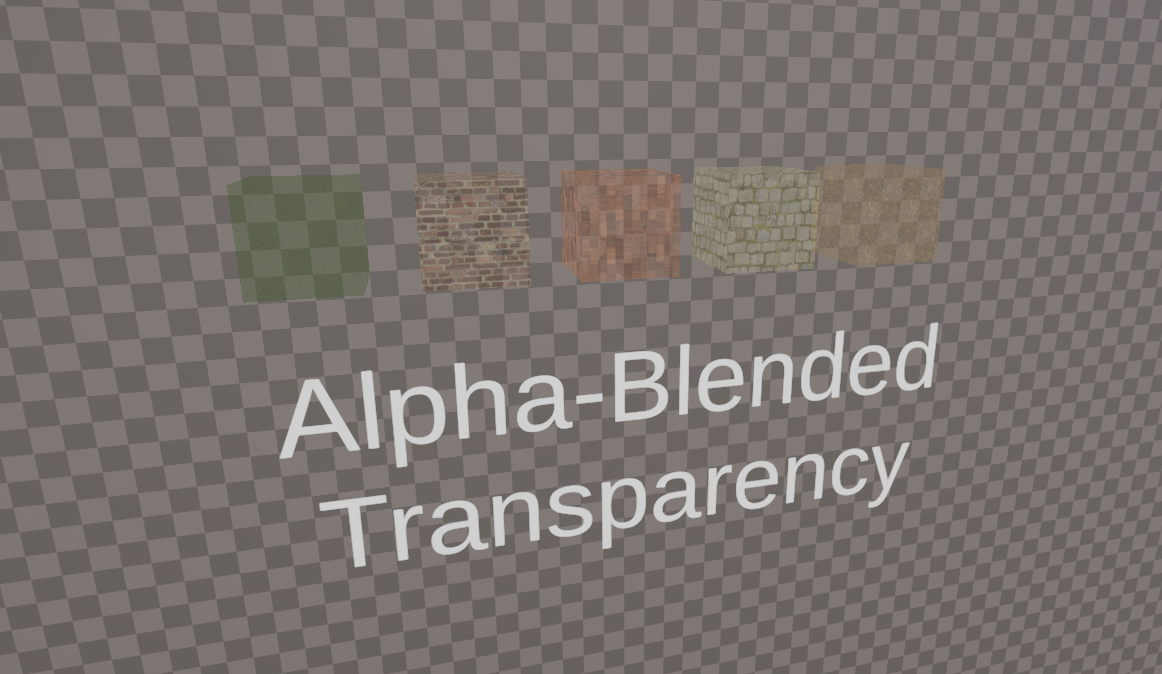
In Forward rendering, a rendering algorithm which URP uses by default, Unity renders your meshes in two steps. Firstly, all the opaque objects are drawn in a loop (but we will worry about those primarilt in Part 4, which is all about depth testing). Then after the opaque drawing loop is over, Unity draws all your transparent objects. This is a bit of an oversimplified description, but it will do for now!
The most common method for drawing transparent objects is called alpha-blended transparency, where the fourth component of the color output in the fragment shader, the alpha component, is used as a weight factor to blend the object being drawn and the thing already on-screen. For example, an alpha of 75% means that output screen color is a mix of 75% the mesh’s color and 25% the color of whatever was already drawn at this point on the screen. To ensure that the final screen color is correct after every object has been drawn, we need to sort all objects in the transparent rendering queue in a back-to-front order, but Unity handles the sorting step for you.
Subscribe to my Patreon for perks including early access, your name in the credits of my videos, and bonus access to several premium shader packs!

Alpha-Blended Transparency
Let’s branch a new shader from the BasicTexturing shader from Part 2 by duplicating it, and then naming the copy AlphaBlendedTransparency, including changing the name on the first line of the shader. I’ll be building off this code:
Shader "Basics/AlphaBlendedTransparency"
{
    Properties
    {
        _BaseColor("Base Color", Color) = (1, 1, 1, 1)
        _BaseTexture("Base Texture", 2D) = "white" {}
    }
    SubShader
    {
        Tags
        {
            "RenderPipeline" = "UniversalPipeline"
            "RenderType" = "Opaque"
            "Queue" = "Geometry"
        }

        Pass
        {
            HLSLPROGRAM
            #pragma vertex vert
            #pragma fragment frag

            #include "Packages/com.unity.render-pipelines.universal/ShaderLibrary/Core.hlsl"

            CBUFFER_START(UnityPerMaterial)
                float4 _BaseColor;
                float4 _BaseTexture_ST;
            CBUFFER_END

            TEXTURE2D(_BaseTexture);
            SAMPLER(sampler_BaseTexture);

            struct appdata
            {
                float4 positionOS : POSITION;
                float2 uv : TEXCOORD0;
            };

            struct v2f
            {
                float4 positionCS : SV_POSITION;
                float2 uv : TEXCOORD0;
            };

            v2f vert(appdata v)
            {
                v2f o = (v2f)0;

                o.positionCS = TransformObjectToHClip(v.positionOS.xyz);
                o.uv = TRANSFORM_TEX(v.uv, _BaseTexture);

                return o;
            }

            float4 frag(v2f i) : SV_TARGET
            {
                float4 textureColor = SAMPLE_TEXTURE2D(_BaseTexture, sampler_BaseTexture, i.uv);
                return textureColor * _BaseColor;
            }

            ENDHLSL
        }
    }
}
It’s quite straightforward to add alpha-blended transparency to any shader! First, in the Tags block, I will set both the RenderType and the Queue to Transparent. When you do so, Unity will start to draw any objects using this shader in the transparent rendering queue, so they will be subject to the back-to-front sorting step that I mentioned and they will be drawn after the opaque objects.
Tags
{
    "RenderPipeline" = "UniversalPipeline"
    "RenderType" = "Transparent"
    "Queue" = "Transparent"
}
This doesn’t make the object look transparent yet, though. To do that, at the top of the Pass block, we will use the Blend command, which is responsible for actually mixing the mesh color and the existing screen color. Blend needs two keywords to come after it. To explain these, think of the mesh we are drawing as the ‘source’ which we are getting new color data from, and the screen as the ‘destination’ which we are drawing to. Of course, the ‘destination’ already contains some color data.
We are going to multiply the source (the mesh color) by some factor, and then multiply the destination (the screen color) by a different factor, and add the two values together to give us the screen output color. Those factors are the two keywords we need to put after Blend. For alpha-blended transparency, the source factor is SrcAlpha, which means we multiply by the source alpha, and the destination factor is OneMinusSrcAlpha. It’s probably clear what that one does!
Pass
{
    Blend SrcAlpha OneMinusSrcAlpha

    ...
}
So, this command is saying: multiply the source color by the source alpha and add it to the destination color multiplied by one minus the source alpha. Generally, the equation looks like this:
output screen color = (mesh color ⨯ first factor) + (input screen color ⨯ second factor)
We’ll see some other possible options for those factors later. For an opaque shader, you can also say Blend Off, which is the default value if you don’t specify any blend factors.
If we go into the Scene View and assign some materials using the AlphaBlendedTransparency shader to some meshes, we can change their alpha values and see them fade in and out of visibility. When the object uses full alpha, they appear opaque (but still use blending), and when they use zero alpha, you won’t see them at all.
Subscribe to my Patreon for perks including early access, your name in the credits of my videos, and bonus access to several premium shader packs!
Controlling Blend Modes
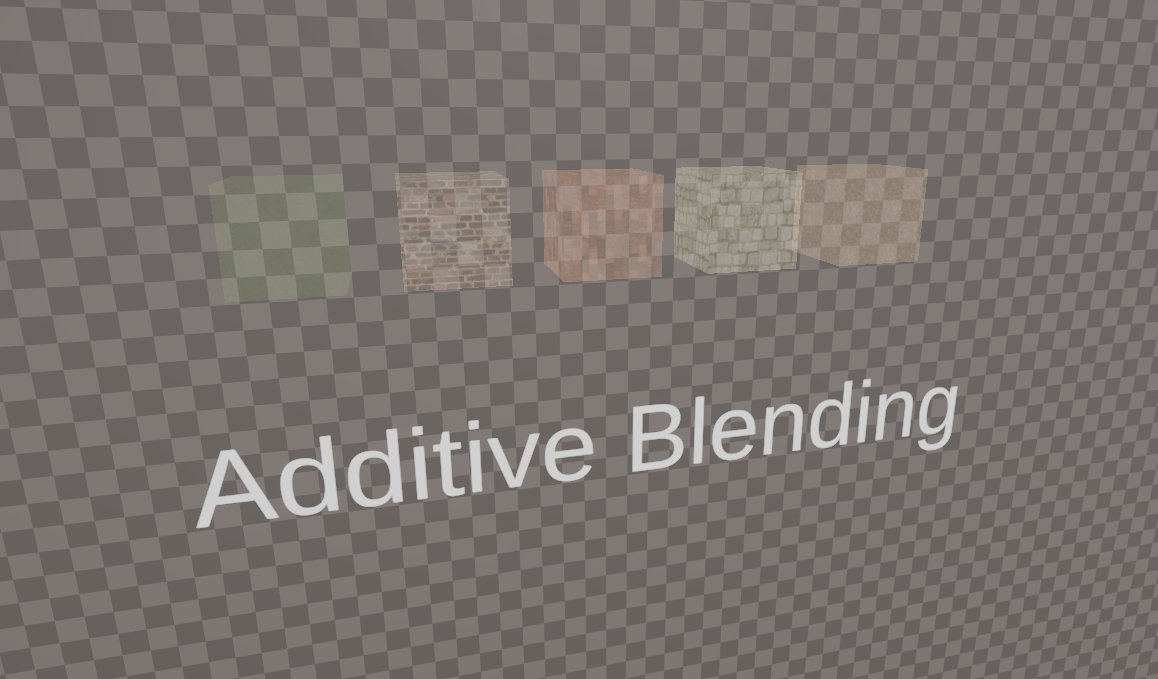
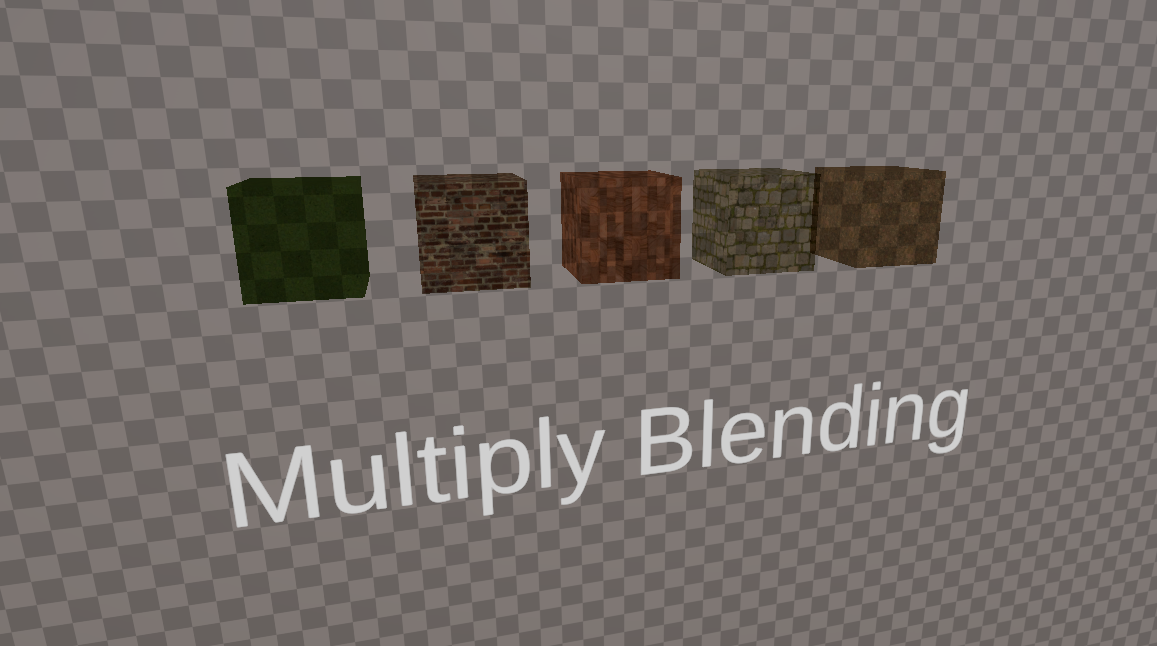
It’s nice that we can use alpha to modify the transparency of objects, but alpha blending isn’t the only method we can use. With additive blending, for instance, we multiply the source color with the source alpha and add that value to the destination color. Or with multiply blending, we just multiply the source color and destination colors and that’s it. We could implement these modes as a series of separate shaders or a list of modes on this one shader, but I’m just going to expose the blend modes for the source and destination and let you pick any value for either of the factors.
Let’s start by adding a couple of new properties. The first will be called _SrcBlend, short for “Source Blend Mode”, and it will use the Integer type. In other tutorials, you might see the legacy Int type, which is actually a Float under the hood, but I prefer to use Integer which is actually an integer. Then for the default value, what should we put - what integer value represents SrcAlpha?
Well, the blend modes used by Unity can be found in an enum called BlendMode, which can be found on this page in the Unity docs, and here are the possible values:
ZeroOneDstColorSrcColorOneMinusDstColorSrcAlphaOneMinusSrcColorDstAlphaOneMinusDstAlphaSrcAlphaSaturateOneMinusSrcAlpha
I really hate this list because there doesn’t seem to be any rhyme or reason for the ordering of things in the enum, but I digress. This docs page tells you what each factor does: Zero multiplies each component of the corresponding color by zero; DstColor multiplies the red channel of your color with destination red, and the green channel of your color by destination green, and so on; and the one that might need explanation is SrcAlphaSaturate, which is the minimum of SrcAlpha and OneMinusDstAlpha.
This list also provides the mapping between these names and integer values: Zero is the 0th entry in the list so its integer value is 0, One is the 1st entry which means 1, DstColor is the 2nd entry for the value 2, and so on. I want my _SrcBlend property to use SrcAlpha by default, which is entry number 5, so that’s the default value I will use for the property.
Likewise, I will add a second property called _DstBlend for the destination blend factor, and since I want to make its default value OneMinusSrcAlpha, that’s the 10th entry in the list so I’ll give it the value 10.
It won’t be good enough to just expect anyone using our shader to know this list off by heart or need to refer back to it whenever they want to swap blend modes, so we can make Unity uses these enum names as a drop-down by adding an enum attribute in front of both properties. Attributes are like little tags you can put in front of a variable (they exist in C#, too) which help to describe what the variable is being used for. For these properties, we will use an Enum attribute which is encased in square braces, and takes an input in parentheses which is the full name of the enum, with the complete namespace - UnityEngine.Rendering.BlendMode.
Properties
{
    _BaseColor("Base Color", Color) = (1, 1, 1, 1)
    _BaseTexture("Base Texture", 2D) = "white" {}
    [Enum(UnityEngine.Rendering.BlendMode)] _SrcBlend("Source Blend Mode", Integer) = 5
    [Enum(UnityEngine.Rendering.BlendMode)] _DstBlend("Destination Blend Mode", Integer) = 10
}
If you save the shader and take a look at it in the Inspector now, you’ll see the drop-down menus and you can select a blend mode from the list, but we haven’t linked the shader properties to anything yet, so you won’t see any visual changes if you modify the blend mode.
That’s thankfully easy to do - in the Pass block, instead of saying Blend SrcAlpha OneMinusSrcAlpha, we can put the blend factor property names in square braces instead, like Blend [_SrcBlend] [_DstBlend].
Pass
{
    Blend [_SrcBlend] [_DstBlend]

    ...
}
Now, if I want to use additive blending, it’s as easy as setting the source factor to SrcAlpha and the destination factor to One.
Or for multiply blending, we can set the source factor to DstColor and the destination factor to Zero. Simple!
This is one scenario where I can use a property entirely within ShaderLab without using it at all within HLSL, which I mentioned was possible back in Part 1 of this series.
With this shader, we can create semi-transparent objects, but next I want to focus on cases where you want to cut away shapes in an object based on its alpha.
This is the full AlphaBlendedTransparency shader:
Shader "Basics/AlphaBlendedTransparency"
{
    Properties
    {
        _BaseColor("Base Color", Color) = (1, 1, 1, 1)
        _BaseTexture("Base Texture", 2D) = "white" {}
        [Enum(UnityEngine.Rendering.BlendMode)] _SrcBlend("Source Blend Mode", Integer) = 5
        [Enum(UnityEngine.Rendering.BlendMode)] _DstBlend("Destination Blend Mode", Integer) = 10
    }
    SubShader
    {
        Tags
        {
            "RenderPipeline" = "UniversalPipeline"
            "RenderType" = "Transparent"
            "Queue" = "Transparent"
        }

        Pass
        {
            Blend [_SrcBlend] [_DstBlend]
            ZWrite Off

            HLSLPROGRAM
            #pragma vertex vert
            #pragma fragment frag

            #include "Packages/com.unity.render-pipelines.universal/ShaderLibrary/Core.hlsl"

            CBUFFER_START(UnityPerMaterial)
                float4 _BaseColor;
                float4 _BaseTexture_ST;
            CBUFFER_END

            TEXTURE2D(_BaseTexture);
            SAMPLER(sampler_BaseTexture);

            struct appdata
            {
                float4 positionOS : POSITION;
                float2 uv : TEXCOORD0;
            };

            struct v2f
            {
                float4 positionCS : SV_POSITION;
                float2 uv : TEXCOORD0;
            };

            v2f vert(appdata v)
            {
                v2f o = (v2f)0;

                o.positionCS = TransformObjectToHClip(v.positionOS.xyz);
                o.uv = TRANSFORM_TEX(v.uv, _BaseTexture);

                return o;
            }

            float4 frag(v2f i) : SV_TARGET
            {
                float4 textureColor = SAMPLE_TEXTURE2D(_BaseTexture, sampler_BaseTexture, i.uv);
                return textureColor * _BaseColor;
            }

            ENDHLSL
        }
    }
}
Subscribe to my Patreon for perks including early access, your name in the credits of my videos, and bonus access to several premium shader packs!
Alpha Clipping
To do that, we can use alpha clipping, where we set a threshold value and compare it with the alpha component of the fragment shader’s output color. If the alpha exceeds the threshold, then we draw the object normally, and if not, we discard it entirely. Clipping can be implemented into shaders in either the opaque or transparent queues, because the choice to discard a fragment entirely has nothing to do with blending colors - an opaque shader can just choose not to overwrite the screen buffer contents if that pixel is clipped. In this example, I’m going to create an opaque alpha clipping shader.
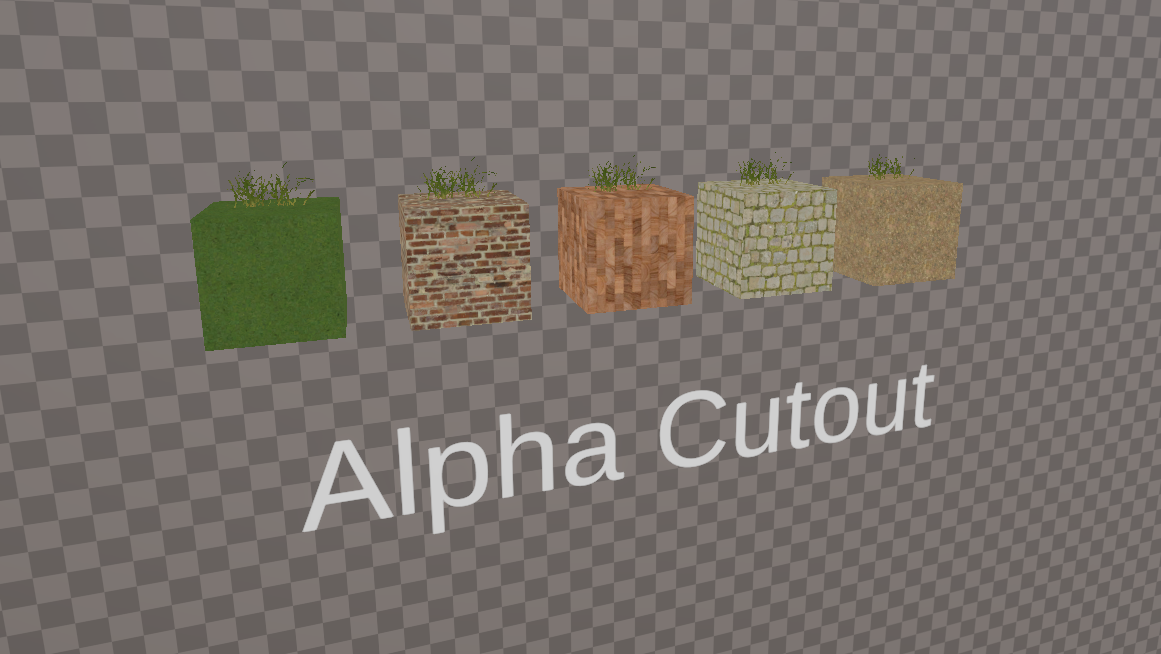
I’m going to branch off the BasicTexturing shader again and name the duplicate AlphaCutout. Here’s the shader I’ll start with:
Shader "Basics/AlphaCutout"
{
    Properties
    {
        _BaseColor("Base Color", Color) = (1, 1, 1, 1)
        _BaseTexture("Base Texture", 2D) = "white" {}
    }
    SubShader
    {
        Tags
        {
            "RenderPipeline" = "UniversalPipeline"
            "RenderType" = "Opaque"
            "Queue" = "Geometry"
        }

        Pass
        {
            HLSLPROGRAM
            #pragma vertex vert
            #pragma fragment frag

            #include "Packages/com.unity.render-pipelines.universal/ShaderLibrary/Core.hlsl"

            CBUFFER_START(UnityPerMaterial)
                float4 _BaseColor;
                float4 _BaseTexture_ST;
            CBUFFER_END

            TEXTURE2D(_BaseTexture);
            SAMPLER(sampler_BaseTexture);

            struct appdata
            {
                float4 positionOS : POSITION;
                float2 uv : TEXCOORD0;
            };

            struct v2f
            {
                float4 positionCS : SV_POSITION;
                float2 uv : TEXCOORD0;
            };

            v2f vert(appdata v)
            {
                v2f o = (v2f)0;

                o.positionCS = TransformObjectToHClip(v.positionOS.xyz);
                o.uv = TRANSFORM_TEX(v.uv, _BaseTexture);

                return o;
            }

            float4 frag(v2f i) : SV_TARGET
            {
                float4 textureColor = SAMPLE_TEXTURE2D(_BaseTexture, sampler_BaseTexture, i.uv);
                return textureColor * _BaseColor;
            }

            ENDHLSL
        }
    }
}
I’m going to add one new property called _AlphaThreshold, which is going to be a floating-point number. Since we know ahead of time that this property should take on values between 0 and 1 because the alpha channel values can’t go beyond those bounds, we can use the Range type instead of Float type and specify those bounds in parentheses. This type of property will give us a slider in the Inspector which can’t go outside the provided upper and lower bounds (but we can still set any floating-point value programatically). It’s still a Float under the hood, and I’ll use 0.5 as the default value.
Properties
{
    _BaseColor("Base Color", Color) = (1, 1, 1, 1)
    _BaseTexture("Base Texture", 2D) = "white" {}
    _AlphaThreshold("Alpha Threshold", Range(0.0, 1.0)) = 0.5
}
Next, let’s change one of the shader tags - the Queue should now be AlphaTest. Unity renders anything in the AlphaTest queue after everything in the Geometry queue and before the Transparent queue, which means this alpha clipping shader will be drawn after the other opaque shaders we have created so far. However, for the purposes of sorting objects, Unity will consider anything before the Transparent queue to be opaque, so objects in the AlphaTest queue will be sorted front-to-back. If you instead want to create an alpha-blended transparent shader which also supports alpha clipping, you can keep its Queue as Transparent.
Tags
{
    "RenderPipeline" = "UniversalPipeline"
    "RenderType" = "Opaque"
    "Queue" = "AlphaTest"
}
Let’s also define _AlphaThreshold inside the CBUFFER too.
CBUFFER_START(UnityPerMaterial)
    float4 _BaseColor;
    float4 _BaseTexture_ST;
    float _AlphaThreshold;
CBUFFER_END
I’m going to slightly refactor the fragment shader by moving the _BaseColor multiplication into the first line so that outputColor contains the output color from the outset, and the return statement just return that variable. In between those two lines of code, we need to discard any pixels where the alpha is below _AlphaThreshold.
float4 frag(v2f i) : SV_TARGET
{
    float4 outputColor = SAMPLE_TEXTURE2D(_BaseTexture, sampler_BaseTexture, i.uv) * _BaseColor;

    // Clip the pixels here.

    return outputColor;
}
There are two ways to do this. The first method uses the discard keyword, which is built into HLSL. If this keyword is reached during execution, the pixel won’t be rendered at all. Inside an if statement, we can check if outputColor.a is below _AlphaThreshold, and if so, it will reach the discard statement inside the if block. Pretty straightforward I think!
float4 frag(v2f i) : SV_TARGET
{
    float4 outputColor = SAMPLE_TEXTURE2D(_BaseTexture, sampler_BaseTexture, i.uv) * _BaseColor;

    // Discard variant.
    if(outputColor.a < _AlphaThreshold)
    {
        discard;
    }

    return outputColor;
}
The other method uses the clip function. We pass a value into the function, and if its value is below zero, then the pixel is discarded. With that in mind, we can pass in outputColor.a and subtract _AlphaThreshold. If the alpha component is lower than the threshold, then this expression evaluates to something below 0, and the pixel is discarded.
float4 frag(v2f i) : SV_TARGET
{
    float4 outputColor = SAMPLE_TEXTURE2D(_BaseTexture, sampler_BaseTexture, i.uv) * _BaseColor;

    // Clip variant.
    clip(outputColor.a - _AlphaThreshold);

    return outputColor;
}
There isn’t any real difference between the two approaches, and I’d hazard a guess that the shader compiler probably compiles them to the same thing, especially for simple cases like this. It’s mostly preference which one you use, but I like the discard version slightly better as I feel it’s clearer to me what the code is saying. Maybe you consider the clip version to be more concise though!
That’s all we need to do in the shader, so let’s save our code and check out the effect in the Scene View. I’m using a grass texture on a basic quad primitive to test it out. The areas of the texture containing grass have an alpha of 1, and the ‘air’ outside the grass has an alpha of 0.
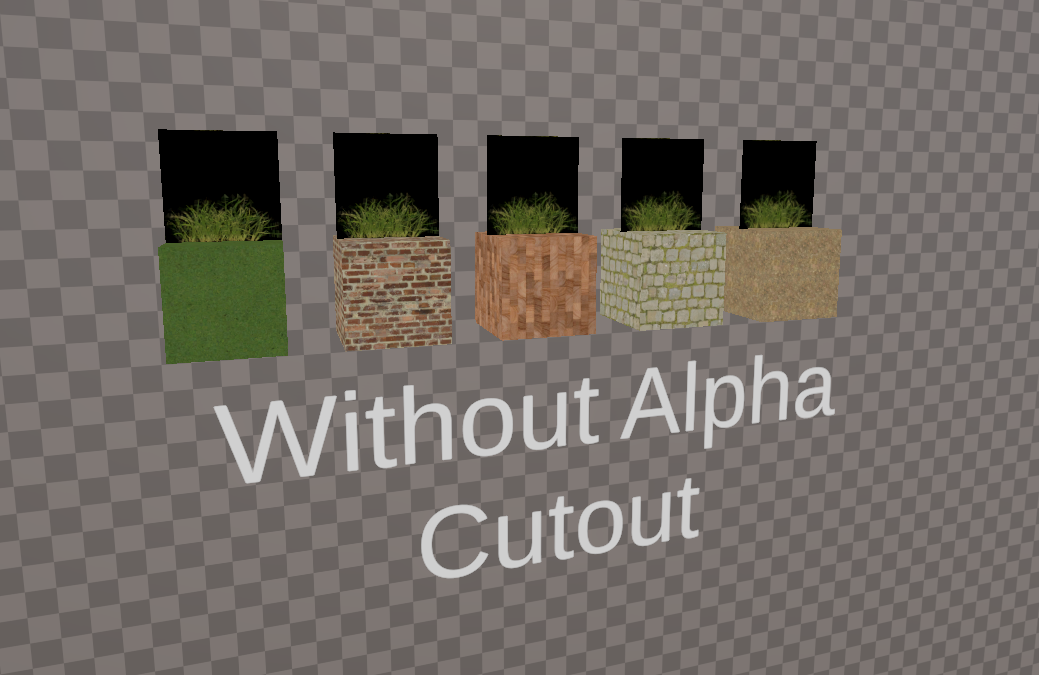
If we set the alpha threshold to some value in the middle of those, like 0.5, then the grass is going to look as expected - the parts with alpha equal to 0 are culled.
To be clear, the grass is still opaque. It still gets drawn in a front-to-back order like other opaque objects, and it still writes to the depth buffer by default (we will explore this in the next Part).
If you want to practice creating alpha clipping shaders, try modifying the AlphaBlendedTransparency shader to incorporate alpha clipping. You should get a shader which lets you slowly reduce the alpha to fade out an object, then it suddenly disappears as soon as you cross over whatever threshold value you set.
In the next Part, we will be talking about the depth buffer, reading depth information inside our shaders, and making sure the shader writes depth information to the buffer properly, including our first look at a shader with multiple Pass blocks. Until next time, have fun making shaders!
Here is the full AlphaCutout shader for you to compare if you run into any problems:
Shader "Basics/AlphaCutout"
{
    Properties
    {
        _BaseColor("Base Color", Color) = (1, 1, 1, 1)
        _BaseTexture("Base Texture", 2D) = "white" {}
        _AlphaThreshold("Alpha Threshold", Range(0.0, 1.0)) = 0.5
    }
    SubShader
    {
        Tags
        {
            "RenderPipeline" = "UniversalPipeline"
            "RenderType" = "Opaque"
            "Queue" = "AlphaTest"
        }

        Pass
        {
            HLSLPROGRAM
            #pragma vertex vert
            #pragma fragment frag

            #include "Packages/com.unity.render-pipelines.universal/ShaderLibrary/Core.hlsl"

            CBUFFER_START(UnityPerMaterial)
                float4 _BaseColor;
                float4 _BaseTexture_ST;
                float _AlphaThreshold;
            CBUFFER_END

            TEXTURE2D(_BaseTexture);
            SAMPLER(sampler_BaseTexture);

            struct appdata
            {
                float4 positionOS : POSITION;
                float2 uv : TEXCOORD0;
            };

            struct v2f
            {
                float4 positionCS : SV_POSITION;
                float2 uv : TEXCOORD0;
            };

            v2f vert(appdata v)
            {
                v2f o = (v2f)0;

                o.positionCS = TransformObjectToHClip(v.positionOS.xyz);
                o.uv = TRANSFORM_TEX(v.uv, _BaseTexture);

                return o;
            }

            float4 frag(v2f i) : SV_TARGET
            {
                float4 outputColor = SAMPLE_TEXTURE2D(_BaseTexture, sampler_BaseTexture, i.uv) * _BaseColor;

                if(outputColor.a < _AlphaThreshold)
                {
                    discard;
                }

                //clip(outputColor.a - _AlphaThreshold);

                return outputColor;
            }

            ENDHLSL
        }
    }
}
Subscribe to my Patreon for perks including early access, your name in the credits of my videos, and bonus access to several premium shader packs!