For a long time, URP Shader Graph didn’t officially support post processing and you were forced to write code-based Renderer Features instead, but thankfully, Unity added the Fullscreen material type in Unity 2022. In this tutorial, we’re going to learn how this graph type works and create a couple of effects – namely, a greyscale color filter and an edge detection outline effect. I’m working in Unity 6.0, but the workflow for any version from 2022.3 onward should look similar to this tutorial.
Post Processing
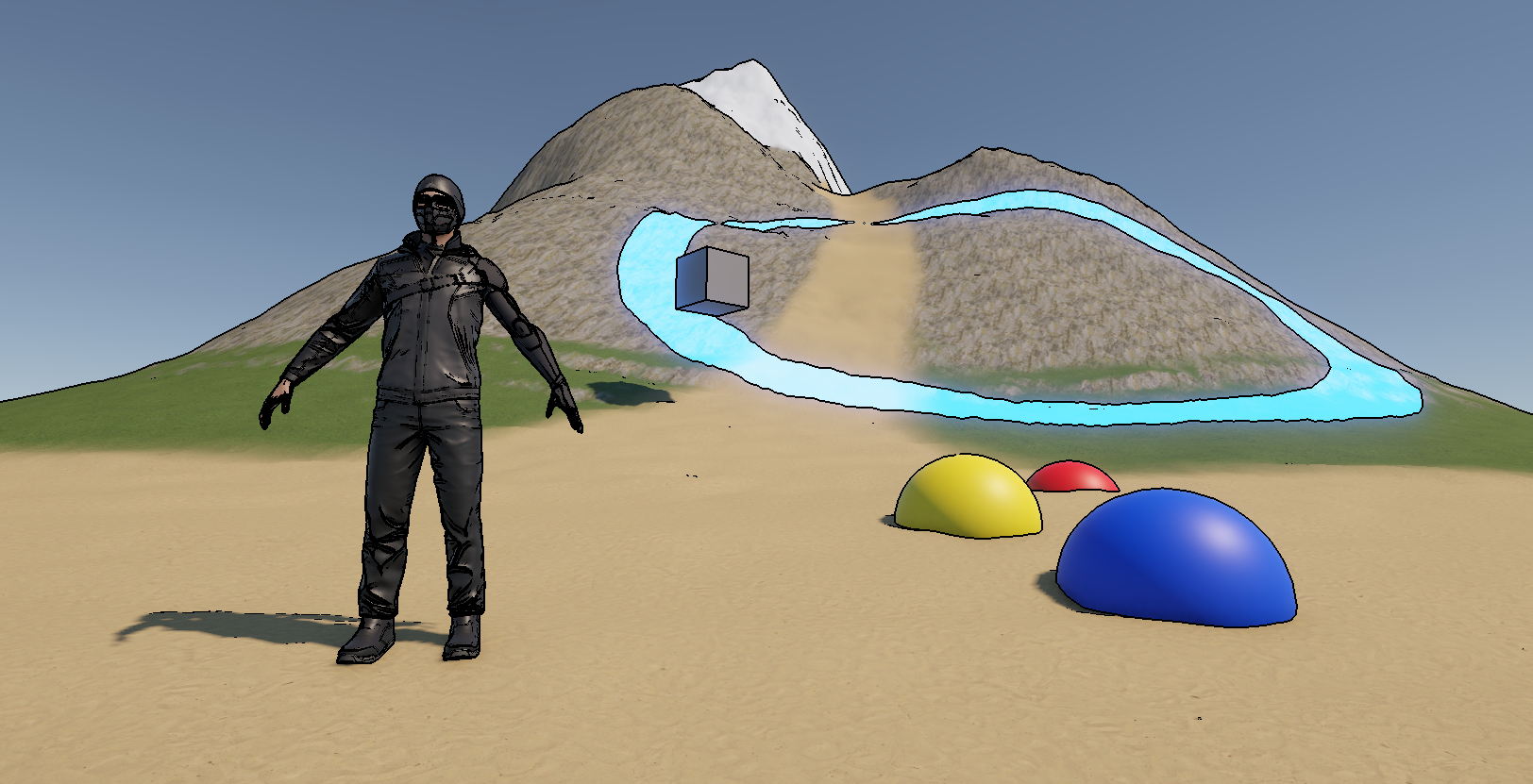
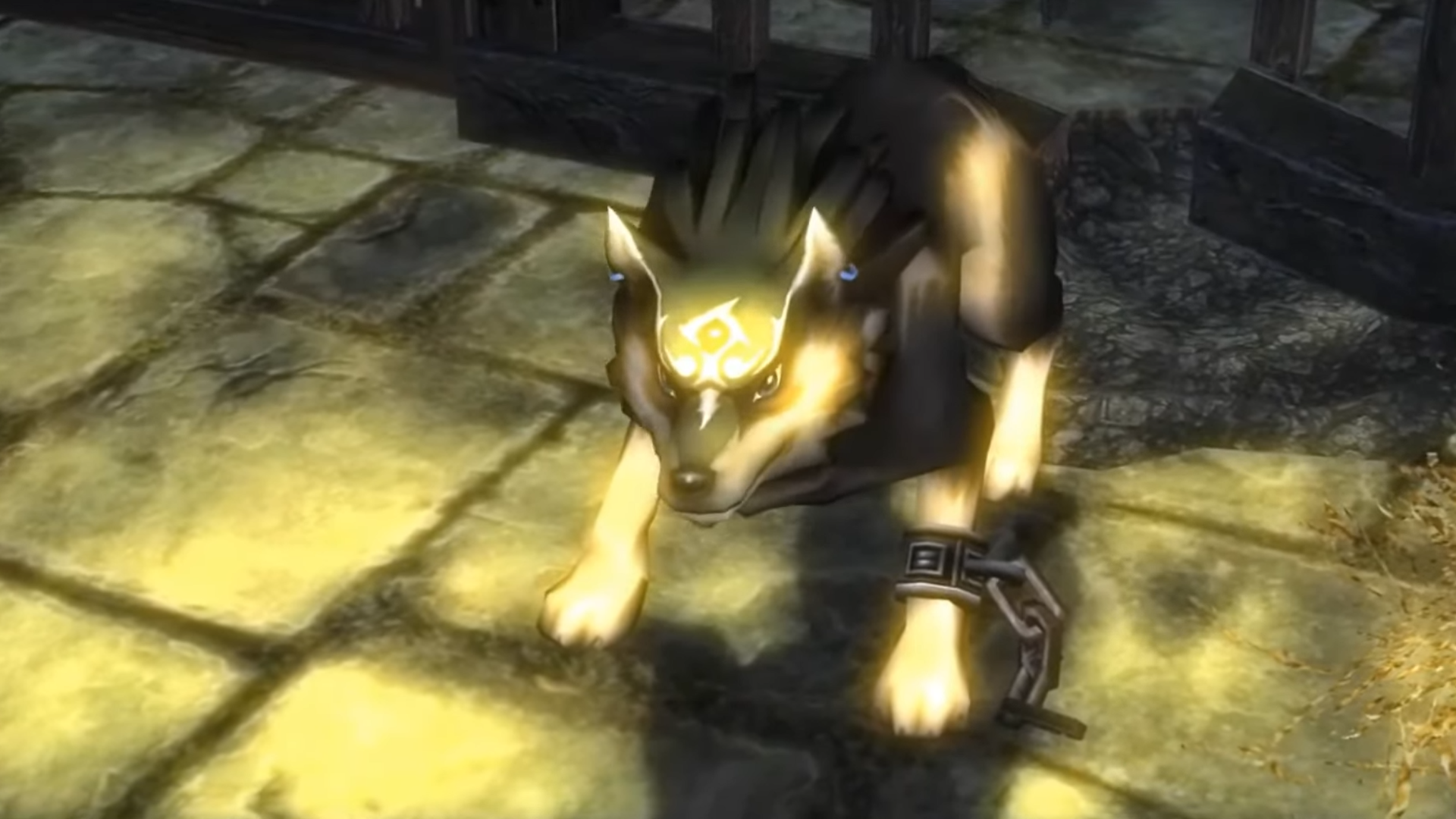
To start off, “post processing” just means any technique that modifies the screen after you’ve finished normal rendering. That includes any of URP’s built-in effects like Bloom, Vignette, or Tonemapping. When creating these effects, we have a limited amount of data to work with: namely, we can access the colors in the screen texture, the normal vector and depth of each pixel on the screen, and if we’re using them, the motion vector for each pixel. Already, we can do a great deal just with these textures. Post processing is the final step that you can use to elevate your game’s visuals and get a more pleasing color balance or maybe introduce stylistic elements that might be difficult without post processing, such as outlines. Or maybe you’re making Twilight Princess and you just really wanted to crank up that bloom to 11.
Speaking of post processing, I recently released Snapshot Shaders 2, a revamped and improved pack of post process effects for URP. The core feature is that every effect in the pack can be masked out and applied to only specific object layers, and there’s a ton of filters such as height-based fog, silhouette, painting, retro, blur, and more.
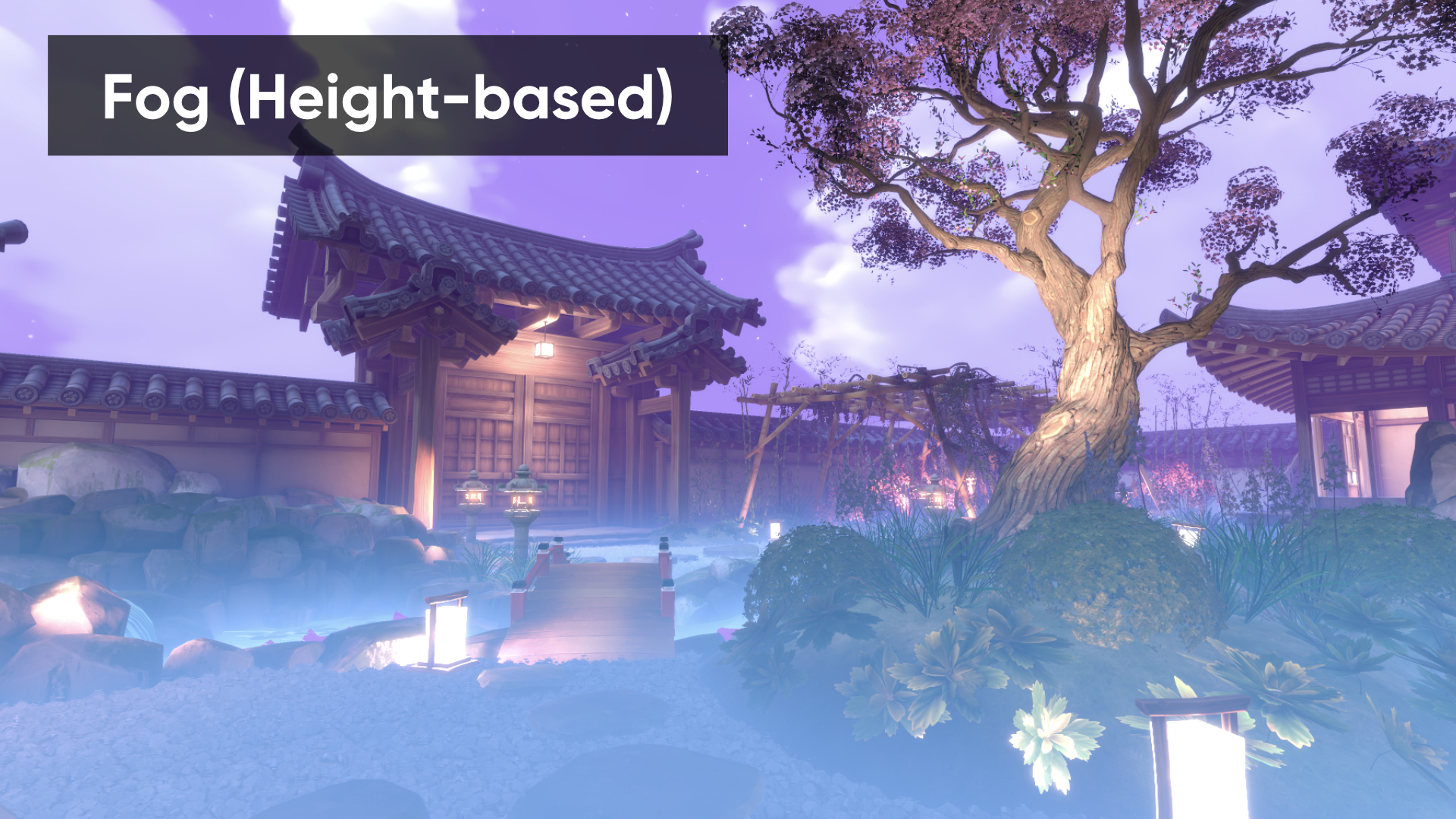
It’s genuinely some of my best work on an asset pack so I’d love if you could check it out!
Greyscale Filter
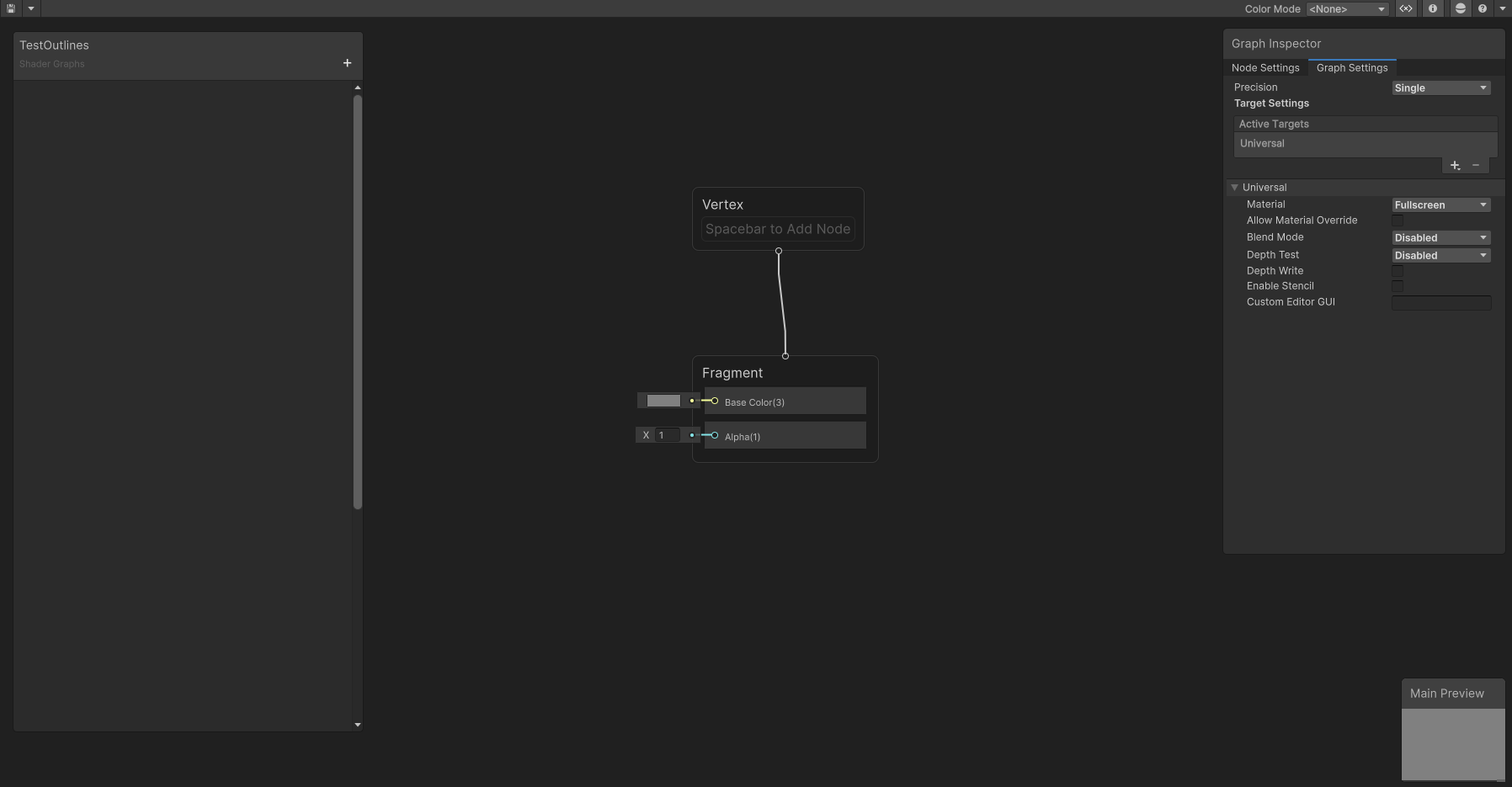
Let’s get started creating a Greyscale filter, which will turn each pixel a different grey based on its luminance (which is also called brightness). Right-click in the Project View and go to Create -> Shader Graph -> URP -> Fullscreen Shader Graph and name it “Greyscale”. Open it up, and the graph will look like any other, except over in the Graph Settings you will find slightly different options to usual. We won’t really be touching these in this tutorial.
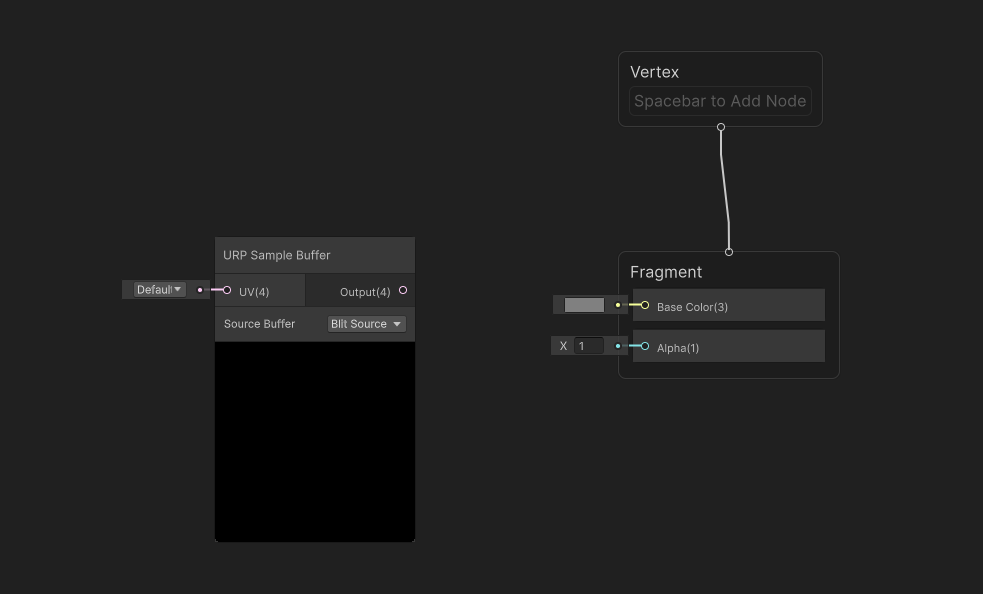
On the main graph surface, let’s add a node called URP Sample Buffer. This node is used to retrieve those screen textures I mentioned earlier – at the bottom of the node, there is a Source drop-down and we can cycle between the normal vector in world space, the motion vectors, and something called Blit Source, which is just the color. We’ll be using that last one, Blit Source. Unfortunately, the preview window on this node doesn’t really give us useful information, so we’ll be working largely in the dark when creating fullscreen graphs.
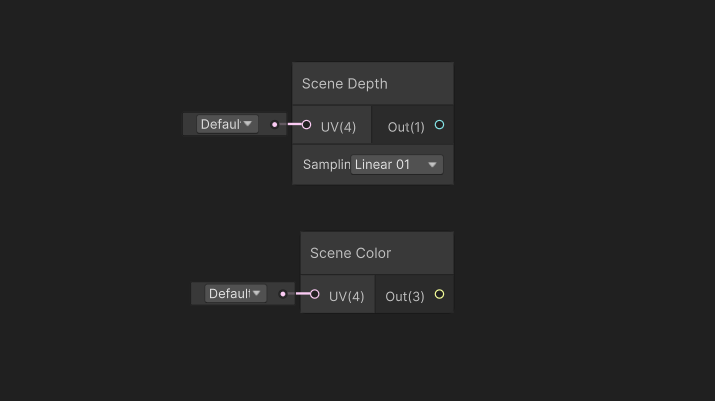
You may be wondering how to get depth information, and we can use the existing Scene Depth node for that, which you may find useful for creating some effects. It’s also worth noting that you can technically use the Scene Color node here too, but that’s a separate texture which is set once before post processing starts, so it won’t ever receive the results of any of our post effects and you wouldn’t be able to chain the output from one post process into another if you use it. Just stick to URP Sample Buffer.
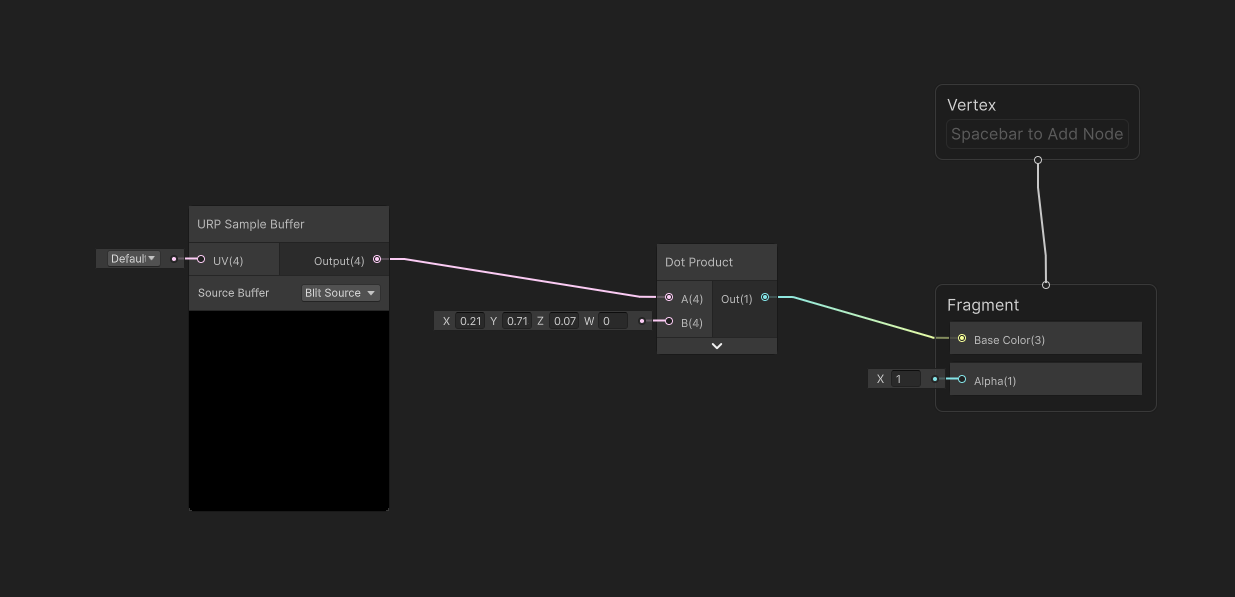
A greyscale filter is extremely simple: we just need to weight each of the red, green, and blue color channels of the screen color based on how sensitive the human eye is to those colors and condense them into one value. We can do that by taking the Dot Product between the screen color and a vector of those weights, which are 0.212 for red, 0.715 for green, and 0.072 for blue. Then, we can output this value to the Base Color graph output, and we are done with the shader!
Let’s save it and return to the Scene View.
To use this greyscale filter, first create a new material which uses this shader. Then, we need to find our URP Renderer Data asset, which is probably inside the Settings folder if you’re working from a fresh URP project. Let’s select the PC_Renderer and then click Add Renderer Feature at the bottom and choose Full Screen Pass. By default, you’ll see a kind of ugly color invert filter (presumably just to prove that the pass is active), but we can replace the material with the one we just created, and our greyscale filter will appear in both the Scene and Game Views. Awesome!
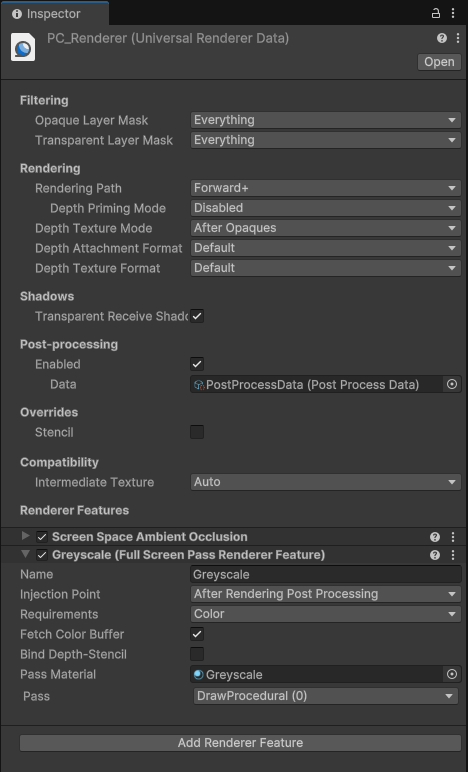
For completeness, I like to make sure Color is selected in the Requirements field, although I’m unsure if you need to do that, and we can rename the effect to “Greyscale” at the top so it’s easier to keep track of if we use multiple effects.
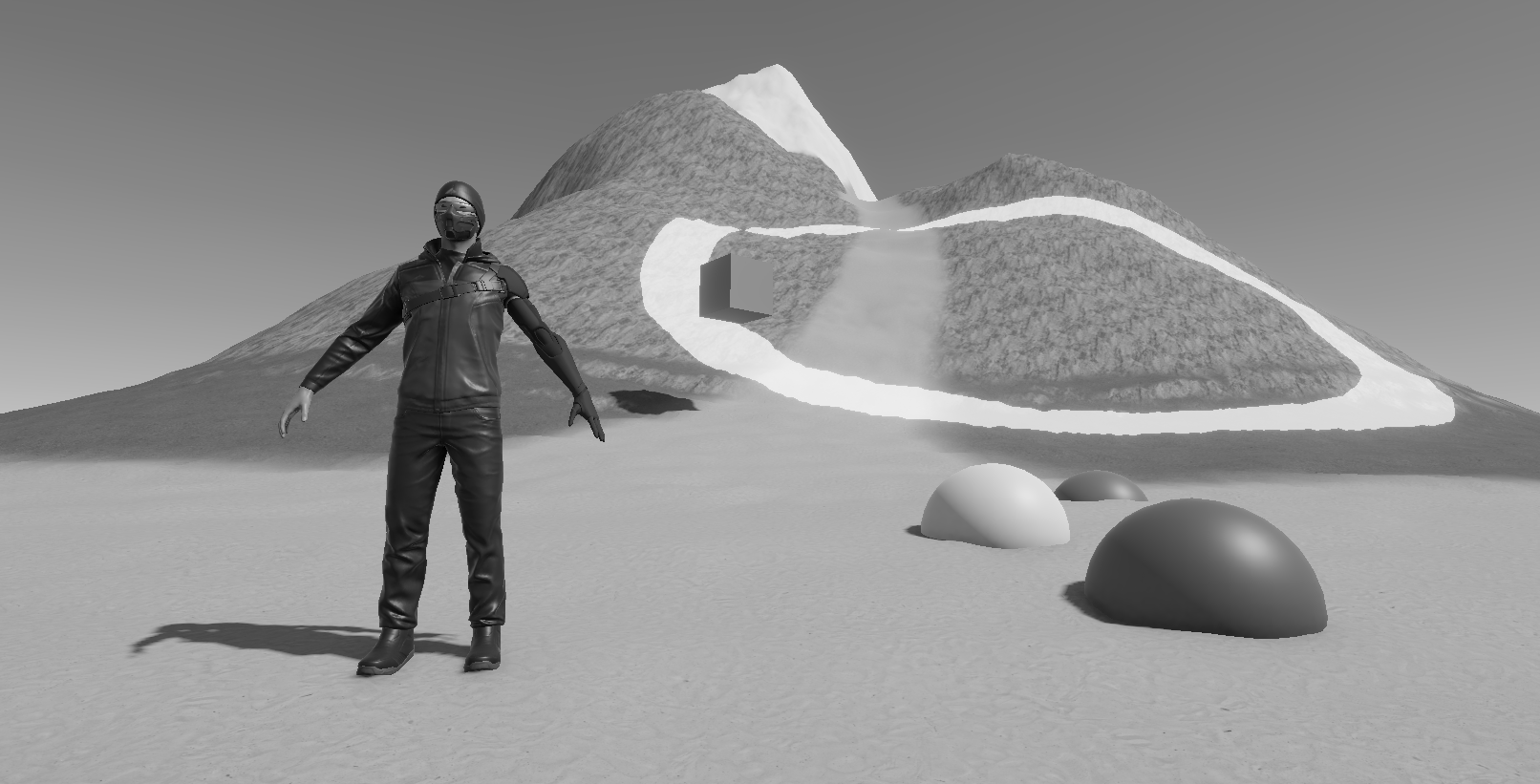
The Greyscale effect is quite a simple filter, so let’s jump in with something a bit more complicated.
Outline Effect
To draw outlines over our scene, we need to detect edges somehow, and we’re going to do it by finding changes in color by taking gradients across different pixels in the image. Essentially, for each pixel in the image, we will find the difference in color between the pixel above, below, to the left, and to the right. We can then do the same thing to find differences in normal vectors and add both edge detection sources together.
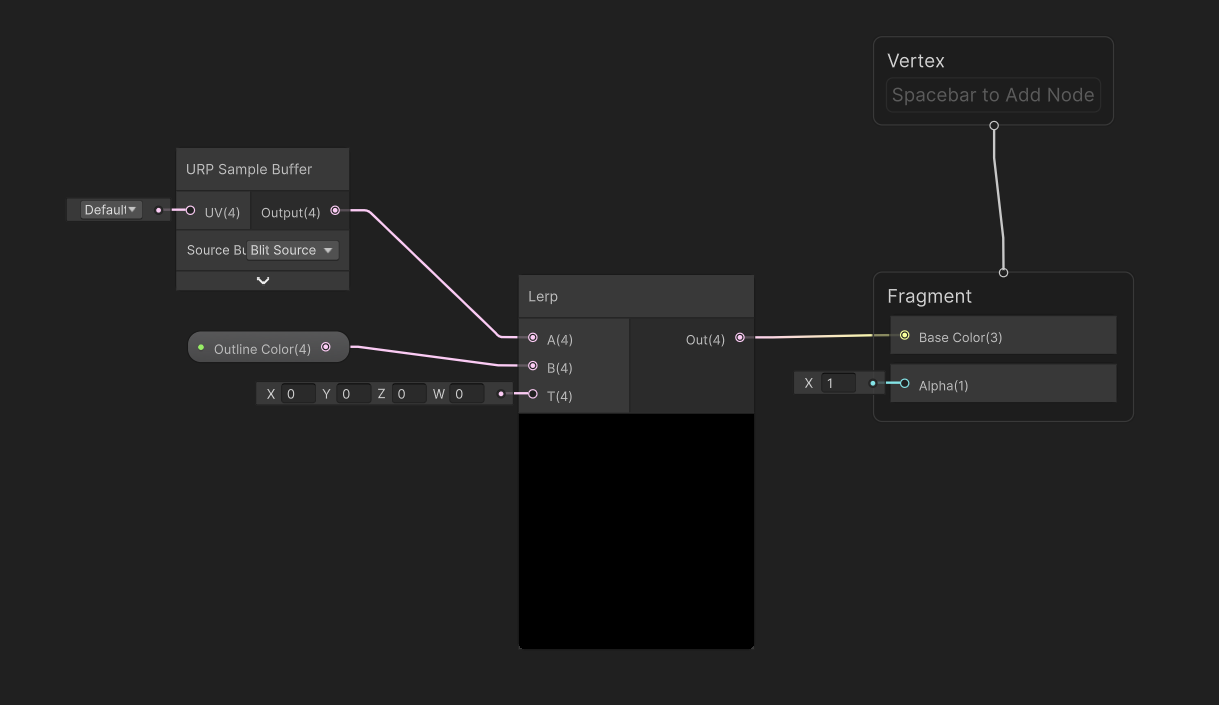
Let’s create another graph via Create -> Shader Graph -> URP -> Fullscreen Shader Graph and name it “Outline”. On the graph, we’ll start right at the end. We’re going to take the original screen texture and overlay the outlines onto it, so to start, we’ll add a URP Sample Buffer and feed its output to a Lerp node’s A slot. Then, we can add a Color property named Outline Color and drag it onto the graph into the B slot. The T slot is going to be a value between 0 and 1, where 0 means there is no outline and 1 represents pixels where there is one. We can feed the Lerp output to Base Color.
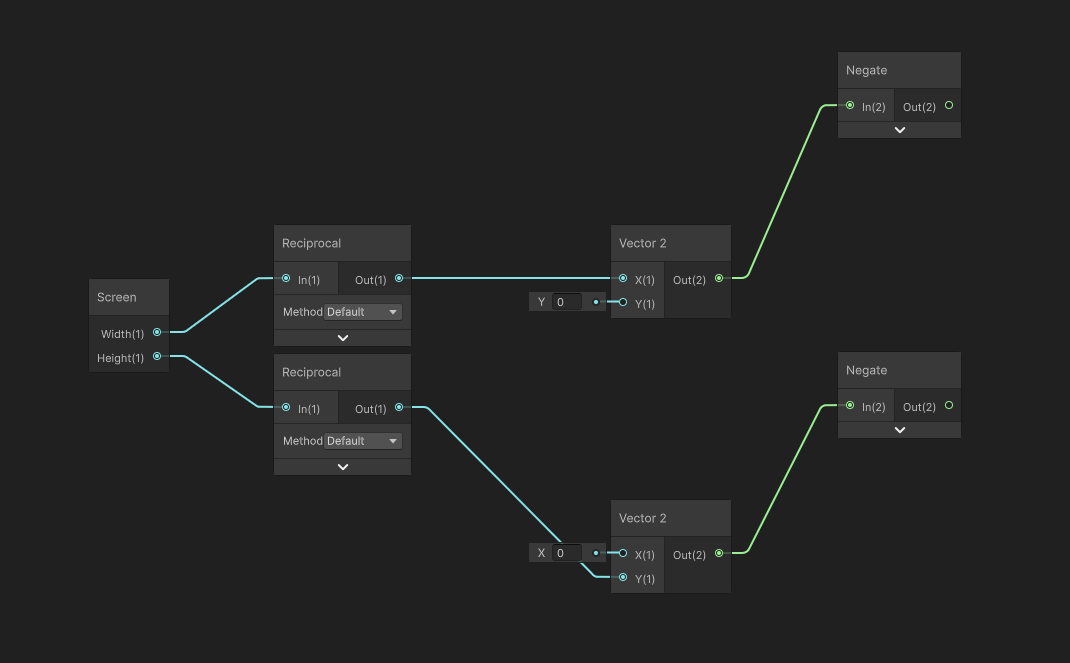
Next, let’s leave a lot of space to the left and start to build up the nodes that detect edges. First, we will set up the UV offsets for sampling the screen texture. Start with a Screen node, which gives us the width and height of the screen in pixels, then take the Reciprocal of both to give us the UV offset for sampling one pixel to the right in the x-direction and above in the y-direction. We can use Vector2 nodes with these values to set up both offset vectors. Next, we need to create vectors for sampling down and to the left by passing both vectors into Negate nodes, so overall we should have four offset vectors: to sample left, right, down, and up respectively.
These offset vectors need to be applied to the screen-space UVs, which we can get with the Screen Position node, then we can set up four Tiling And Offset nodes with the Screen Position in the UV slots and our four offset vectors plugged into each one. To recap: from top to bottom, we now have a set of UVs to sample the pixel to the left, right, down, and up from the center pixel currently being drawn. From each Tiling And Offset node, let’s wire up a new URP Sample Buffer node, making sure the Blit Source mode is used on each one to sample screen colors.
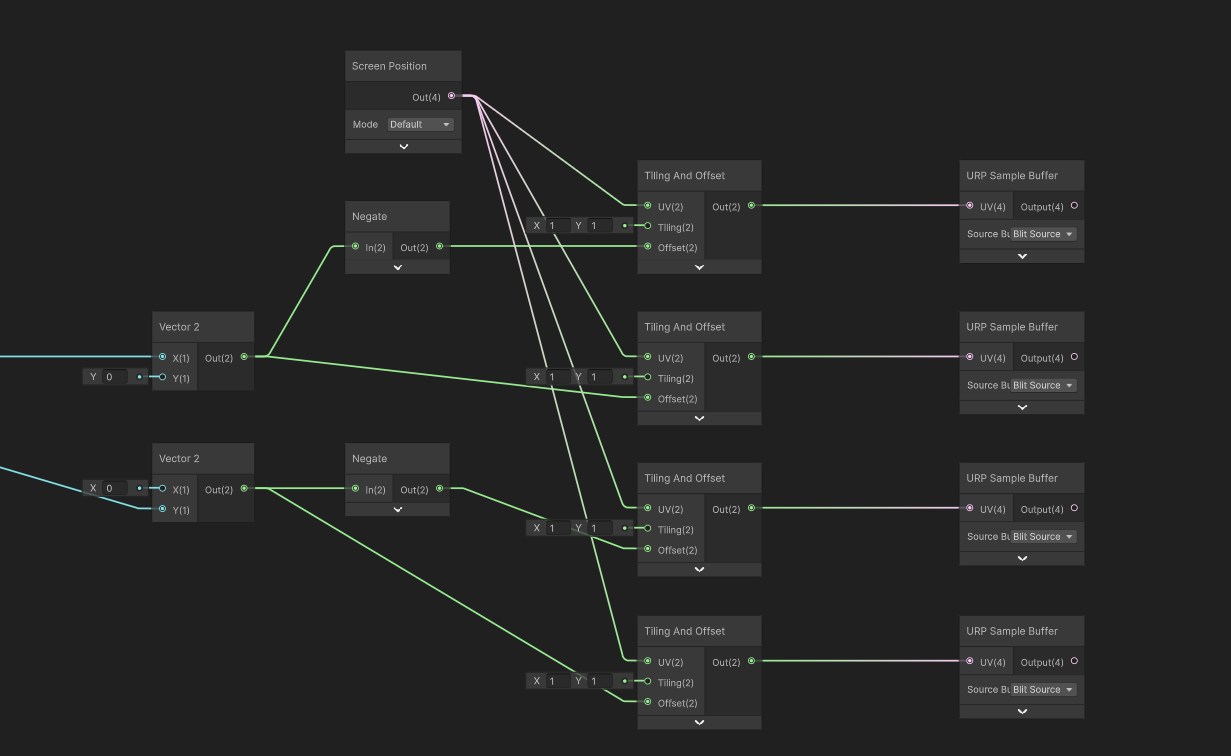
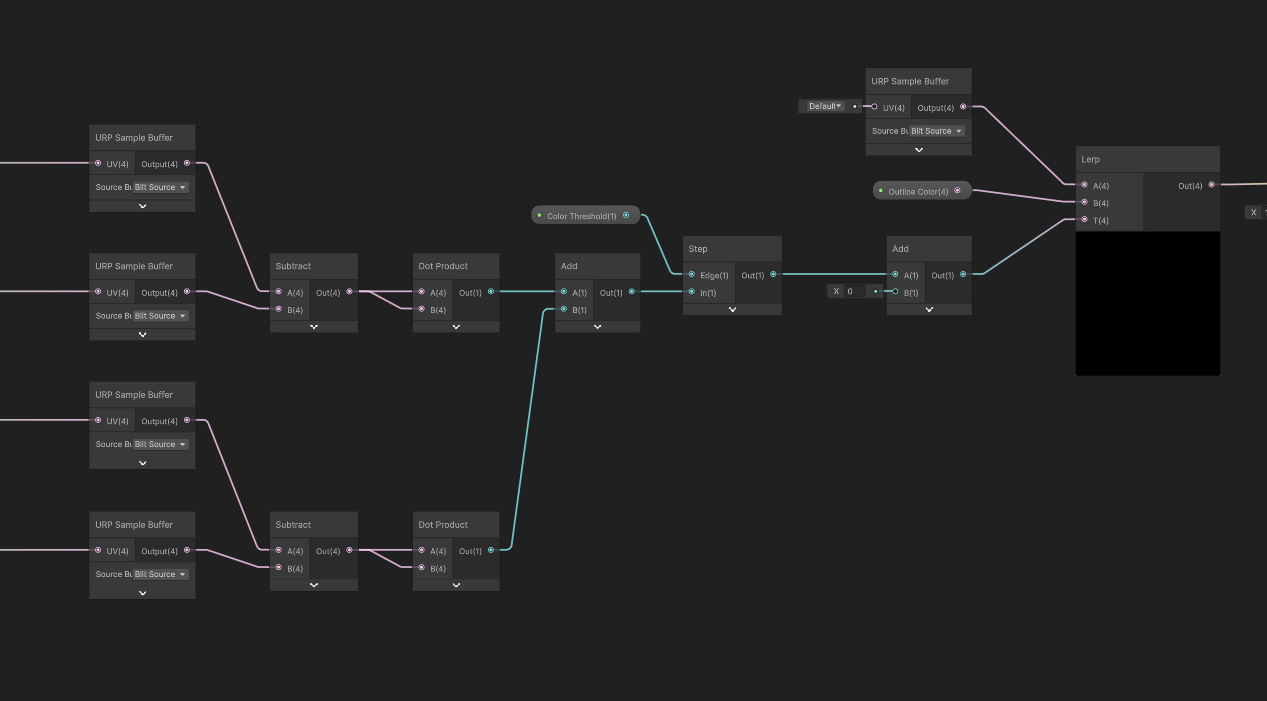
The next step is to find a gradient across these four samples. We do that cheaply by finding the magnitude of the difference in both the x- and y-directions, adding them together, and applying some threshold value so that if the difference is high enough, we register this pixel as an edge.
So let’s do just that – take the top two nodes and subtract one value from the other, and then do the same for the other two nodes. This gives us two vector values, but here’s a neat trick: if you take the Dot Product of a vector with itself, you get its squared magnitude, so I’ll do that to both vectors so that we have two Float values, where each one gets larger if the color difference is stronger. Technically speaking, since we’re finding a gradient with these two difference vectors then we should take the square root of the sum of these two values, but it’s faster to avoid doing so since we can just apply a threshold value to this squared value anyway. So, let’s add the two values together, and now we need to apply the threshold.
We can add a Float property called Color Threshold, and set its Mode to Slider so that it only accepts values between 0 and 1, and then use a Step node with the threshold in the Edge slot. This Step node gives us a binary value where 1 means an edge has been detected – where the difference in color exceeds the threshold value – and 0 means we should use the original screen color. We can output its value to the T slot on the Lerp node we added at the start, and now we have a shader which detects edges based on color gradients.
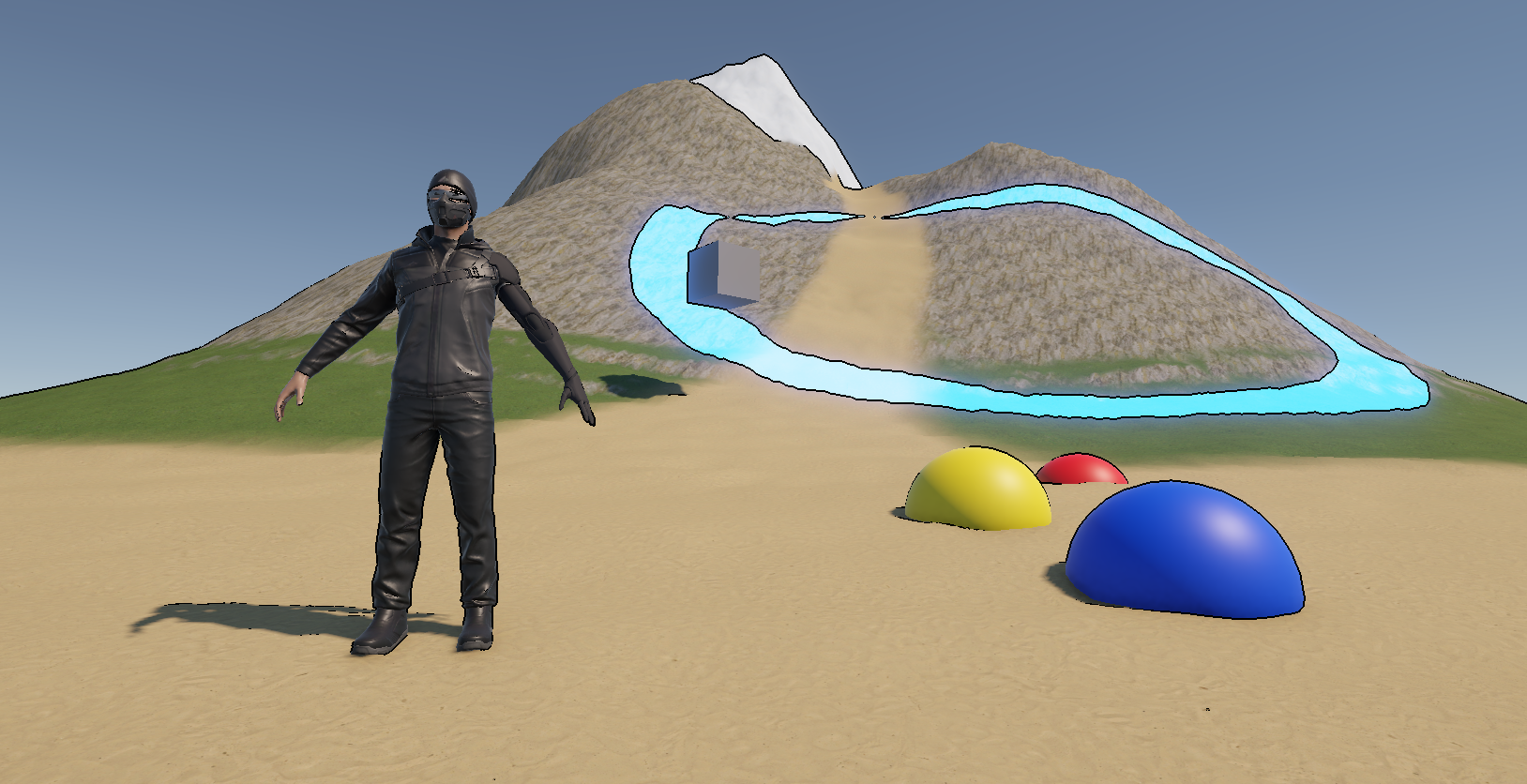
If we create a material using this shader and then add a second Full Screen Pass to the Renderer Features list, then if we tweak the color threshold on the material, we will see the outlines get stronger or weaker. Plus, we can change the outline color to whatever we want.
We can go one step further with this shader. Detecting color-based gradients is all well and good, but we have access to normal vector information via URP Sample Buffer, so let’s use it. First, we’ll use a distinct threshold for this so that we can configure the color-based and normal-based edge detection separately, so add a Float property called Normal Threshold and this time, it should be a slider between, say 0 and 5.
Next, let’s set up the normal-based edge detection nodes. Most of the nodes are identical to the color-based detection, so we can just copy them. Drag a box around all the nodes starting from the four URP Sample Buffer nodes up to the Step node and copy them all, then drag the copies down below. For each of the URP Sample Buffer nodes, let’s change their Source to Normal World Space. Then, swap out the threshold value for the new Normal Threshold we just created. This set of nodes will detect differences in normal vector of each pixel, so if we have an object with similar colors but a distinct edge on its mesh, we will detect those.
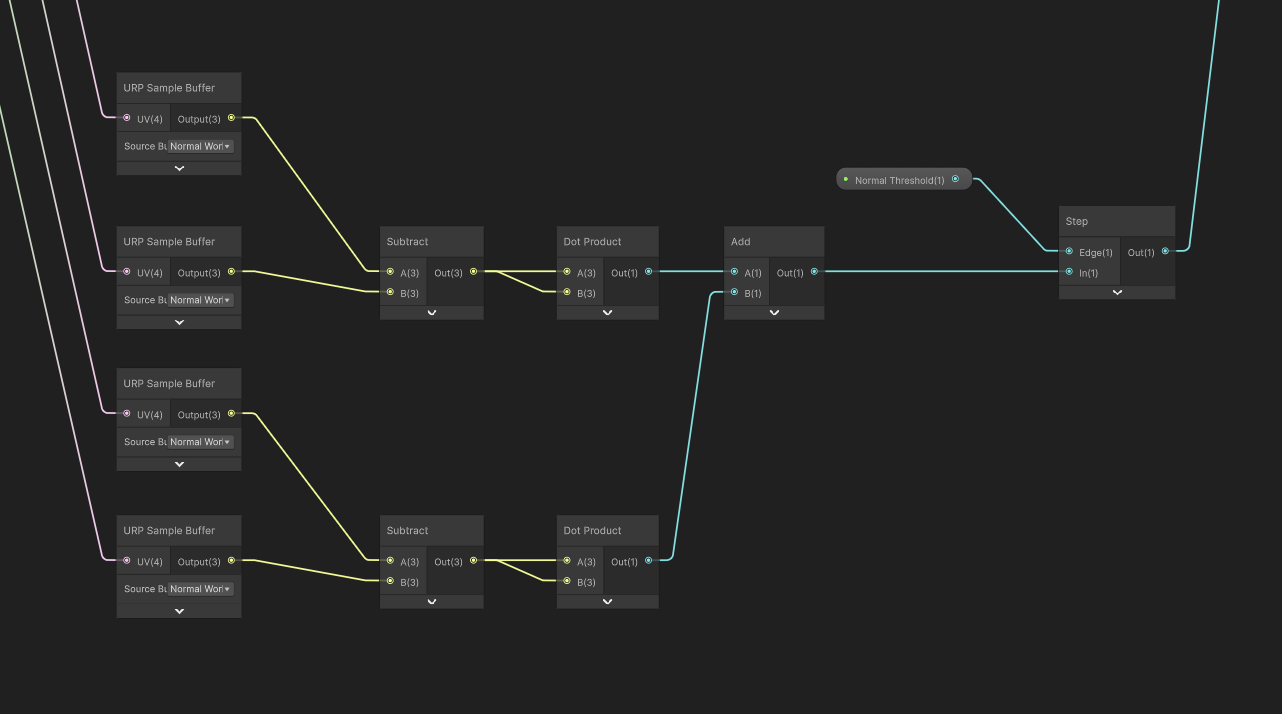
Finally, let’s add our color edge detector from before to our new normal edge detector, and feed that value into the Lerp node T slot instead.
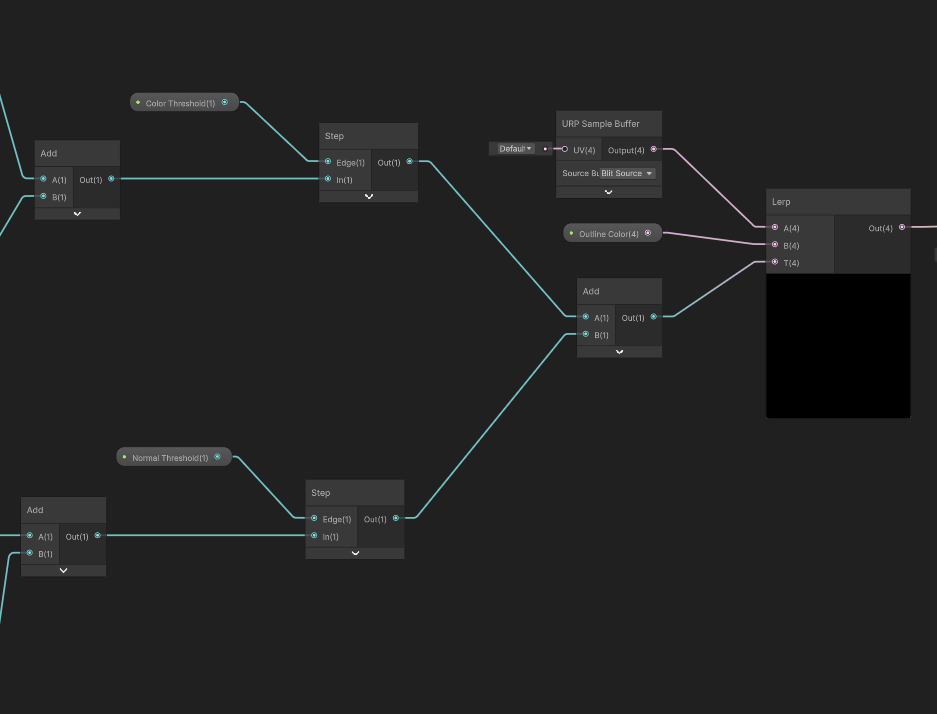
Now, if we save the graph and return to the Scene View once more, we can tweak the normal threshold and see even more edges. For peace of mind, I also make sure the Full Screen Pass has the Normal selected in its Requirements section.
The Fullscreen graph type is a rabbit hole of its own. I encourage you to have a play around with it! Try tweaking the screen UVs input to the URP Sample Buffer node, or maybe overlaying your own textures and colors to the screen in weird ways. There are plenty of things you can do with it, so perhaps I’ll cover more in this series in the future.
Until then, have fun making shaders!
Subscribe to my Patreon for perks including early access, your name in the credits of my videos, and bonus access to several premium shader packs!