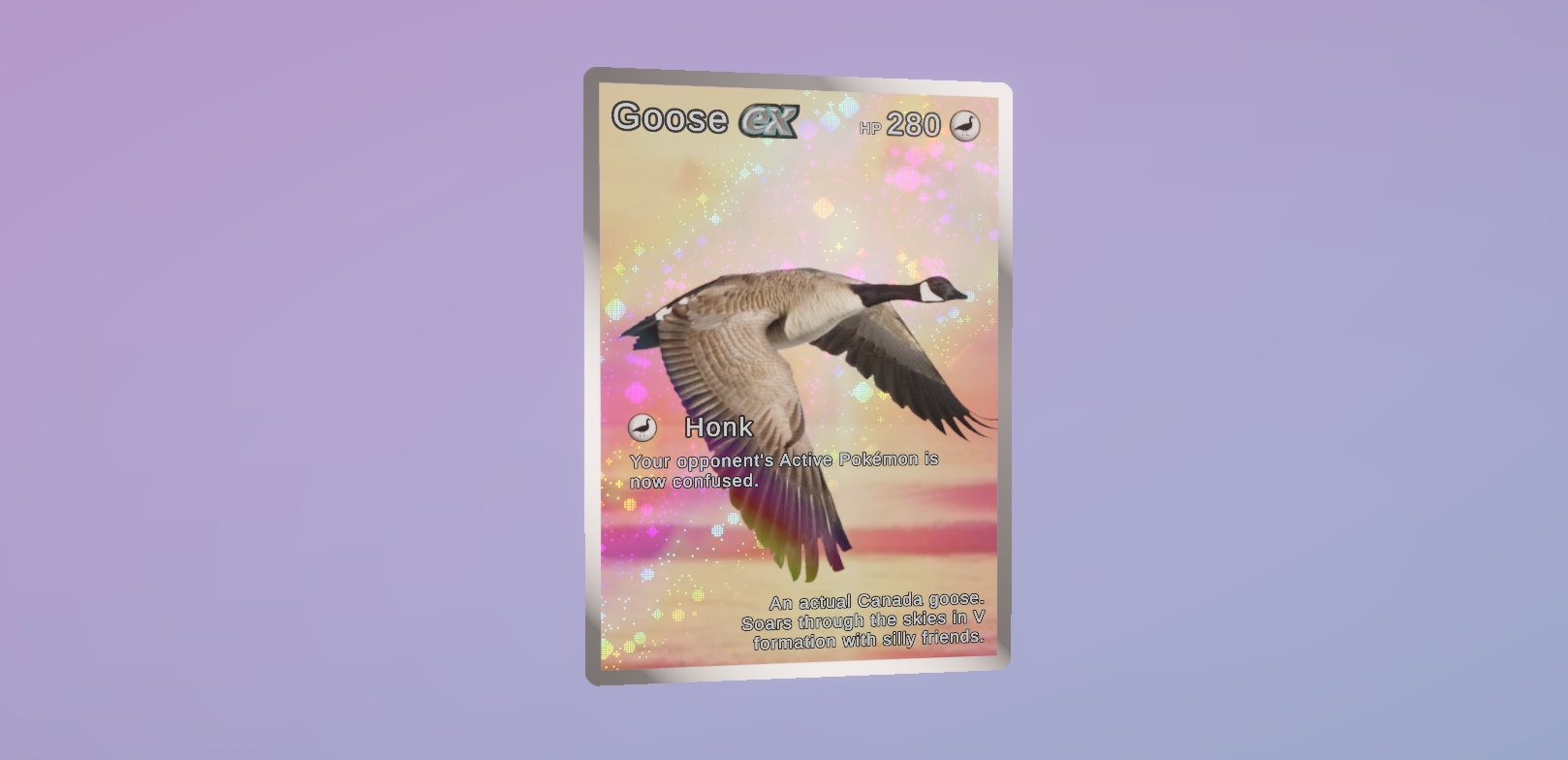
I’m addicted to collecting Pokémon cards. I got back into the physical TCG back in September, and then The Pokémon Company went and fuelled my chronic gambling habits further by releasing Pokémon TCG: Pocket in late October. Many of the cards, particularly ex cards, have this super cool parallax effect where parts of the artwork and background appear to be on separate layers which move differently when the card is rotated, together with an ‘impossible’ window effect where the layers are only visible within the card’s border bounds.
In this tutorial, I’m going to recreate this effect with the stencil buffer, which you might remember from my Impossible Geometry article. Plus, I’ll implement a holographic rainbow shine effect where the reflections move as the card rotates. I’ll be doing all of this in Unity 6.
Setup
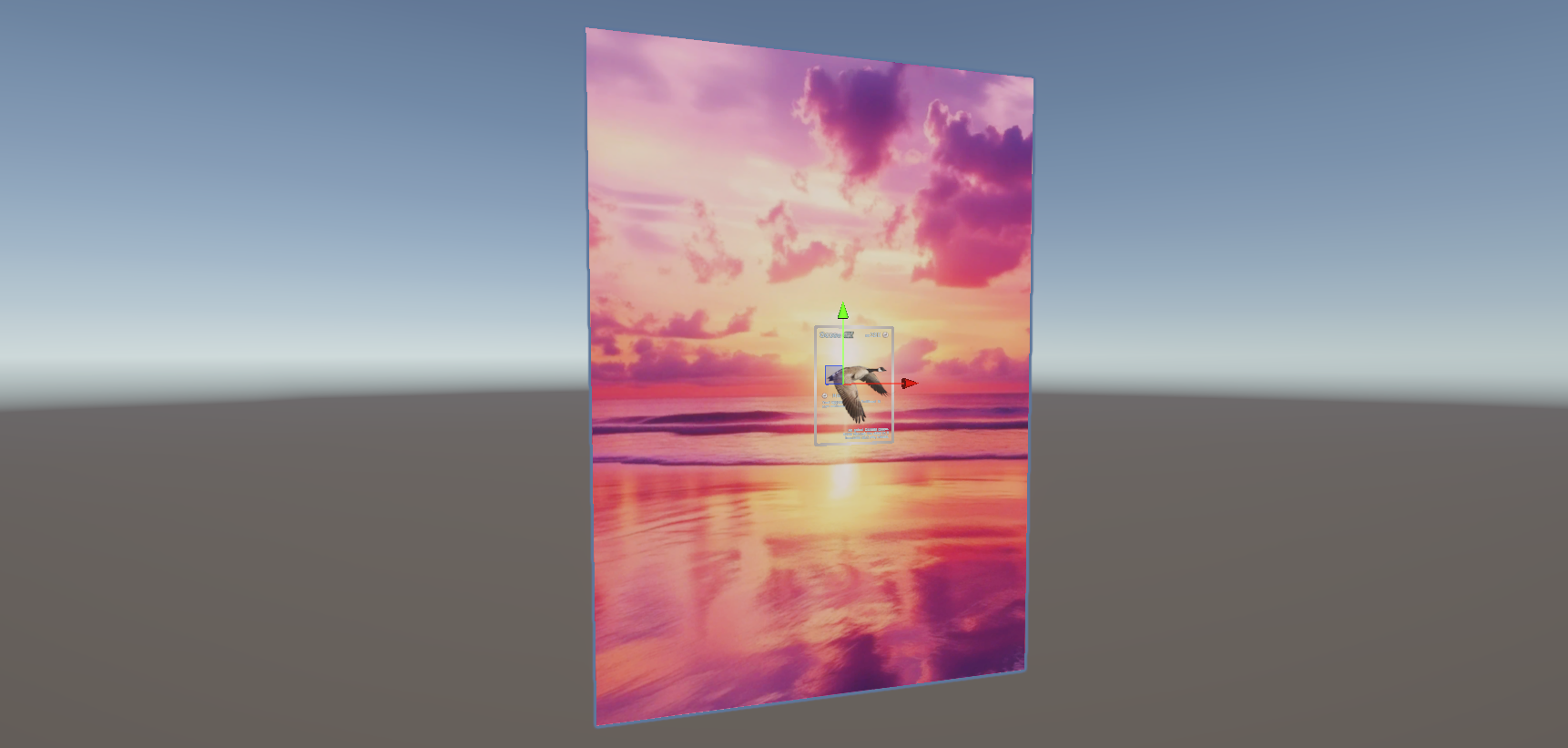
I’ve set up a test card made up of four main layers: the card’s border graphics in the middle, which uses alpha clipping to create the hole in the center, then the Pokémon artwork on a second layer moved slightly closer to the camera along the z-axis, which is transparent (I’m making a hard read that Generation 10 will have a goose Pokémon, of course). Then there’s the background layer offset behind the other layers. You’ll see that the background is much larger than the others, and that’s because it still needs to be visible inside the border bounding box when the card rotates. This layer can use opaque materials.
And finally, a layer with all the text elements which is flush with the border (the first layer) and uses transparent text materials.
Subscribe to my Patreon for perks including early access, your name in the credits of my videos, and bonus access to several premium shader packs!
Stencil Masking
First, let’s think about how to mask out the foreground and background layers so that they only appear inside the card borders. We can do this with the stencil buffer, which lets us store a little extra data about each pixel. Essentially, we can draw a quad mesh that fits neatly inside (and flush with) the border, but we don’t want it to draw any colors to the screen. Instead, we can write an unsigned 8-bit integer into the stencil buffer – that’s a value from 0 to 255. By default, all pixels have a stencil value of 0, so we can write a value of 1 instead wherever this masking mesh exists.
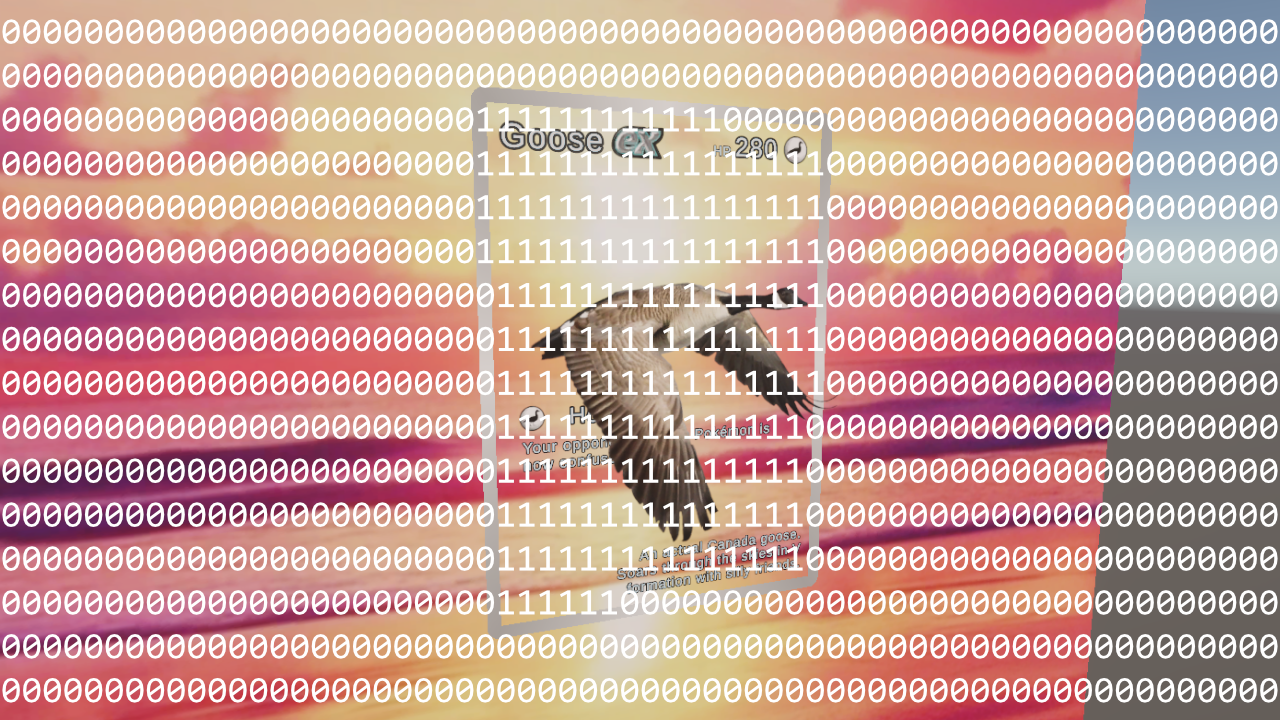
Later, when we render the foreground and background meshes, we can read the stencil buffer values for each pixel we’re trying to draw. If there is a 1 in the stencil buffer, we know that this is a position where the mask exists, and so we can decide to draw the layer normally. If the stencil value is 0, it is outside the card interior, so we can cull that pixel.
Unfortunately, Shader Graph doesn’t yet support stencils. Well, Lit and Unlit graphs don’t. Fullscreen graphs do, which suggests the functionality could easily be added, but I digress. There are a few approaches we could take to write a stencil, but I’m gonna write stencil mask shader using good ol’ HLSL. I’ll right-click in the Project View, select Shader -> Unlit Shader, then it doesn’t hugely matter which preset you choose, and let’s name the shader “StencilMask”. Here’s the full shader.
Shader "HolographicCard/StencilMask"
{
    Properties
    {
        [IntRange] _StencilRef("Stencil Ref", Range(0, 255)) = 1
    }
    SubShader
    {
        Tags
        {
            "RenderType" = "Opaque"
            "Queue" = "Geometry"
            "RenderPipeline" = "UniversalPipeline"
        }

        Pass
        {
            Stencil
            {
                Ref[_StencilRef]
                Comp Always
                Pass Replace
                Fail Keep
            }

            ZWrite Off
            ColorMask 0

            Tags
            {
                "LightMode" = "UniversalForward"
            }
        }
    }
    Fallback Off
}
Thankfully, it’s quite short. The main part is the integer property at the top called _StencilRef – this is the value that I want the mask mesh to write into the stencil buffer.
Then, inside the Pass block, you’ll see a new Stencil block. The Ref value is short for “reference”, so we use the _StencilRef property. Next, we have a comparison function, Comp. This means we are going to compare the reference value with the stencil value already inside the stencil buffer – this is called the stencil test. To remind you, by default, that’s zero. We can use many comparison functions: Greater, where the test passes if the reference is higher than the current value, LEqual where the test passes if the reference is lower or equal to the current value, and so on. Never will always fail, and Always – which I’ve chosen to use – will always pass, regardless of what the reference or current stencil values are.
Once the test has passed or failed, we need to decide what to do to the stencil buffer. With the Pass keyword, we specify what happens when the stencil test passes. We can Zero out the value, use IncrSat or IncrWrap to increment it by one, DecrSat or DecrWrap to decrement it, and so on, but we’re going to Replace the existing value with the reference value. It’s the same story for when the stencil test fails. In that case, I’ve chosen the default behavior, which is to Keep whatever value is already in the stencil buffer.
The last really important thing to do is to turn off writing to the depth buffer, because we still want to render things behind the mask mesh. We can do that with ZWrite Off. I have also added ColorMask 0, which prevents Unity from writing any color data to the screen, but it’s redundant since we haven’t added any code that would write anything to the screen.
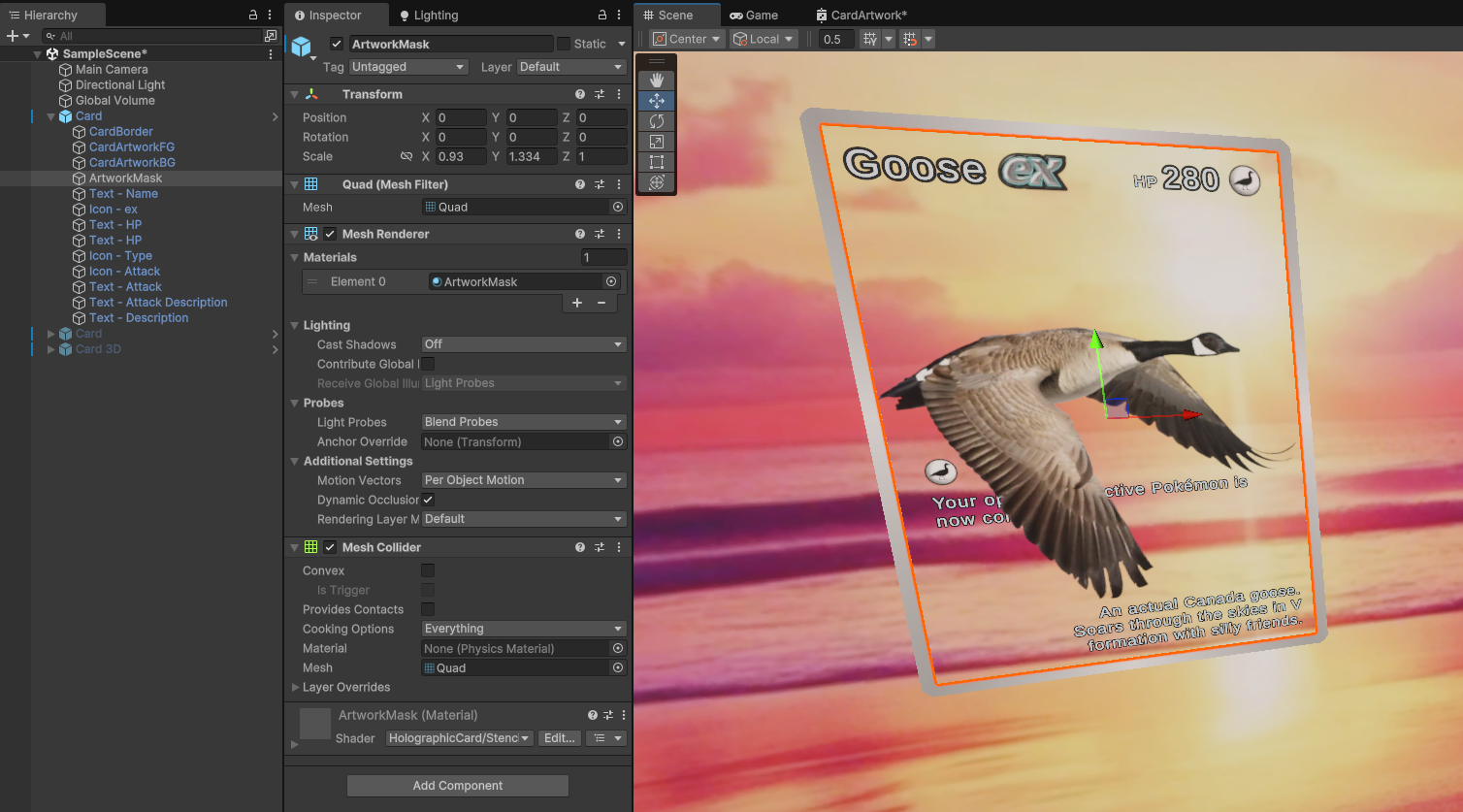
Now we can add a mask mesh to the test card and add a material using the mask shader with the Stencil Ref set to 1, but nothing will happen yet because we’re not doing anything to read from the stencil.
Render Objects
To do that, I’m going to use Render Objects. Although it’s possible to add stencil-reading support to an HLSL shader, I don’t want to have to do that for every shader I’m using in the game, so I’ll stop Unity rendering some of the card layers, then add them back with stencil tests spliced in using Render Objects.
Let’s create a new layer and name it CardArtwork or something similar, and add both the foreground and background card elements to this layer. Next, we’ll need to find the project’s Universal Renderer Data object, which is where many graphics options can be found. If you created your project from the URP template, then you’ll find the Data asset in Assets/Settings/PC_Renderer.
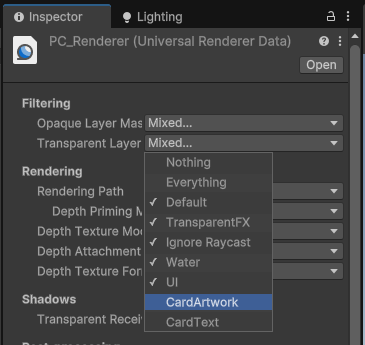
Once you’ve found it, let’s go to the Opaque Layer Mask and Transparent Layer Mask options at the top and deselect the CardArtwork layer from each. Immediately, those parts of the card disappear.
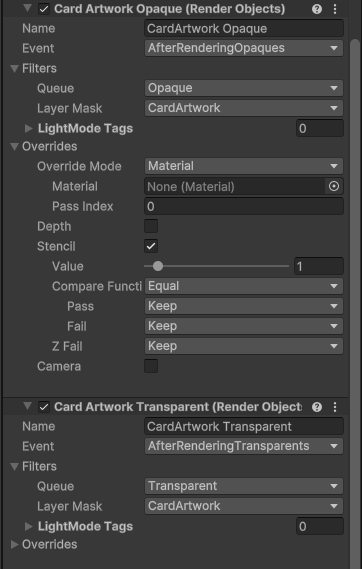
Then, go to the bottom and click the Add Renderer Feature button and add a new Render Objects feature, which we’ll use to add the opaque card artwork back. For that, we’ll need to set the Event to AfterRenderingOpaques, and then set the Queue to Opaque and the Layer Mask to only CardArtwork. The layer will pop back in, but it still isn’t culled based on the stencil mask. For that, expand the Overrides section and enable Stencil. Some of these options will look familiar after we wrote the stencil mask shader. The Value should be set to the same value we set the Stencil Ref to on the stencil mask material, which was 1. Now, objects in the CardArtwork layer will compare the existing stencil value with 1, and the Compare Function should be set to Equal. Now, objects in the layer only appear wherever the stencil is equal to 1. Simple!
We can add a second Render Objects feature to add back in the transparent objects inside the CardArtwork layer – the settings should be the same, including the stencil overrides, except the Event is AfterRenderingTransparents and the Queue should be Transparent. If you’d like to make it easier to distinguish between the two, you can go ahead and rename each of these features, as I have done.
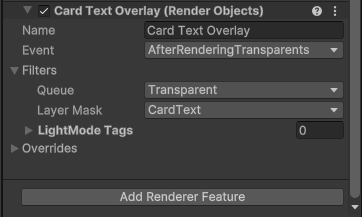
I also want to make sure the text always renders over everything else. Currently, the foreground layer renders over the text, and as much as I love looking at geese, I also love reading about geese, so let’s do both. We can easily achieve that by adding another layer called CardText, which we can put all the text elements into. Then, let’s go back to the Universal Renderer Data asset and remove this new CardText layer from the layer masks at the top of the asset, then add a third Render Objects feature. This time, we only need to set the Event to AfterRenderingTransparents, the Queue to Transparent, and the Layer Mask to CardText, and our text should pop back into existence and should render over everything else present on the card. I won’t bother messing with the stencil settings since all my text is contained within the card anyway, but if you want to have a parallax effect with the text too, then feel free to add a stencil override here.
Since this Render Objects feature is the lowest down in the list, it will render last, even though it’s in the same rendering queue as the second one. If you want to be safe and be absolutely sure this renders over everything, you can override the Depth and set the Depth Test to Always.
That’s the parallax effect sorted!
Subscribe to my Patreon for perks including early access, your name in the credits of my videos, and bonus access to several premium shader packs!
Holofoil Cards
Next, I want to create a holographic rainbow effect like you’d see on real Pokémon cards. Depending on how powerful and customizable you want the effect to be, this can actually be fairly complicated, but I’ll do my best to explain what each part is doing.
I’ll make a new shader via Create -> Shader Graph -> URP -> Lit, and name it “CardArtwork”. I’ll be doing a few quite basic things here, so I’ll speed through some of the explanations. First, let’s add Base Color and Base Texture properties and wire them up like this.
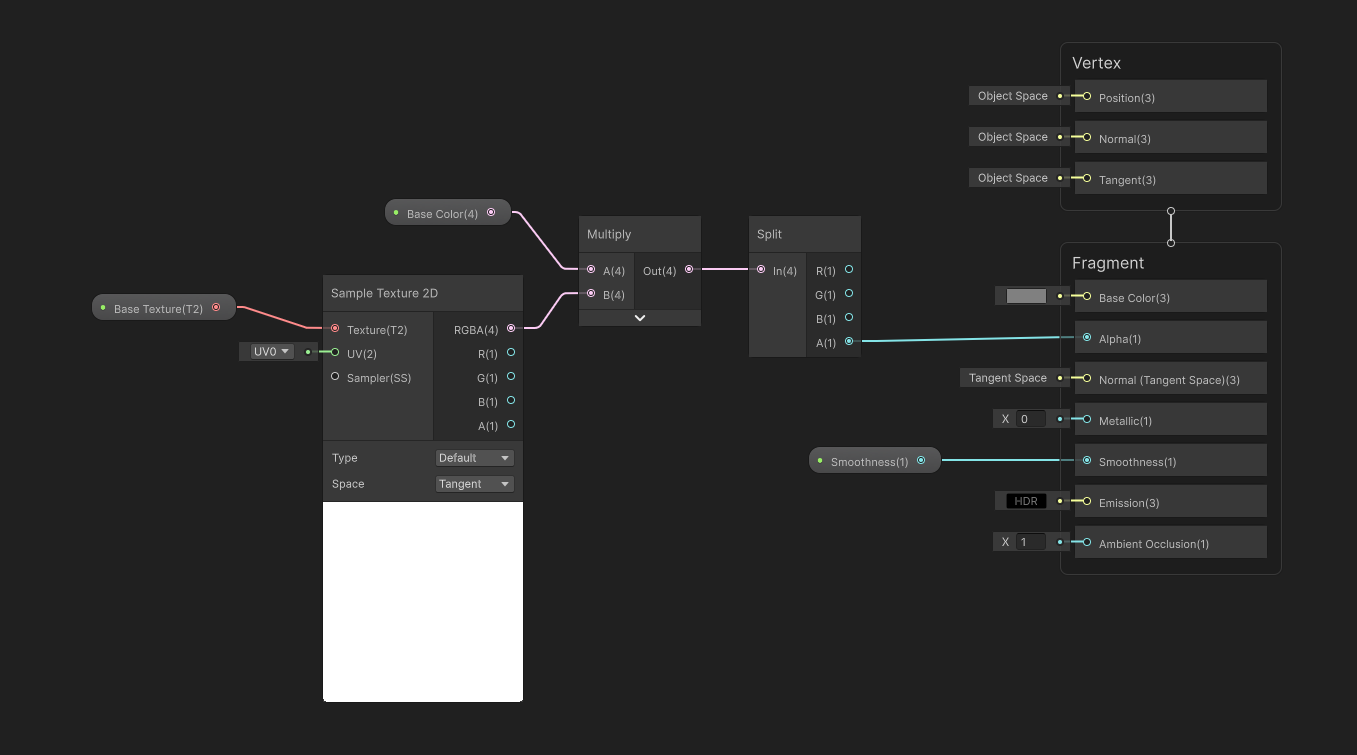
I want to split off the Alpha and output it, but we’re going to be dealing with mixing the base color and holographic colors later so let’s leave the graph’s Base Color ourput alone for now. I will also quickly add a Smoothness Float property which is a slider between 0 and 1, and wire this directly to the graph’s Smoothness output. That will give us a bit more control over the feel of the card surface.
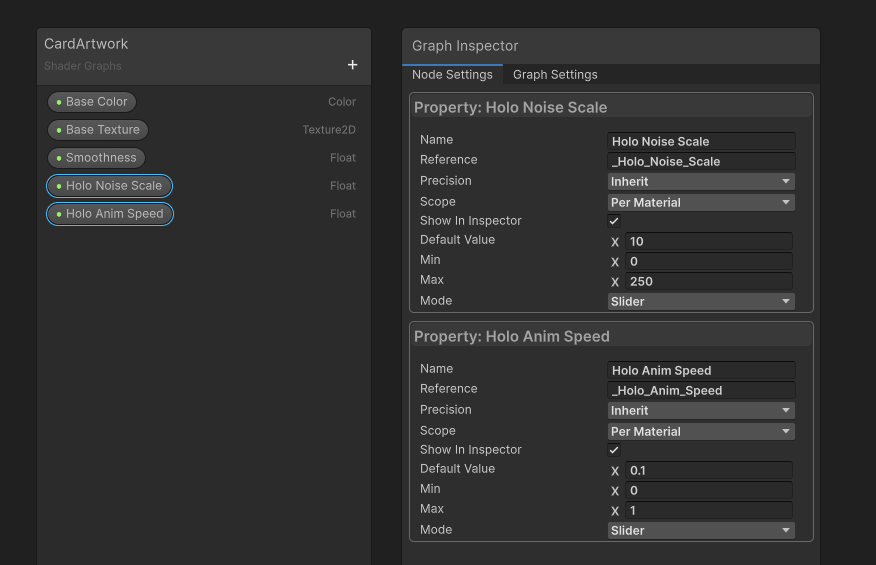
Next, let’s handle the rainbow pattern that appears on the surface of the card. On a real card, rainbows will appear as streaks across the card, but here in the digital realm we can do things that real cards can’t. I want to animate the rainbow pattern and maybe make it appear noisy and blotchy rather that appearing as neat streaks. To start with the noise pattern, let’s add two new Float properties: Holo Noise Scale, which will control how tightly packed together the blotches will appear, and Holo Anim Speed, which influences how quickly the shader scrolls through the rainbow hue. I’ll make them both sliders for easy usage in the material Inspector and give them sensible default values.
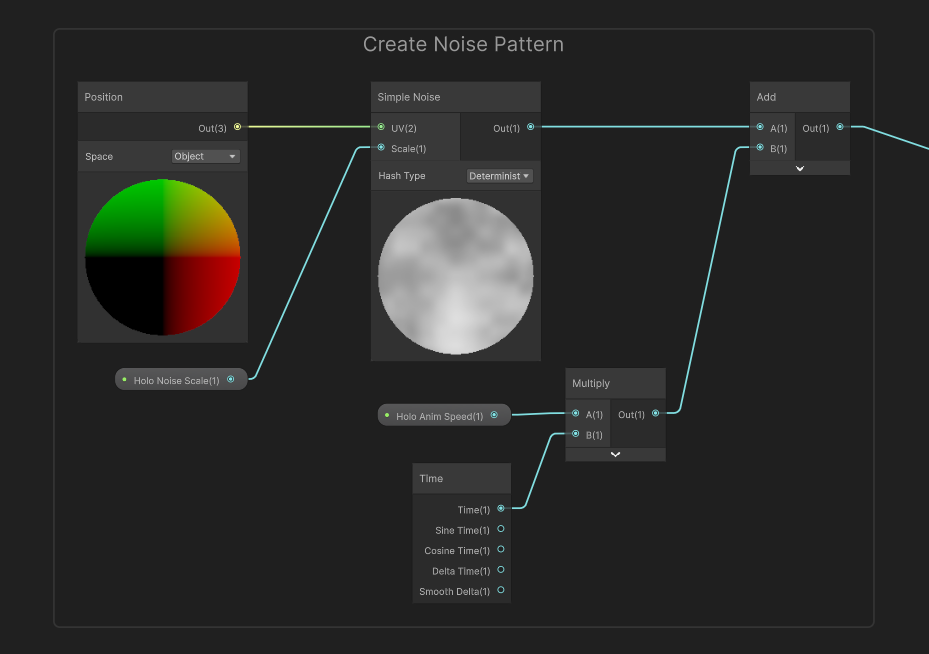
I want the noise pattern to unfold over the card surface, so I’ll add a Simple Noise node and then feed the object-space position to its UV slot. If I use world-space position here instead, then the rainbow pattern looks different as I rotate the card. Note here that the UV is a Vector2 and we’re inputting a Vector3 – this is actually fine, as the shader will use the first two components of the position, XY, and our card is oriented along the XY plane when in a neutral position. The Holo Noise Scale property can go right into the Scale input. Then, we can multiply a Time node with the Holo Anim Speed property to create a clock, and add both values.
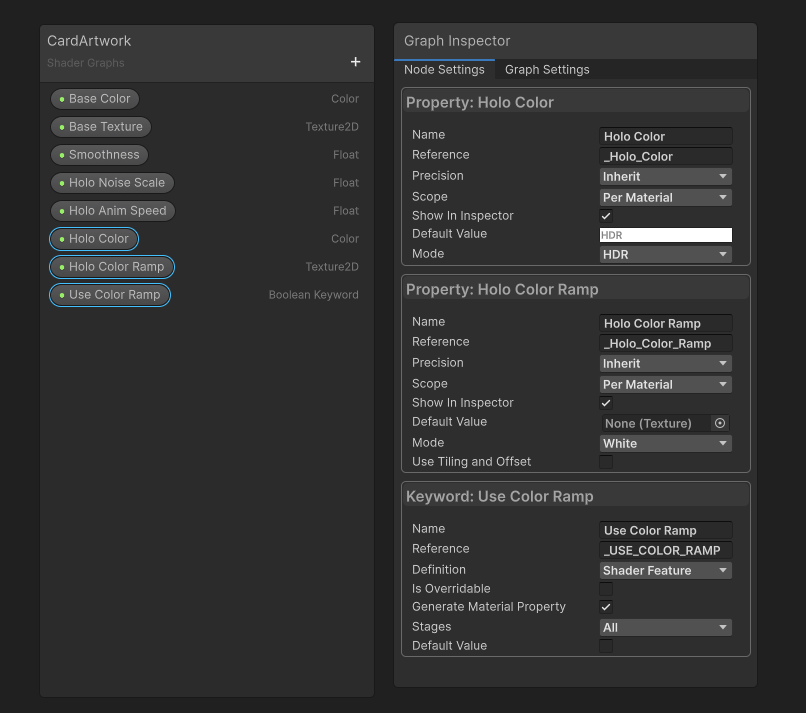
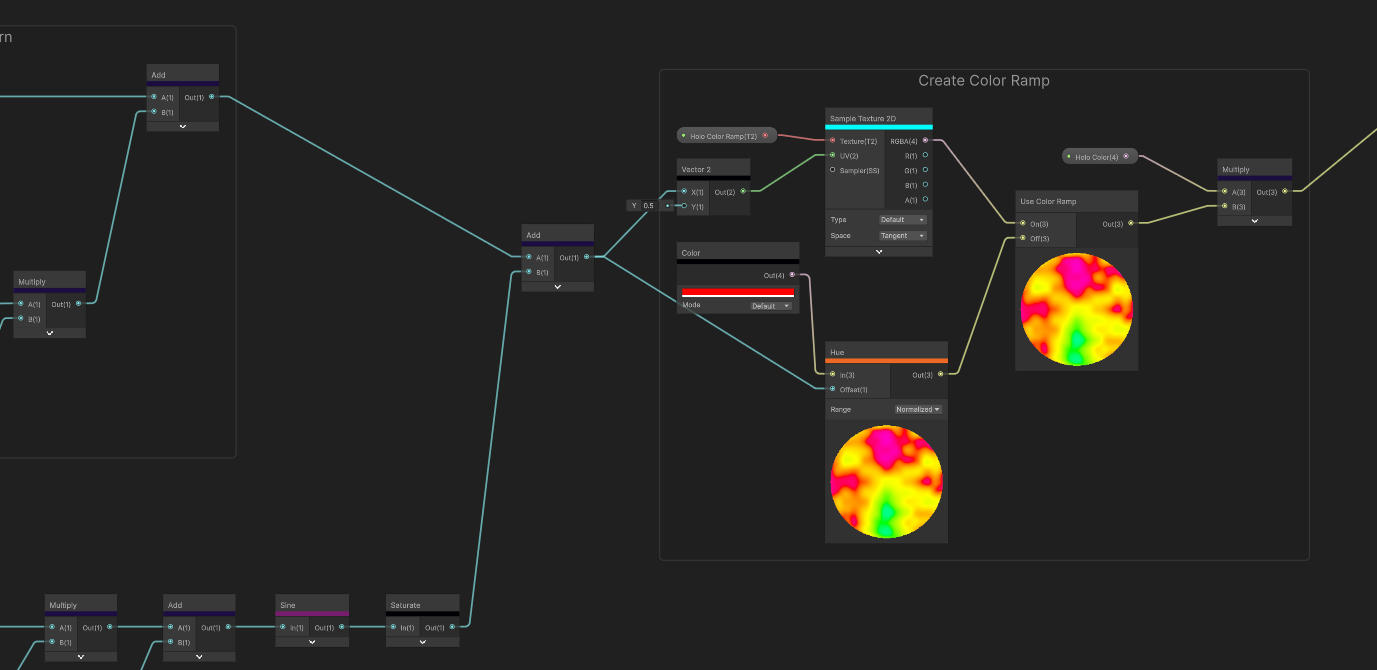
Now let’s somehow convert this into a rainbow. There are two ways we could do this: we could use a color ramp texture, where we encode each color into a thin texture strip, or we can generate the rainbow inside the shader. Our shader will be able to do both. First, let’s add a Holo Color property which acts as a global multiplier for the holographic color. This needs to be an HDR color, because I want the ability to make the rainbow super bright if I so wish. Then, let’s add a Texture2D property called Holo Color Ramp. By default, if this texture is unassigned, then it uses a fully white texture, which is what I want. Next, I want to add a Boolean Keyword called Use Color Ramp. When this is ticked, we’re going to sample the color ramp texture to get our holo colors, and if unticked, we’ll generate a rainbow inside the shader. The default values are fine – the Shader Feature setting means that a material always uses the one route through the shader corresponding to whether this is ticked or unticked. Multi Compile would let us change the value at runtime, as Unity compiles all variants of the shader. If you’ve ever waited an eternity for “compiling shader variants” to finish, this is why.
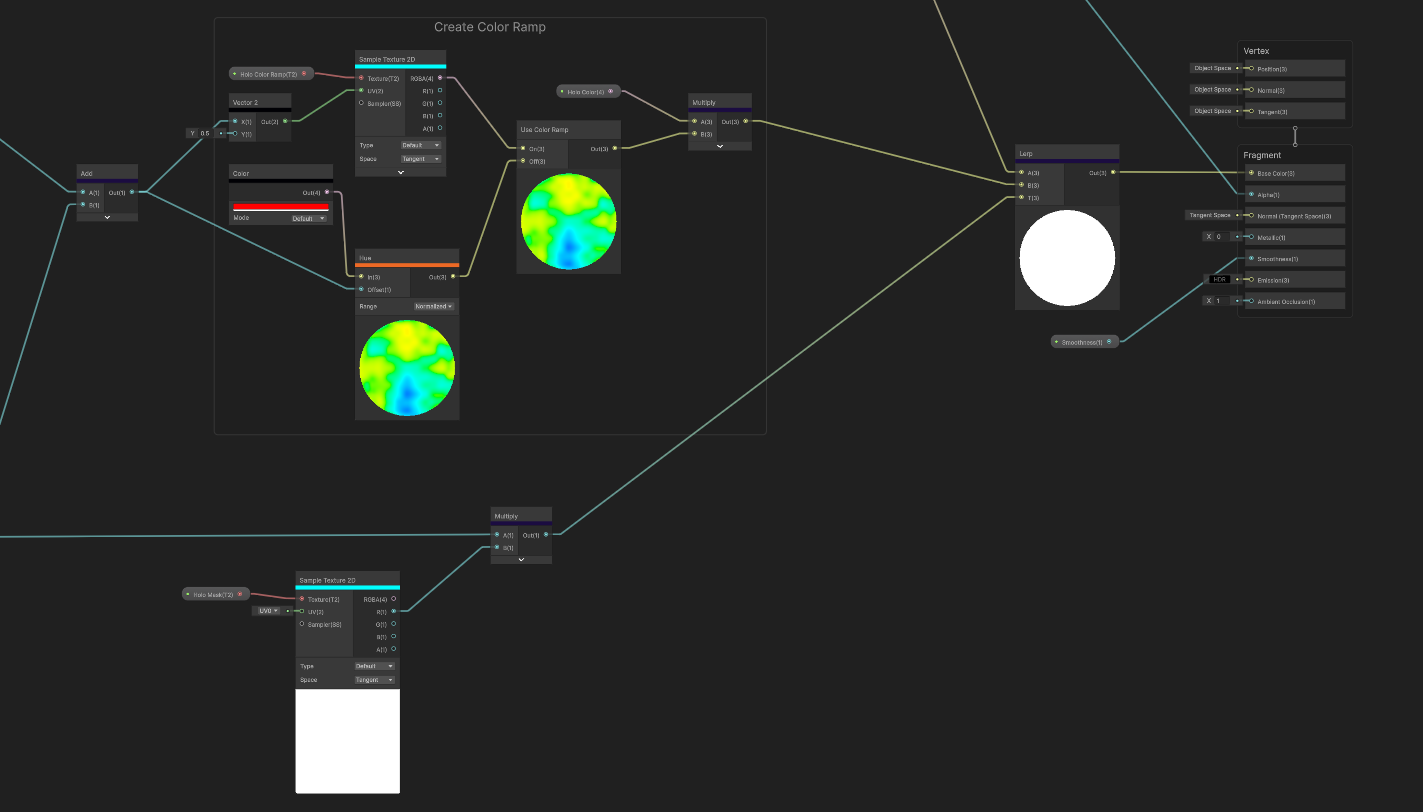
First, let’s drag the Use Color Ramp onto the graph and leave a bit of space to its left. It takes two inputs, and outputs one of them depending on the keyword setting. I’m also going to take the animated value from before and pass it to an Add node – this is setting something up for later. When the keyword is on, we want to take this Add and use it as a UV offset along the u-axis to sample the Holo Color Ramp texture. When the keyword is off, we’re going to take a fully saturated red color and use a Hue node to cycle it from red, to orange, to yellow, green, and so on through the rainbow. If we set the Range to Normalized, then it will cycle the entire hue range when the input goes from 0 to 1. Finally, we can multiply by Holo Color – the global holo tint property I added – and this part of the shader is done! If we quickly output this to Base Color, we can see what it’s doing.
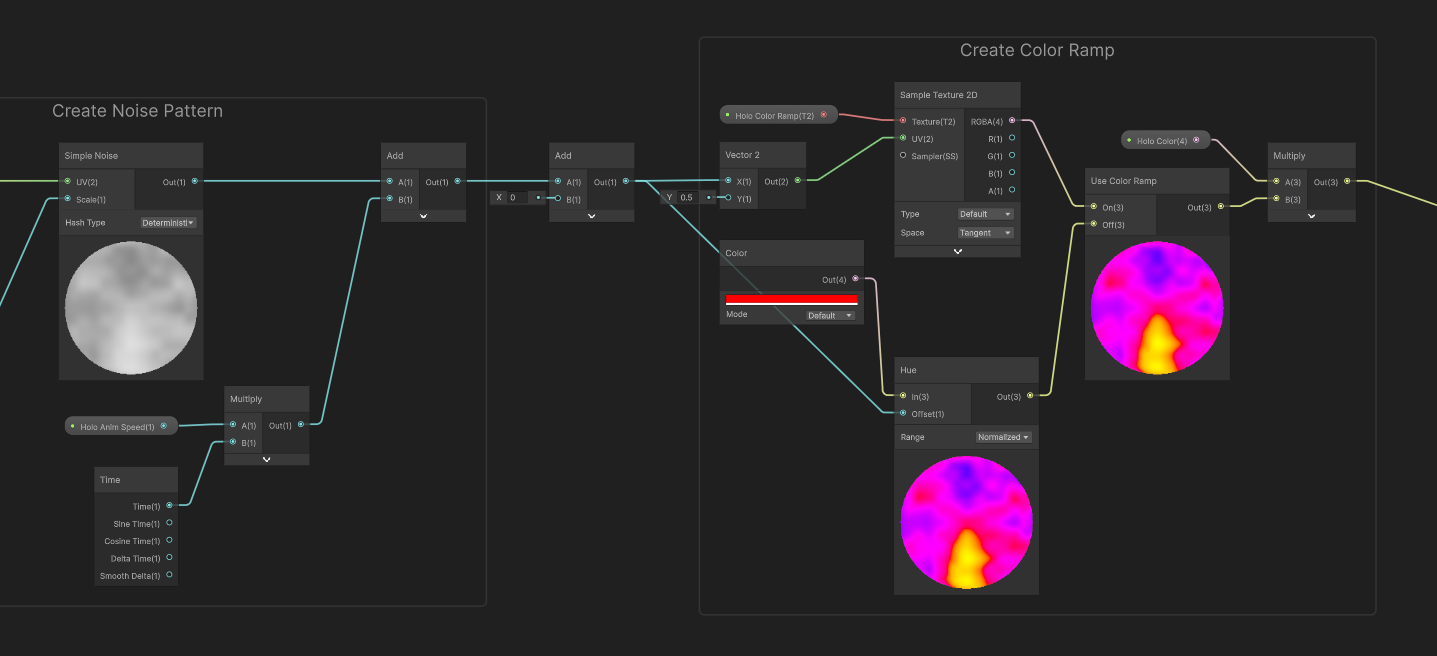
It’s a nice pattern but it’s not exactly what I want yet - I want the rainbow to appear in streaks.
Holographic Streaks
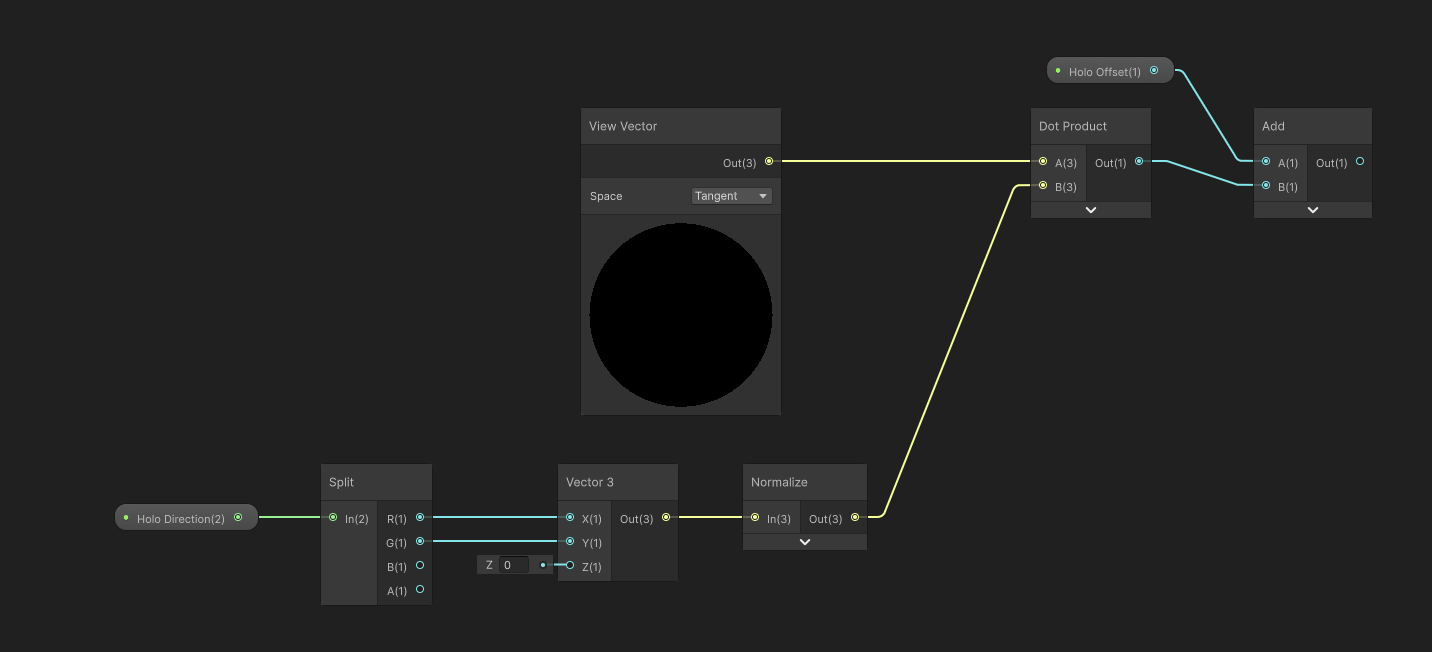
Essentially, I want to define a direction for the streaks to appear in, and this is going to be flush with the card surface. I’ll add this as a graph property called Holo Direction, which is a Vector2, which I will normalize. As it’s flush with the card surface, we can say this is in “tangent space”, and if we expand it to a Vector3, its z-component is always 0.
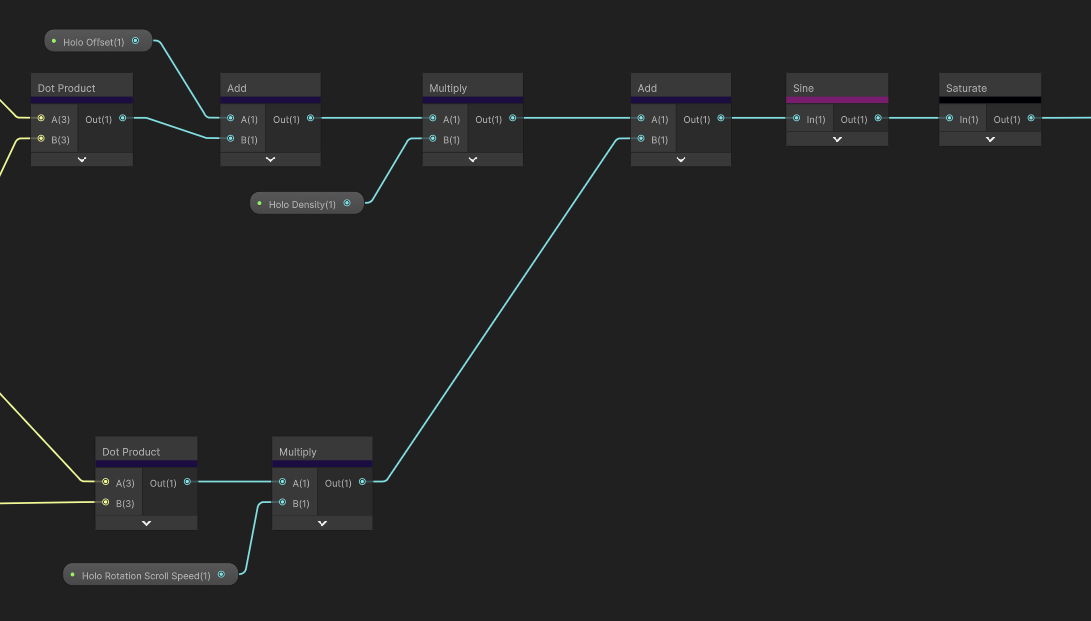
Next, we need the View Vector – this is the vector between the camera and the pixel being rendered, and it’s normalized and also in tangent space. Then, to get those lovely rainbow streaks, let’s take the dot product between the View Vector and the Holo Direction.
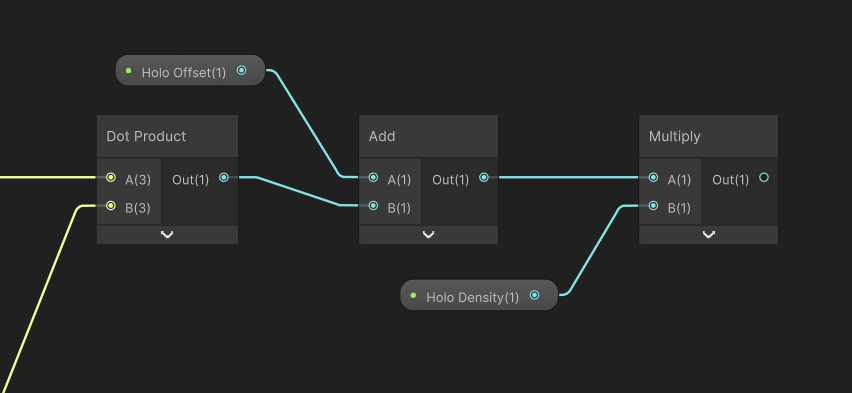
Then I added a Float property called Holo Offset, which is a slider value between 0 and 1, which lets us control the neutral resting position of the streaks by adding it to the View Vector dot Holo Direction result.
I want to be able to configure how quickly the streaks move across the surface when you move the camera. Since I want to shift the whole streak uniformly, I can’t just multiply the View Vector dot Holo Direction value, because this would stretch the pattern, as different pixels have slightly different view vectors. Incidentally, I do actually also want control over how stretched the pattern is, so let’s add that now by adding a Float property called Holo Density and making it a slider, then we can use it multiply what we have so far. Now we’re able to make big or small streaks.
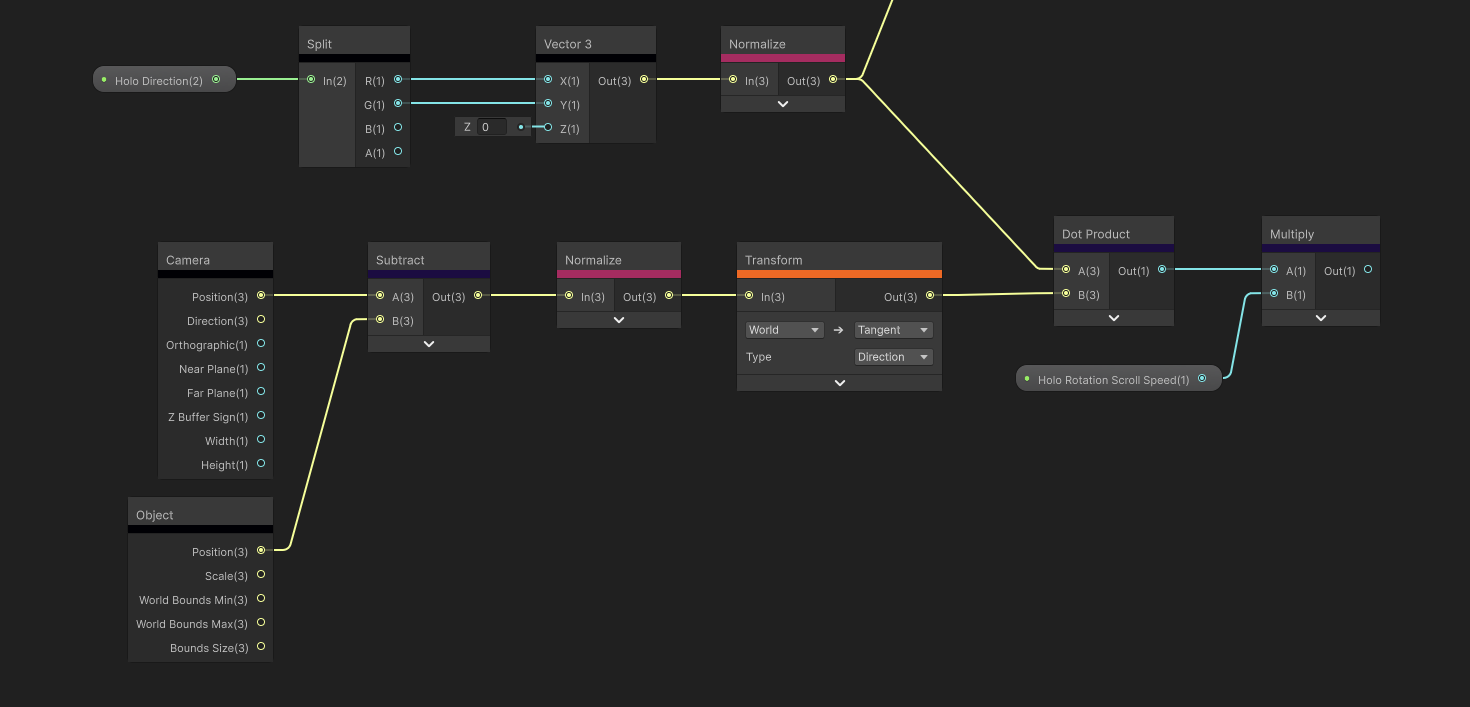
But for the rotational speed control, we will need to do a similar set of calculations as the streak dot product, but using a different input vector. This is going to be the offset between the camera position and the pivot point of the object being drawn. Using the Camera and Object nodes, we can get these values and then normalize them. Since these are both world space vectors, let’s transform the offset into a tangent space direction with a Transform node. The nice thing here is that this vector is identical across the whole surface, no matter which pixel is being drawn.
Side note, since we are using Unity 6, we can enable Heatmap color mode, which gives us a rough indicator of how expensive each node is, according to this list. Blue means it has a variable cost, like texture sampling, but aside from that, the lighter you get, the pricier the node is. Accessing variables is basically free, but the Transform node is very expensive. Probably because under the hood, it performs a matrix multiplication. Good to keep in mind if you need to start squeezing performance a bit.
Anyway, let’s take the dot product of the Holo Direction from before with this new camera-position offset vector to give us a sort of streak offset value. By adding a new property called Holo Rotation Scroll Speed, which I’m going to clamp from 0 to 30, and multiplying this Dot Product result, we have a lot more control over how the streaks scroll over the card surface. We just need to add these two values together.
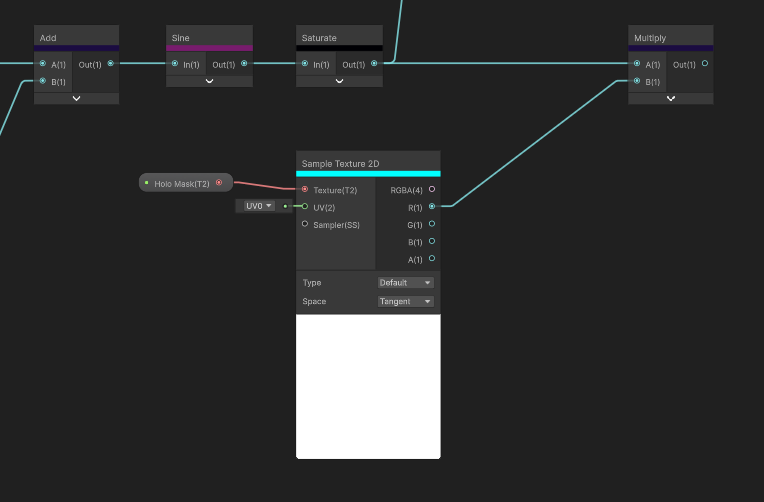
And finally, a Sine node followed by a Saturate node to clamp the values between 0 and 1 is the final piece of the puzzle to make our streak pattern. I love the result we’ve achieved here – it’s highly configurable. But we can go even further.
First, quickly, remember that Add node I stuck on the graph ages ago and just left there? The one between the noise values and the hue calculation? This is where we can pop in the streak pattern. Since the streak values run from 0 to 1, the rainbow will now start at, say, red on one side of each streak and then cycle through the entire hue range as you cross the streak, and then end at red on the other side.
The last major thing I want to inject into the holo pattern calculations is a texture to use as a mask.
Subscribe to my Patreon for perks including early access, your name in the credits of my videos, and bonus access to several premium shader packs!
Holo Mask and Graph Outputs
If you check out real Pokémon cards, the holographic effect doesn’t always appear as uniform streaks – they have patterns. There’s a page on Bulbapedia which lists a few holofoil patterns like cracked ice, or sheen, which is essentially what we have made so far. But one of my favorites is Cosmos, which I saw a lot growing up collecting generation 1-4 cards. It kinda looks like a sky full of differently sized stars. There’s also a stripy pattern from the Sword and Shield era that I like, but it’s missing from the list.
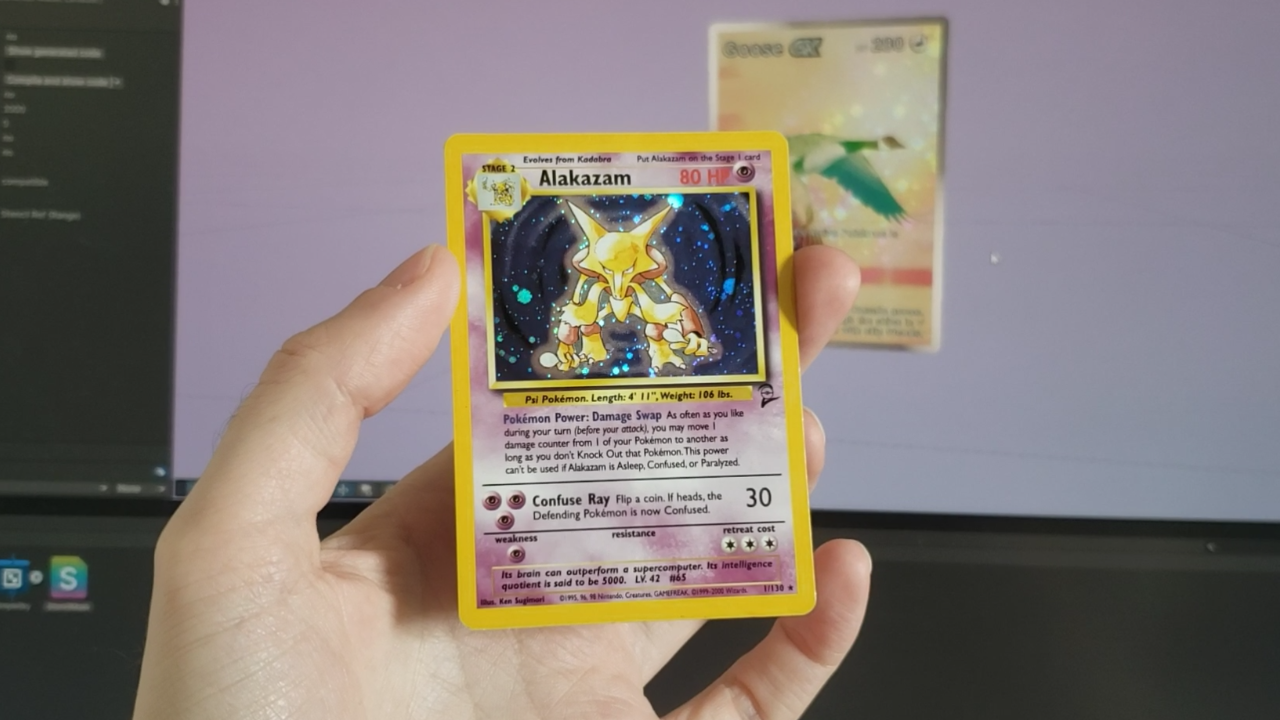
Thankfully, it’s easy to add this functionality. Let’s add a new Texture2D property called Holo Mask, which will encode the holographic parts of the card as white and the non-holo parts as black.
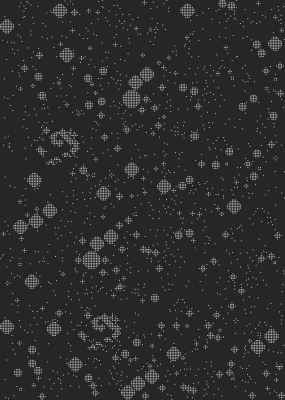
You can also have semi-holo if you use shades of grey. Let’s drag it onto the graph and sample it, then take just the red channel and multiply it with the Saturate result.
Now we can put together the Base Color and the holofoil patten together using a Lerp node. The A slot is the Base Color we calculated at the start, then the B slot uses the rainbow color, and the T slot uses this holo mask texture output. Then, we can insert all of this into the graph’s Base Color output.
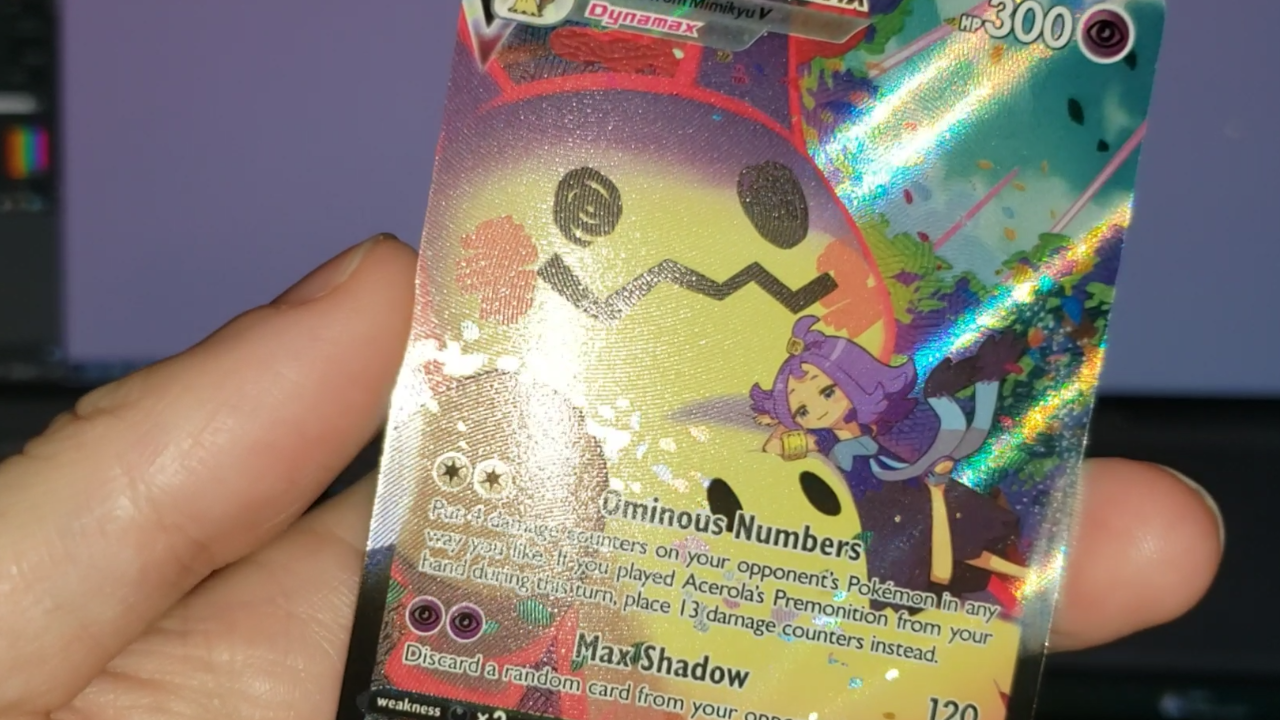
We are now very close to being done. Some cards, such as Special Illustration Rares and some Promos, have these etched lines that give the surface real texture.
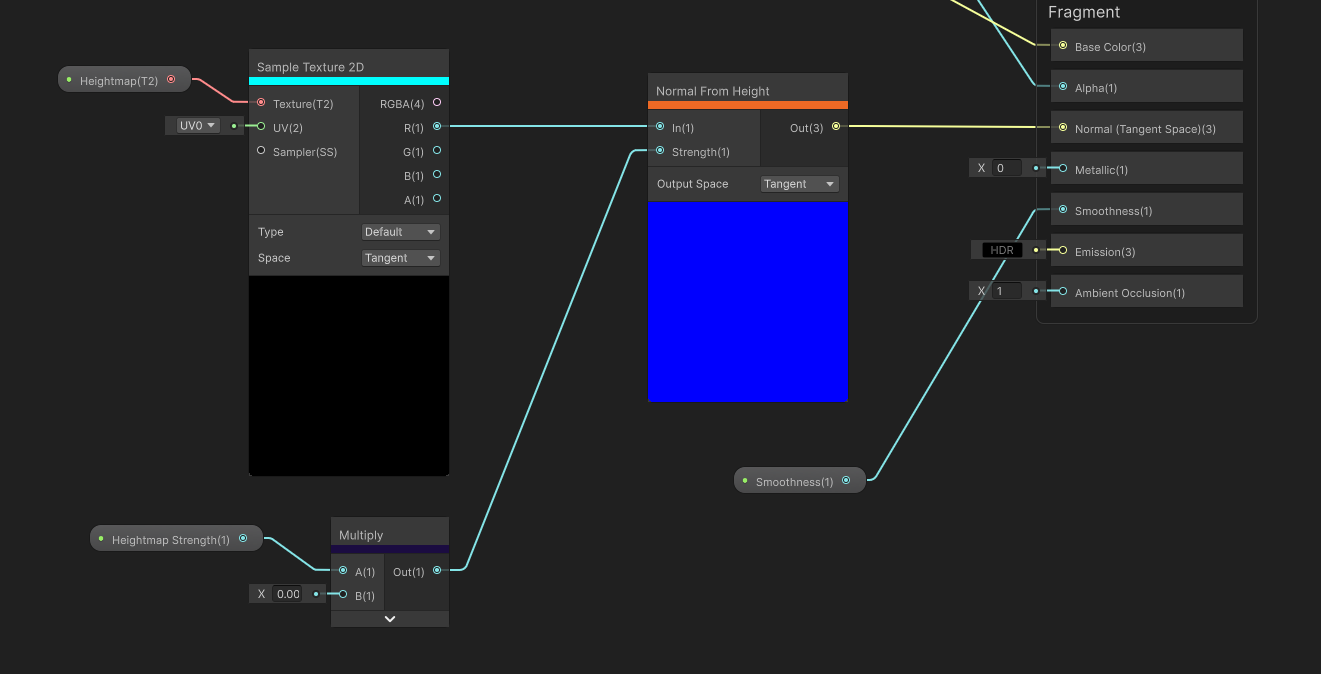
I’m going to emulate this using a Heightmap texture, which encodes raised parts of the image as white, and lowered parts as black. By default, let’s make this texture black.
We can sample it on the graph, and then use its red channel in a Normal From Height node, which does exactly that: it converts the raised and lowered values into a normal direction. Just make sure the node is in Tangent space mode. I also want control over the strength, so let’s add a Float property called Heightmap Strength and make it a slider between 0 and 1 so that we have a nice value range in the material Inspector. It turns out that Normal From Height is quite sensitive, so let’s multiply that strength value by 0.002 before using it in the node. The result can be used for the graph’s Normal output, and we are done with the graph!
Now, we have a holographic card which you can rotate around and marvel at the way light reflects and refracts across the surface with parallax layers.
And I also have a hankering for opening more Pokémon cards. Dang it. It’s okay, it’s not like I’d ever pull a Special Illustration Rare from Prismatic Evolutions or anything.
Subscribe to my Patreon for perks including early access, your name in the credits of my videos, and bonus access to several premium shader packs!