You thought the series was over, but sike! It’s time for Part 11. For some reason, terrains in Unity aren’t yet officially supported in Shader Graph. It’s been front and center in the roadmap for a while now (since 2021, oh my god) but thankfully, you can actually sort of handle terrains in Shader Graph anyway. In this tutorial, I’ll show you how, and we’ll create a system to automatically place rock on sloped parts of the terrain, and another system for doing a world scan effect which runs over the terrain surface.
By the way, I originally wrote this before they announced Terrain Shader Graph for Unity 6.3, but I’m very happy it’s on the way!
Oh, and by the way, I’ve moved to Unity 6 for future parts in this series. Most of what you see will probably still work in 2022 LTS, but I just wanted to make that clear here! I’ve created a basic terrain to work with and drawn four texture layers onto it using textures from ambientCG.com. It’s not particularly well-painted, but it’ll do.
Basic Terrain
When I want to recreate something that Unity already does, but slightly differently, my first port of call is usually just checking what they did. In URP, we can scroll down in the Project View and find Universal RP -> Shaders -> Terrain. There are lots of files here, but the one called “Terrain Lit” sounds about right.
This is an HLSL shader file, but don’t worry, we’ll be back in Shader Graph land very soon. The first thing I’m interested in is the Properties block. Particularly, these ones under “set by terrain engine”. Actually, just five of them – we can worry about the rest some other time.
// set by terrain engine
[HideInInspector] _Control("Control (RGBA)", 2D) = "red" {}
[HideInInspector] _Splat3("Layer 3 (A)", 2D) = "grey" {}
[HideInInspector] _Splat2("Layer 2 (B)", 2D) = "grey" {}
[HideInInspector] _Splat1("Layer 1 (G)", 2D) = "grey" {}
[HideInInspector] _Splat0("Layer 0 (R)", 2D) = "grey" {}
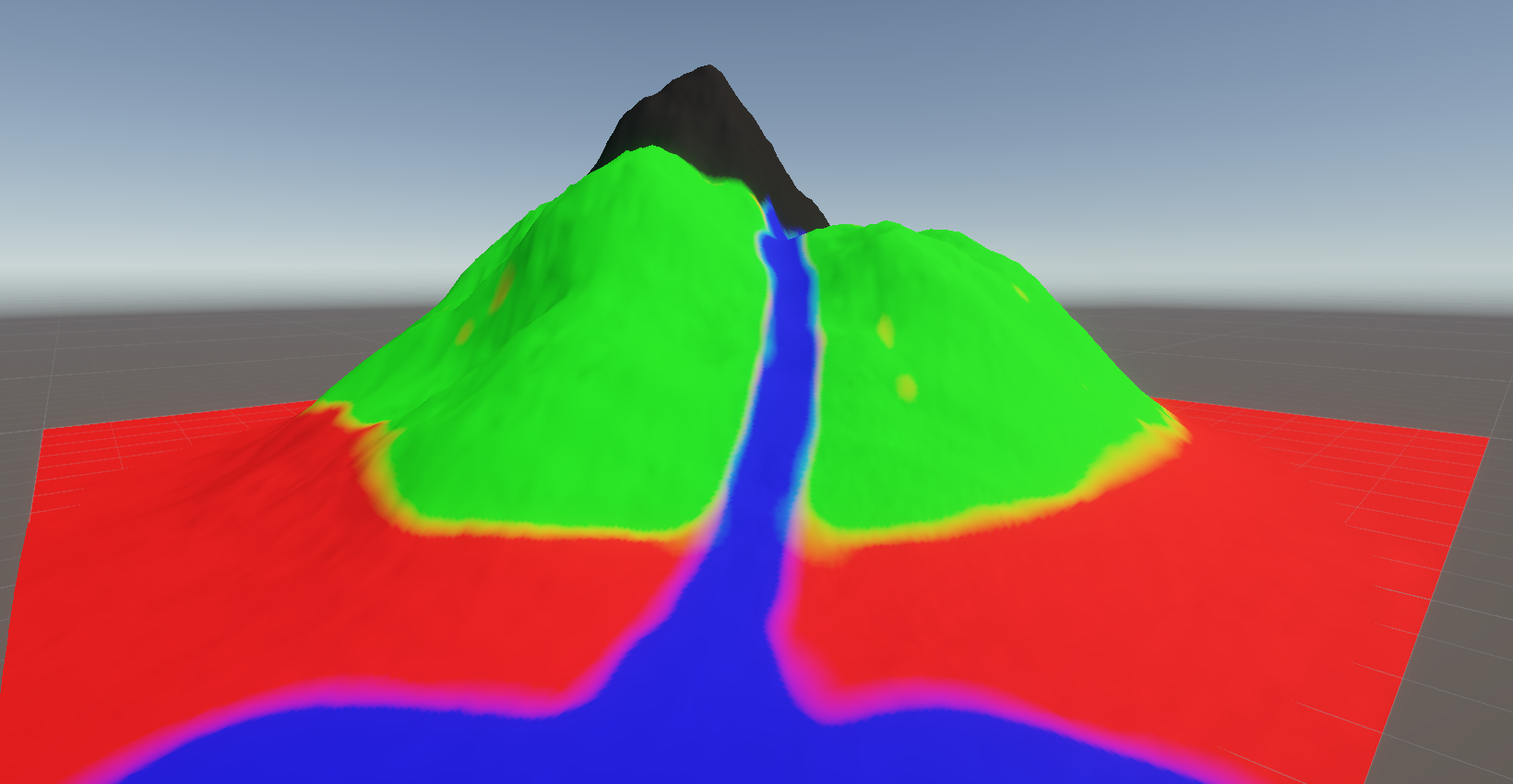
Basic Unity terrains can support four texture layers, and the terrain system sends this data to the shader via the first texture, named _Control. Each color channel of the texture contains the strength of one of the layers at that point on the terrain, so the red channel is layer 1’s strength, green is layer 2, and so on. The values for the four color channels should sum to 1, which will be convenient later. Then these four textures named _Splat0, _Splat1 etc, are the four texture layers themselves.
If you scroll down a bit and look at the first Pass in this file, Unity likes to separate out the core logic for the pass into a separate file, so I’m going to open the TerrainLitPasses.hlsl file, which contains a function called SplatmapMix.
void SplatmapMix(float4 uvMainAndLM, float4 uvSplat01, float4 uvSplat23, inout half4 splatControl, out half weight, out half4 mixedDiffuse, out half4 defaultSmoothness, inout half3 mixedNormal)
{
    half4 diffAlbedo[4];

    diffAlbedo[0] = SAMPLE_TEXTURE2D(_Splat0, sampler_Splat0, uvSplat01.xy);
    diffAlbedo[1] = SAMPLE_TEXTURE2D(_Splat1, sampler_Splat0, uvSplat01.zw);
    diffAlbedo[2] = SAMPLE_TEXTURE2D(_Splat2, sampler_Splat0, uvSplat23.xy);
    diffAlbedo[3] = SAMPLE_TEXTURE2D(_Splat3, sampler_Splat0, uvSplat23.zw);

    ...

    mixedDiffuse = 0.0h;
    mixedDiffuse += diffAlbedo[0] * half4(_DiffuseRemapScale0.rgb * splatControl.rrr, 1.0h);
    mixedDiffuse += diffAlbedo[1] * half4(_DiffuseRemapScale1.rgb * splatControl.ggg, 1.0h);
    mixedDiffuse += diffAlbedo[2] * half4(_DiffuseRemapScale2.rgb * splatControl.bbb, 1.0h);
    mixedDiffuse += diffAlbedo[3] * half4(_DiffuseRemapScale3.rgb * splatControl.aaa, 1.0h);

    NormalMapMix(uvSplat01, uvSplat23, splatControl, mixedNormal);
}
It’s doing a bunch of things, but the main one is at the top: it’s sampling the four texture layers, and then at the bottom of the function, it’s taking layer 1’s texture sample and multiplying by the control texture red value, then adding layer 2 times control green, and so on. We’ll be doing basically the same thing.
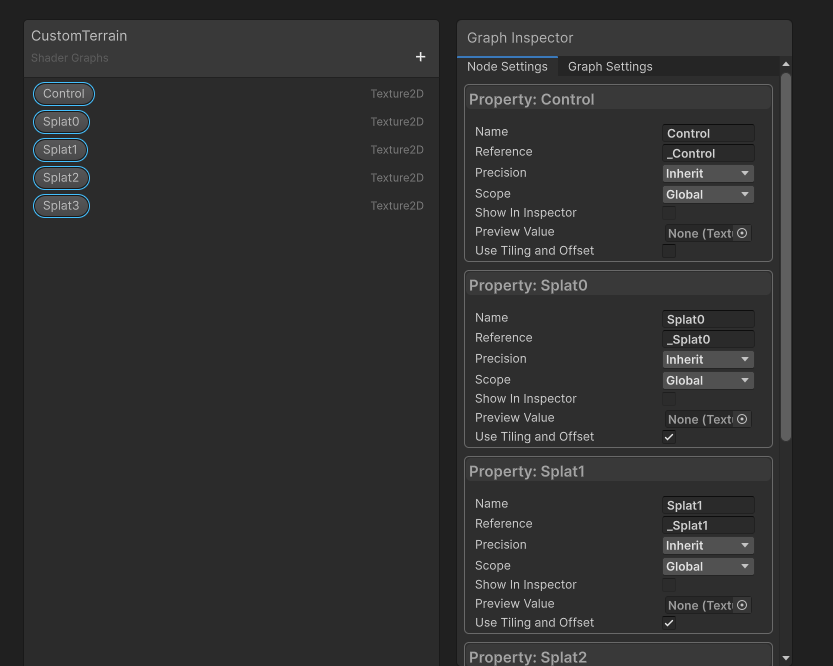
First, let’s create a new graph via Create -> Shader Graph -> URP -> Lit Shader Graph and name it something like “CustomTerrain”. Once we’re in, let’s just add all the textures we need: one named Control, and four named Splat0, Splat1, and so on. For each of these, we don’t actually need them to be exposed to the Inspector like usual, since these textures are going to be set directly by the terrain system, so let’s select each one and disable Show in Inspector.
We should also enable Use Tiling and Offset to make sure that the tiling options on each of our texture layers get accurately reflected in our terrain. Now is also a good time to go through all these textures and make sure the Reference string exactly matches those used in Unity’s own Terrain Lit shader: with an underscore at the start and no gap between the word and the number, so _Control, _Splat0, _Splat1, and so on.
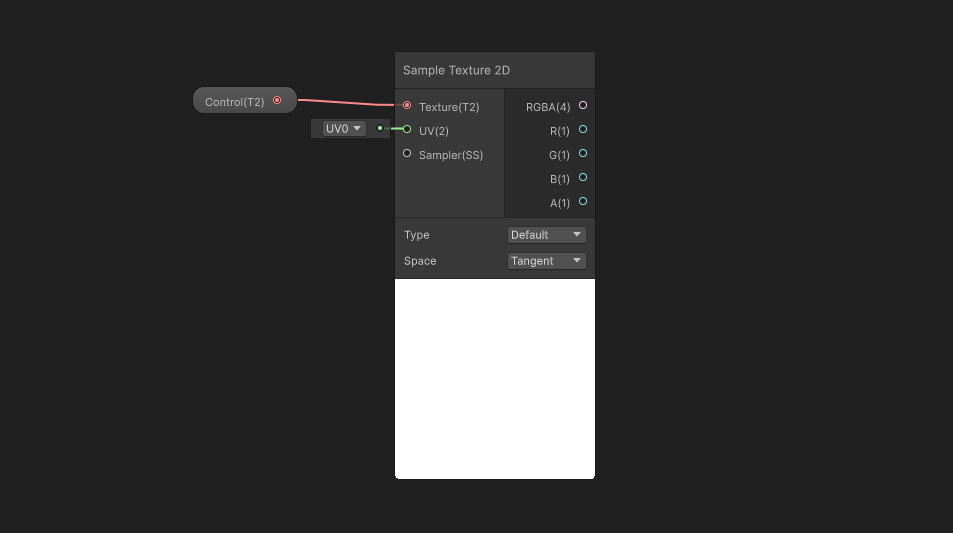
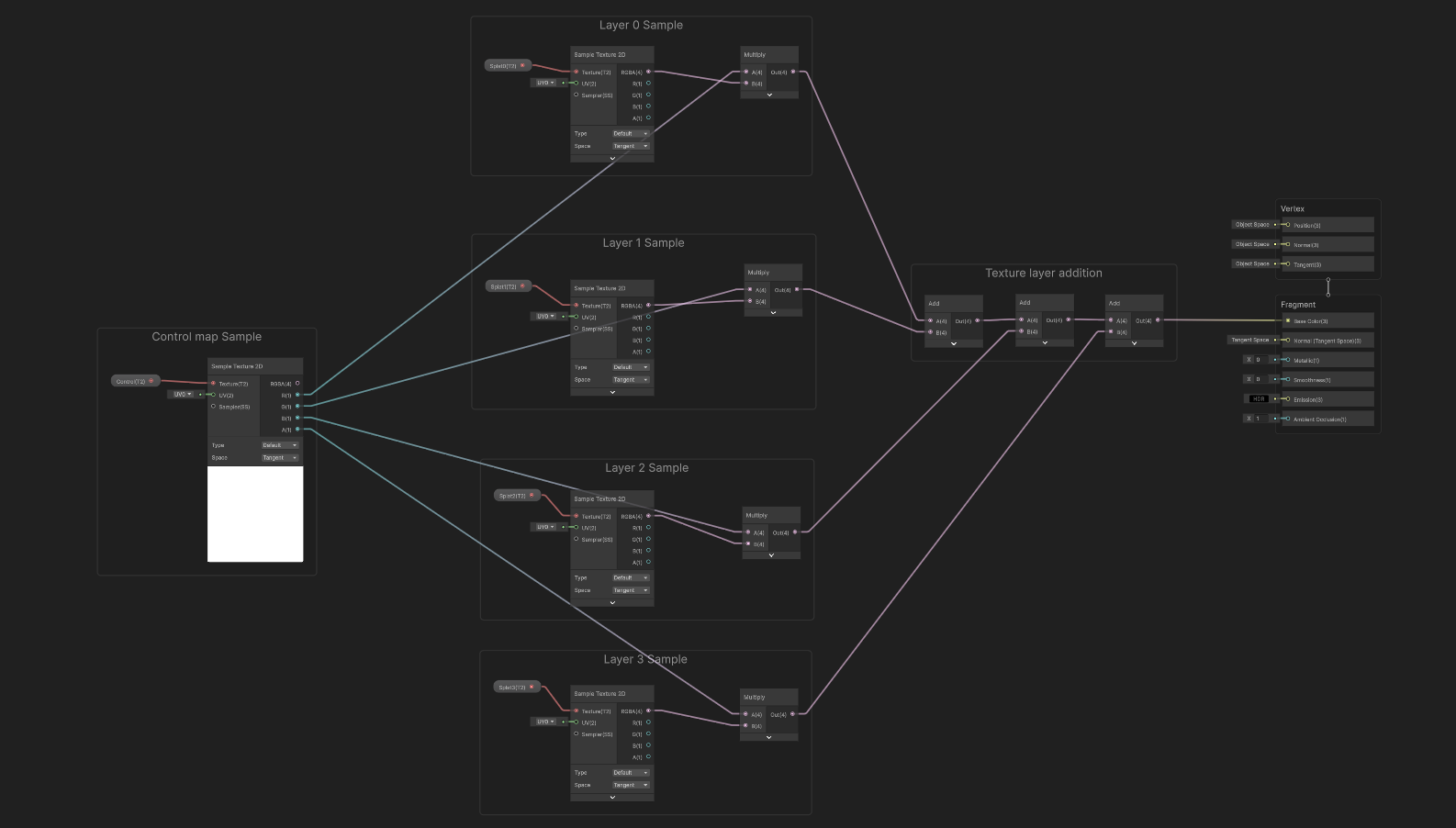
Let’s drag the control texture onto the graph and extract data from it using a Sample Texture 2D node. By dragging a wire out of each of the R, G, B, and A outputs, we can get the weight for each of the four texture layers.
In fact, we could output this control RGBA directly to Base Color and visualize the weights directly.
We can then drag the Splat0 texture onto the graph, Sample that too, and multiply the control R channel with the Splat0 RGBA output to get the final color for this texture layer. This layer corresponds to grass for my terrain. Then, let’s sample Splat1 and multiply by the control G channel to get the rock amount, then Splat2 multiplied by control B for the amount of sand, and finally Splat3 multiplied by control A for the amount of snow. Now, we have values for each color channel and we can just add these together and output the result to Base Color.
You might also want to turn down the graph’s Smoothness to zero so that your terrain isn’t super shiny.
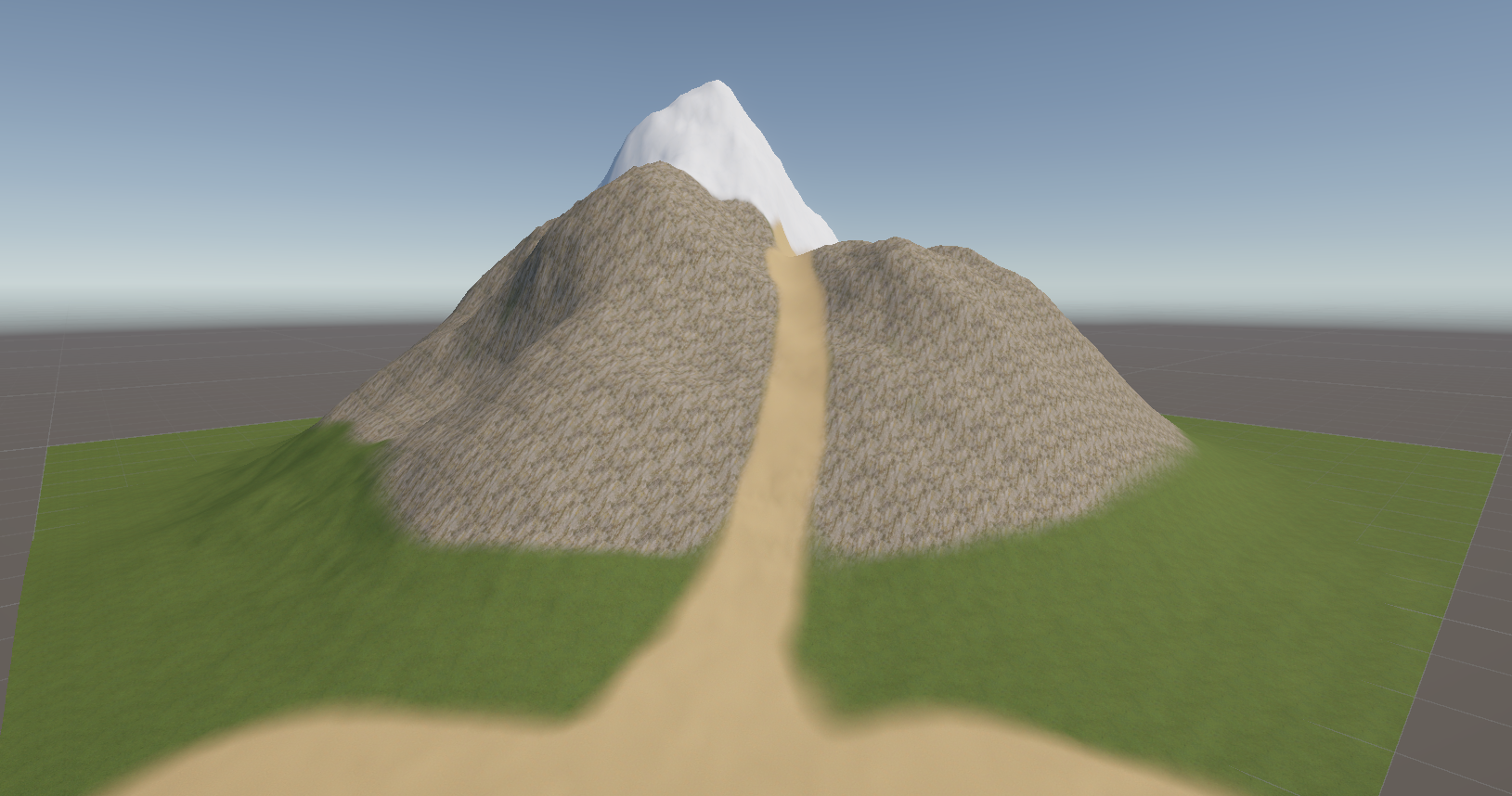
Going back to the Scene View, we can see that the terrain is roughly the same as the original Terrain Lit shader, just without support for all the things Terrain Lit can do, like normal mapping.
Next, let’s do something more interesting with our terrain layers, which Unity’s built-in shaders don’t do.
Subscribe to my Patreon for perks including early access, your name in the credits of my videos, and bonus access to several premium shader packs!

Automatic Sloped Rock
When painting terrains, it can be tricky to get something like a rock layer to perfectly line up with the steep slopes of something like a mountain. In those places, it’s useful to let the shader automatically detect those slopes and paint on the rock texture for you. With this approach, you don’t even need to paint the rock texture onto your terrain manually, as the shader should handle that for you.
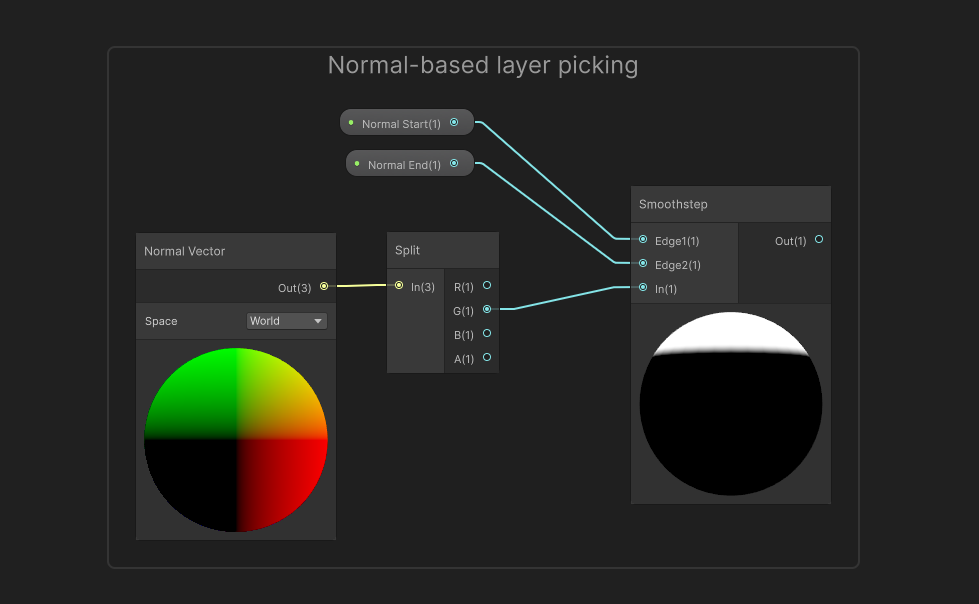
Let’s extend the graph to implement our own auto-rock-painting system. We’ll do it by taking the normal vector on the surface of the terrain and checking its y-component. If it is around 0, then we’re detecting a sloped surface, and if it’s close to 1, or minus 1, then we’re detecting nearly-flat ground.
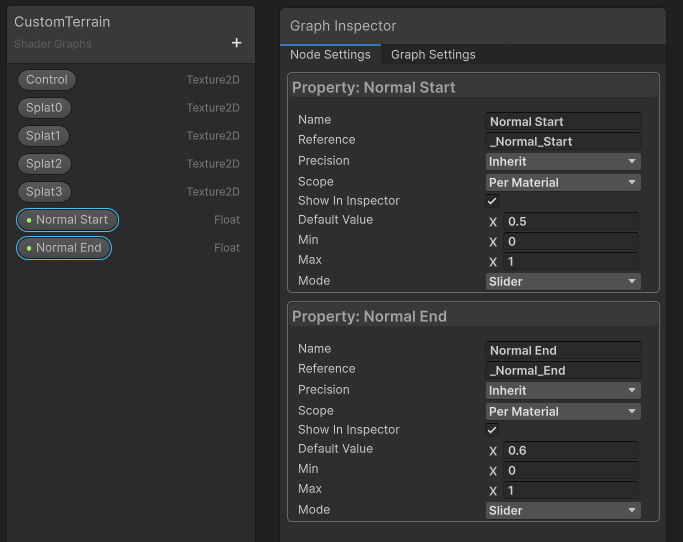
Let’s add two Float properties: Normal Start for the y-component where we start detecting a rock face, with default value 0.5, and another for where the rock face ends, Normal End, with a default of 0.6. We can make them both Slider types with a range of zero to one.
Let’s use a Normal Vector node and use a Split node to grab the y-component, and then feed that into the In slot of a Smoothstep node. I’ve used this before, but to recap, when we input something to Smoothstep and it’s less than the Edge1 input, then the node outputs 0. If it’s more than Edge2, the node outputs 1. And if it’s between those edge values, the output is a smooth curve from 0 to 1. When we plug the Normal Start and Normal End values into the edge inputs, you’ll see on the node preview that the vertical parts of the sphere are black – those are the cliffs – and the flatter parts up top are white. We don’t need to worry about the lower half of the sphere all being black, because in a real Unity terrain, nothing will have a negative normal y-value.
Let’s leave ourselves a bit of space by moving a few nodes around for this next step. Instead of just feeding the Splat0 grass texture sample into this first Multiply node, I’m going to use a Lerp node to pick between it and the Splat1 rock texture based on the result of that Smoothstep node. The rock texture needs to go into the A slot and the grass texture in the B slot, and then we can feed the Lerp result into the Multiply.
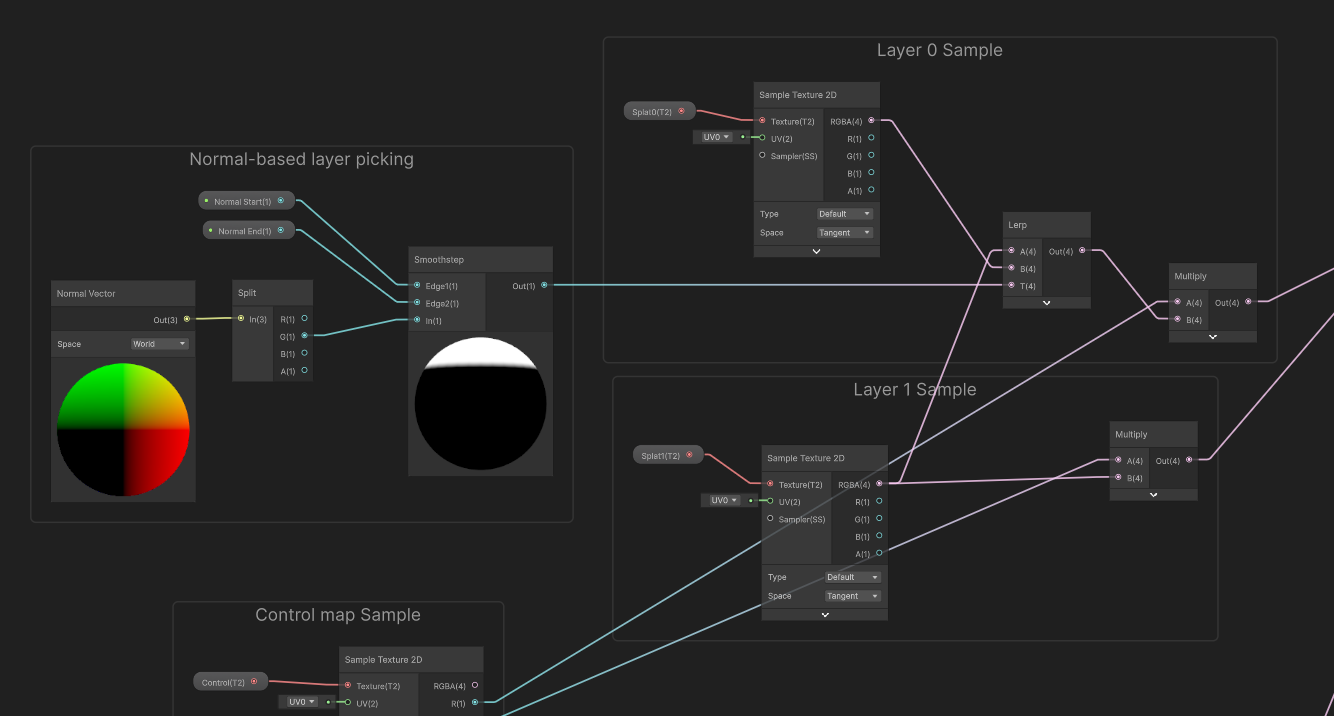
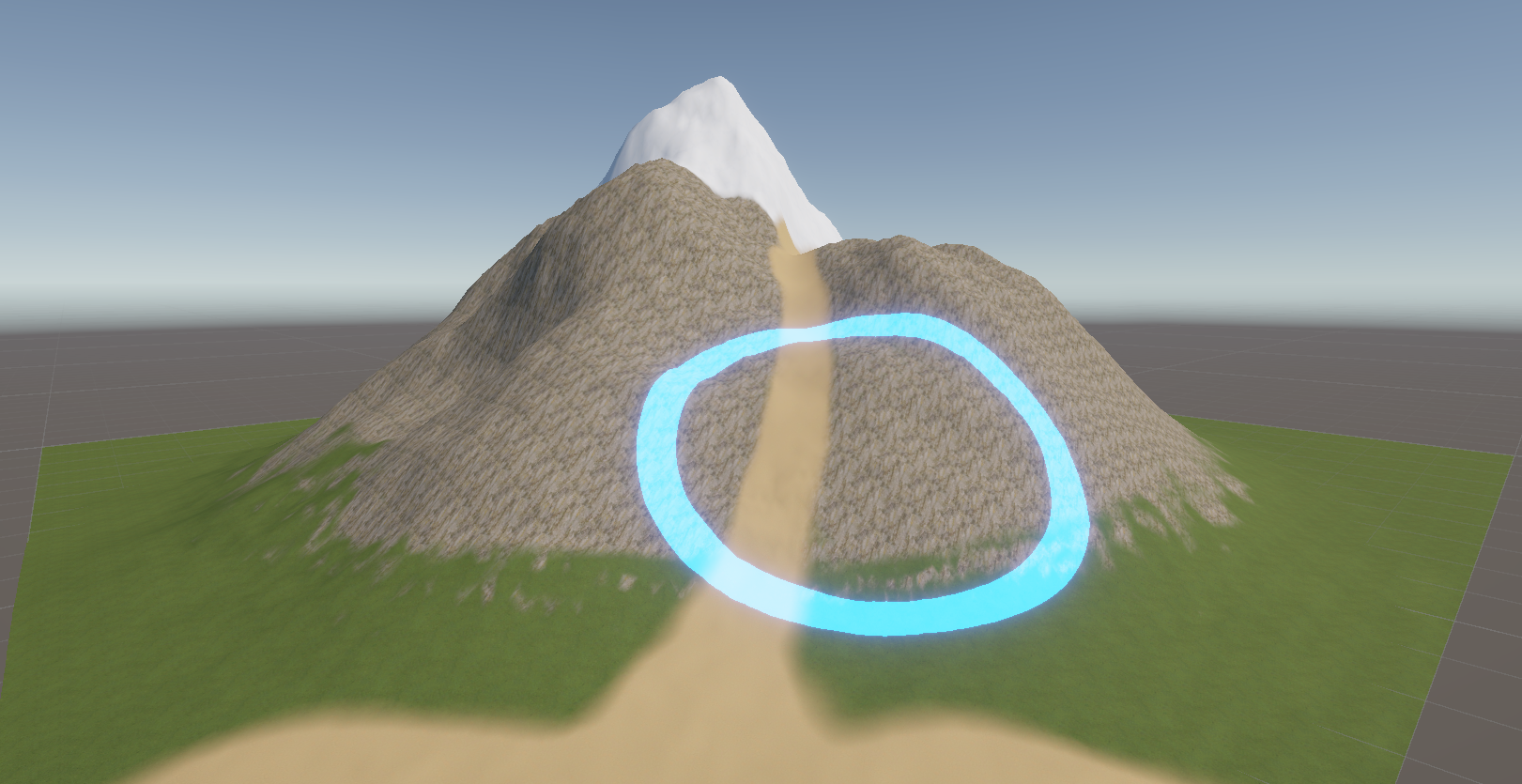
If we go into the Scene View and play around with the Normal Start and Normal End values, we’ll see the rocks appearing on the sheer cliff faces. Nice!
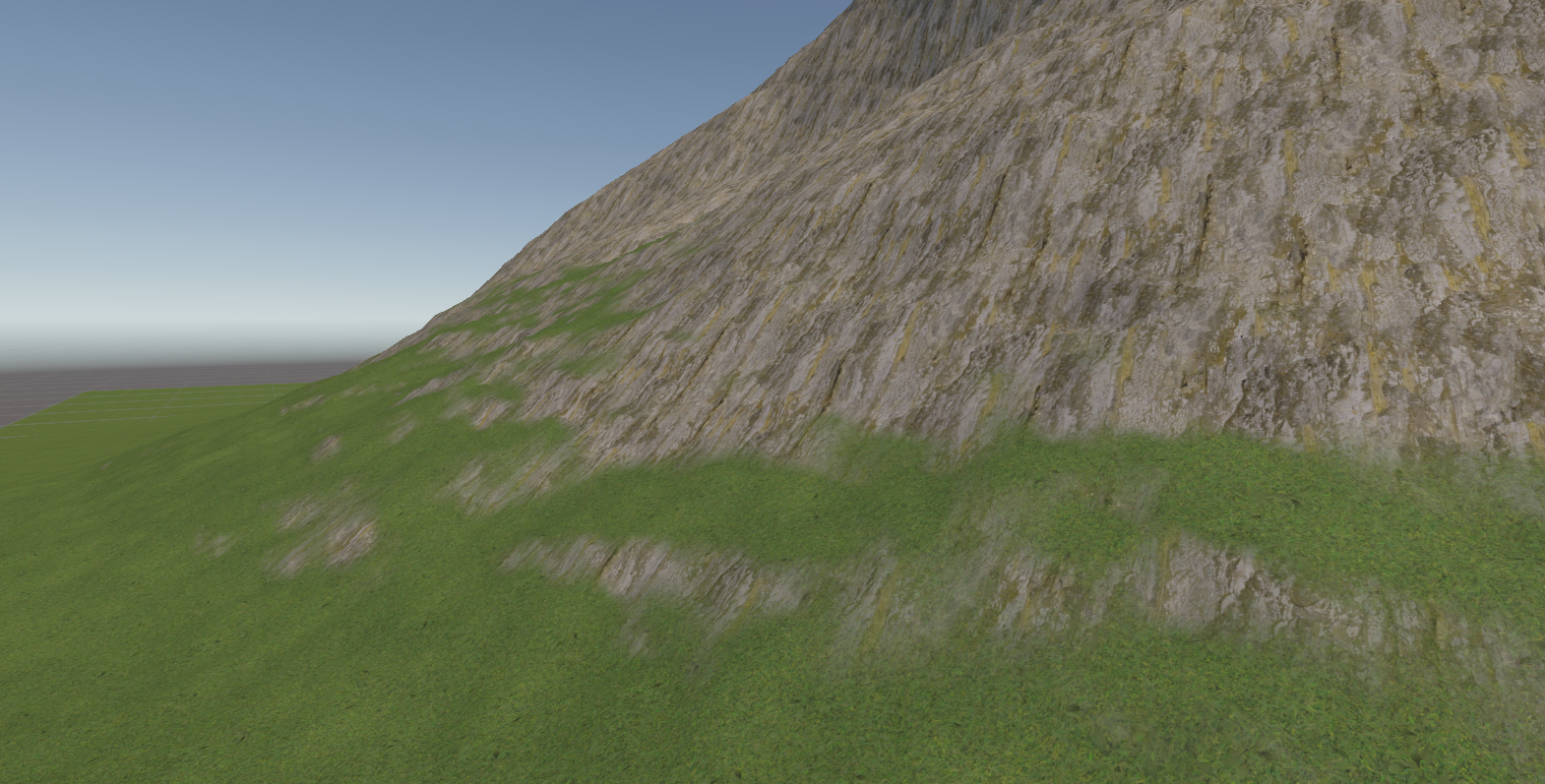
I’d like to add one more effect into this custom terrain shader, and that’s a world scan effect.
World Scanner
I recently built a new PC (editor’s note: it’s been like 6 months now, that’s how long it took me to get round to this article), and to test out how well my rig runs, I gave No Man’s Sky a go in VR. On my old build, it would take – no exaggeration – over 10 minutes to load and stutter like mad once I got into the game, but on my new PC it’s closer to about 10 seconds and it runs smooth as butter. Thanks, my beloved GoosePC - stay winning. That’s a bit of a digression, but it did help me remember that I’m a fan of these kinds of world scan effect you see in many open world games.
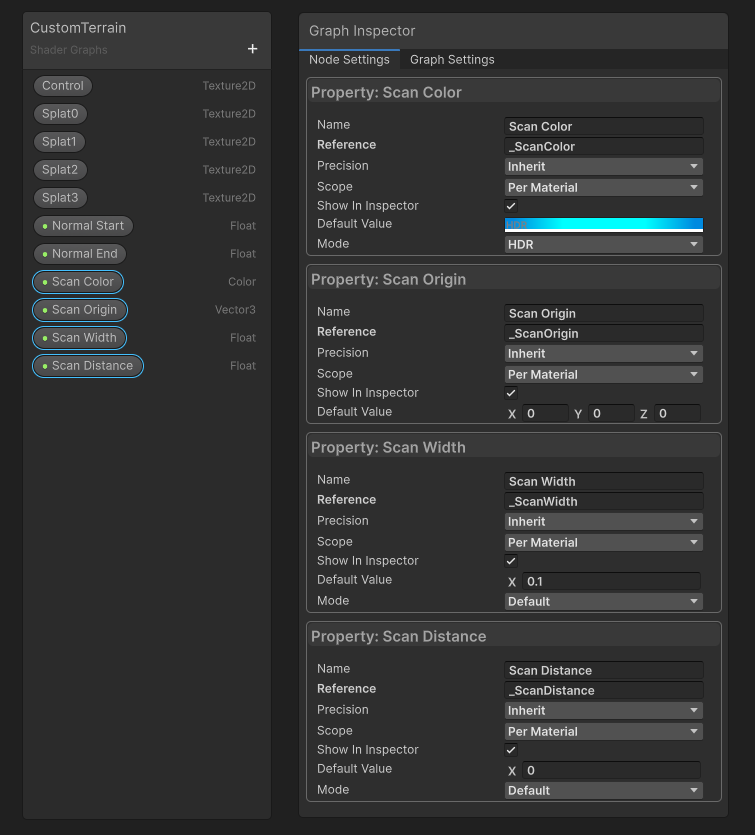
Let’s hop back into our graph. I’ll add four properties: one will be the Scan Color, which I can set to HDR mode so that we can use bright emissive colors. Let’s set the default to some nice blue and ramp up the emissive intensity a bit. The next is the Scan Origin, a Vector3 which represents the point in world space where the scan will start expanding from. Then, a Scan Width Float which is the thickness of the scan line in world space units. And finally, the Scan Distance, a Float which is how far the scan has travelled so far. For each of these, I like to change the Reference value so that there’s an underscore at the start and no underscores between words, like Unity uses for its standard shaders.
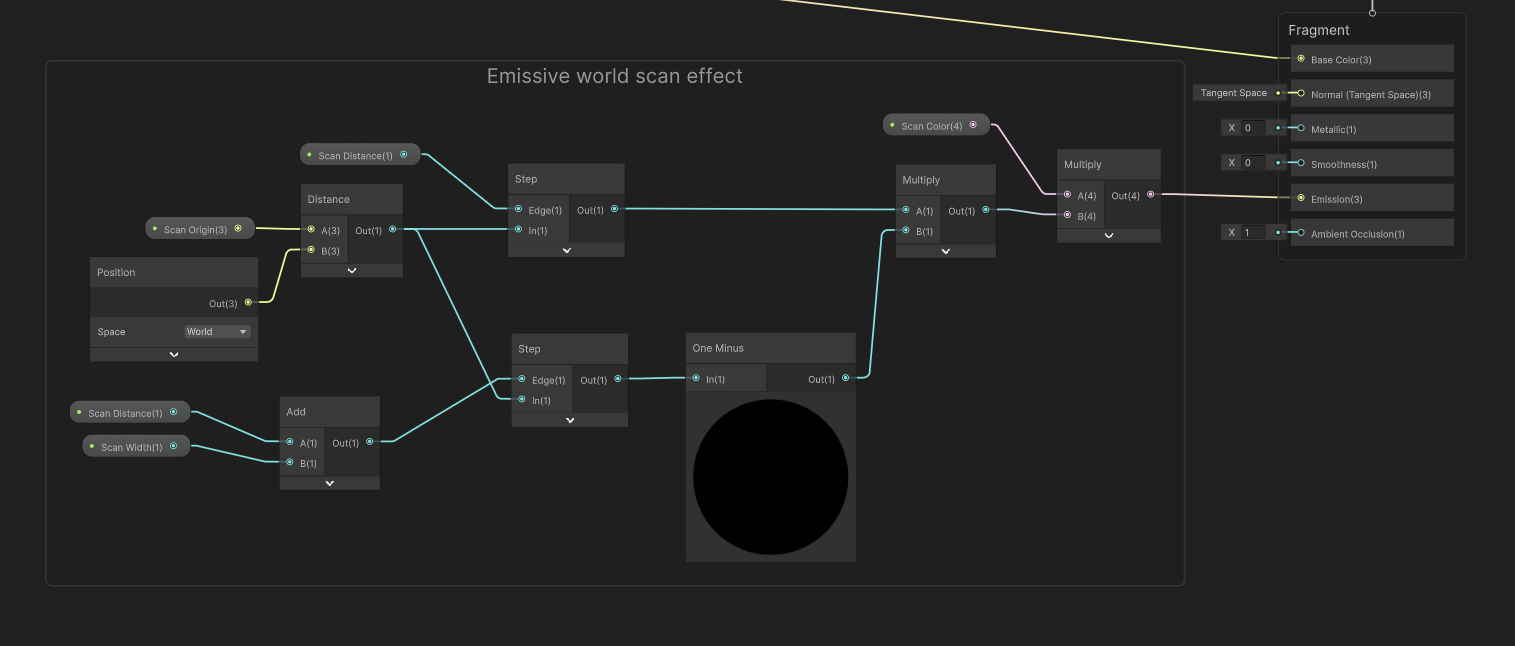
Essentially, if a terrain pixel is further than Scan Distance, but less than Scan Distance plus Scan Width, away from Scan Origin, we output Scan Color as an emissive color. For that, we can use two Step functions, like so: first, we can get the distance by feeding the Scan Origin and the Position in world space into a Distance node, and then use a Step node with this in the In slot and Scan Distance in the edge slot. To recap, this will output black for everything under Scan Distance, and 1 for everything above it. Then, add the Scan Distance and Scan Width together and use them in a second Step node edge slot. When we one-minus the result, everything under Scan Distance plus Scan Width will be white, and everything further than that is black. If we multiply the two values, we get a white ring representing the scan line.
We can then multiply by the Scan Color, and output the result to the Emissive block on the output stack. If you remember, emissive colors show up regardless of whether the object is in shadow, and combined with a Bloom filter, they will glow if the intensity is above the bloom threshold.
When I play around with the values in the material’s Inspector window, we can see the scan working as expected, but really I want to drive this via C# scripting. Unity provides a way to send values to shaders within a script. This isn’t a C# tutorial per se, so here is a script I whipped up beforehand.
using System.Collections;
using UnityEditor.PackageManager;
using UnityEngine;

public class WorldScanner : MonoBehaviour
{
    public float scanSpeed;
    public Terrain terrain;

    private Material terrainMaterial;
    private float scanDistance;

    private void Start()
    {
        terrainMaterial = terrain.materialTemplate;
        scanDistance = 1000.0f;
    }

    private void Update()
    {
        if(Input.GetMouseButtonDown(0))
        {
            Vector3 mousePos = Input.mousePosition;

            if(Physics.Raycast(Camera.main.ScreenPointToRay(mousePos), out RaycastHit hitInfo))
            {
                terrainMaterial.SetVector("_ScanOrigin", hitInfo.point);
                scanDistance = 0.0f;
            }
        }

        scanDistance += Time.deltaTime * scanSpeed;
        terrainMaterial.SetFloat("_ScanDistance", scanDistance);
    }
}
We take in the terrain and in Start, we get a reference to its material. In Update, I’m going to raycast using a mouse click and set the scan origin point to the raycast hit point. We can do this via the SetVector method on the material, which takes in a string exactly equal to the reference value we set in Shader Graph (hence why I like to use the same format for all reference values, with an underscore only at the start) and the Vector3 which we want to send to the shader. Then, I can also increase the scan distance over time using a speed value I feed into the script via the Inspector. To send it to the shader, I’ll use the SetFloat method. As you might have guessed, there is a Set method for all the types you can think of – colors, and integers, and matrices, and textures.
Now, when we return to the Scene View and attach the script to a GameObject in our hierarchy, set up the parameters on the script, and go into Play Mode, we can click on our terrain and see the world scan spread across our special terrain which is still automatically calculating rocky cliffs.
Subscribe to my Patreon for perks including early access, your name in the credits of my videos, and bonus access to several premium shader packs!