I played the heck out of The Legend of Zelda: Tears of the Kingdom a couple years ago. The runes this time round were a compelling evolution of the runes from Breath of the Wild: Ultrahand, a planned DLC mechanic for BotW that got out of hand (sorry), Fuse, which helped to address complaints about the weapon durability system and made it more worth it to fight enemies for resources, Ascend, which developed organically from a debug feature and permanently warped how I thought about navigating the game world, and the one you’re here for: Recall, a nice twist on the old Stasis rune.
I’m less interested in how the Recall rune works mechanically - you can check out this video by Useless Game Dev for that, or my own project Graveyard where I did it like 8 years ago. I want to focus on the visuals. Obviously! That is the entire subject of this website, after all. I’ll be using post processing with Renderer Features, the DrawRendererList method, some fancy depth testing stuff, and a basic edge detector to put this effect together. I’ll be using Unity 2022.3 with URP, and you can get the source code on GitHub.
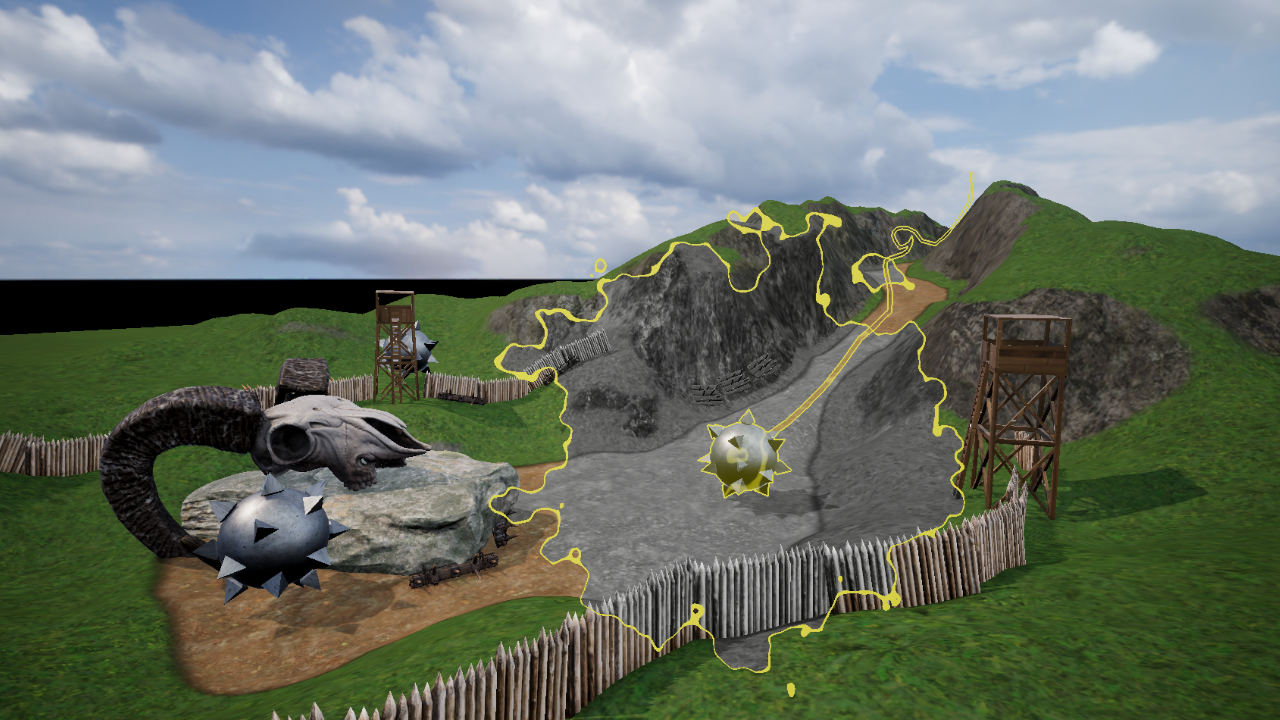
Unfortunately, Unity 6 does things quite differently, with its new Render Graph. You can still use this code with Unity 6 but only if you activate its compatibility mode, which will eventually be removed. I might revisit this effect later in Unity 6 with Render Graph, but no promises!
Subscribe to my Patreon for perks including early access, your name in the credits of my videos, and bonus access to several premium shader packs!

Analysing the Recall Rune
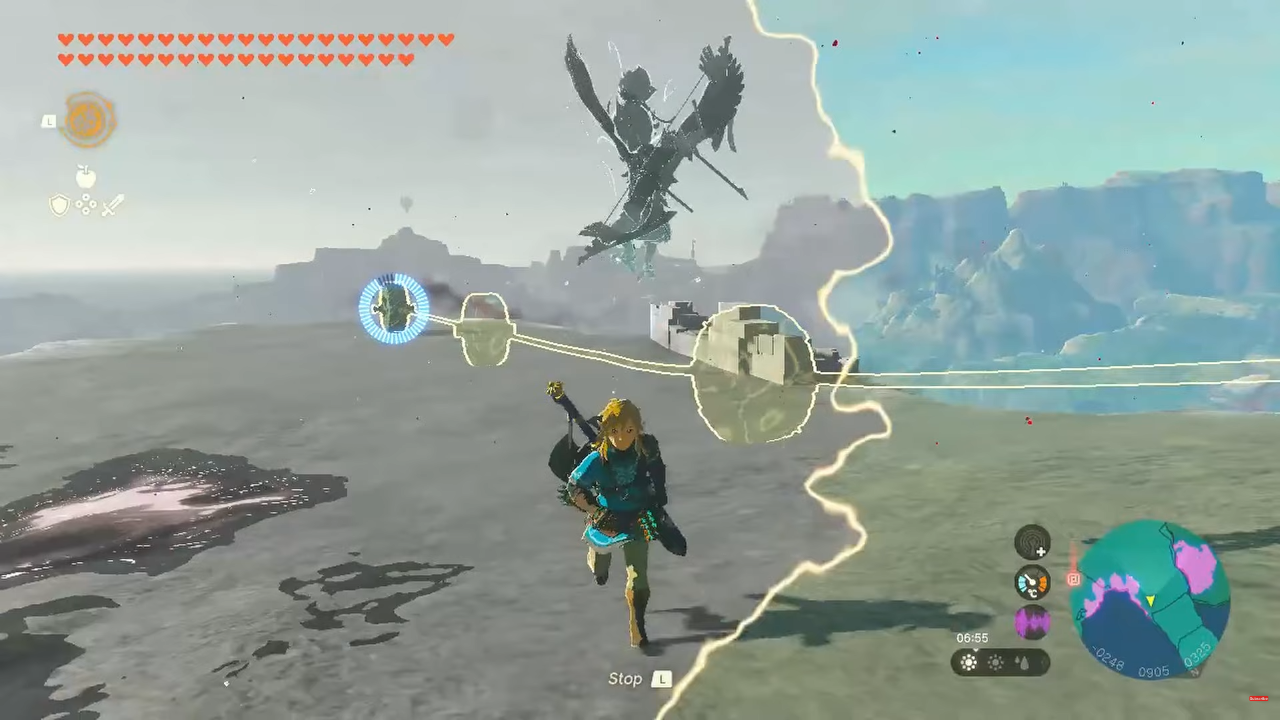
When you rewind time, there’s a lot of things happening:
- When you first select the rune, the trails of each recallable object get highlighted with an outline effect with clones appearing on the path.
- When you select an object to Recall, a cloud bursts from it in screen space and sweeps across the screen quickly.
- The insides of the cloud are now greyscale, except the recalled object and anything visible within the trails. At first glance you might not notice the trails are still normally colored.
- Some swirling, glowing waves appear on the recalled object and trails when you initiate the recall.
The major challenge of creating this effect is finding a way to mask out only the rewound objects and trails, then drawing outlines around them. The easiest way to do so is to put all those parts inside their own Unity layer, and then find a way to draw that layer into a mask texture. We can read that texture inside a post process shader to draw parts in normal color, in greyscale, or outlined. By doing everything within a post process, I can compartmentalize all the Recall-specific code into one place - I don’t need to manage swapping out materials on any of these objects with a Recall-specific or greyscale version.
The Recall Effect
We will need a RecallSettings class to hold the variables used by the post process, a RecallRendererFeature class to inject the pass into the URP render loop, a RecallRenderPass to manage the textures and run the shader, and then the RecallEffect shader itself. We will also need a second shader for drawing the mask texture called MaskObject. We will cover all of the C# code to start, and then write both shaders later.
RecallSettings.cs
Let’s start with the settings class. It’s quite similar in structure to the analogous file in my Mystery Dungeon effect! This class extends VolumeComponent and IPostProcessComponent, which lets us integrate our effect with the URP volume system. RecallSettings contains a list of parameters which we can tweak to control the appearance of the recall effect, including:
strength- how strongly the greyscale effect shows up, from 0% to 100%objectMask- a layer mask to define which objects are currently being recalled (a separate script will handle adding recalled objects and corresponding line renderers to the layer)
Then some properties for the screen wipe:
wipeOriginPoint- an origin point for the screen wipe when recall startswipeSize- a distance that the wipe should extend across the screenwipeThickness- a thickness value for the edge of the screen wipenoiseScale- a scale value for the Perlin noise values which change the shape of the wipe animation edgenoiseStrength- a strength value which determines how strongly the noise changes the edge shape
Then some properties for the subtle highlight wave effect which gets applied to the recalled objects:
highlightSize- a size value representing how large the highlight waves arehighlightStrength- a 2D vector for how strongly a tint color should be applied to the recalled object (x) and for the waves themselves (y)highlightSpeed- the speed of the waves travelling across the recalled objectshighlightThresholds- a couple of threshold values for the waves, as they use the same noise values as the screen wipeedgeColor- the tint color which is applied to the edge of the screen wipe (and the recalled objects).
With these properties, we can create something that looks quite close to the Tears of the Kingdom visual effect, or something distinct if we’d like.
The effect becomes active whenever the strength value exceeds 0 with the IsActive method, and although IsTileCompatible will become obsolete in Unity 6, we still need to define it here, so I’ll just return false. It causes nothing to break either way so we can just add it here and forget about it forever.
using UnityEngine;
using UnityEngine.Rendering;
using UnityEngine.Rendering.Universal;

[System.Serializable, VolumeComponentMenu("Recall")]
public sealed class RecallSettings : VolumeComponent, IPostProcessComponent
{
    [Tooltip("Greyscale effect intensity.")]
    public ClampedFloatParameter strength = new ClampedFloatParameter(0.0f, 0.0f, 1.0f);

    [Tooltip("Apply to layers except these ones.")]
    public LayerMaskParameter objectMask = new LayerMaskParameter(0);

    [Tooltip("Origin point of the scene wipe animation.")]
    public Vector2Parameter wipeOriginPoint = new Vector2Parameter(Vector3.zero);

    [Tooltip("Extent of the scene wipe animation.")]
    public ClampedFloatParameter wipeSize = new ClampedFloatParameter(0.25f, 0.0f, 5.0f);

    [Tooltip("Thickness of the screen wipe boundary.")]
    public ClampedFloatParameter wipeThickness = new ClampedFloatParameter(0.0f, 0.0f, 0.05f);

    [Tooltip("Noise scale for the screen wipe effect.")]
    public ClampedFloatParameter noiseScale = new ClampedFloatParameter(100.0f, 1.0f, 200.0f);

    [Tooltip("Noise strength for the screen wipe effect.")]
    public ClampedFloatParameter noiseStrength = new ClampedFloatParameter(0.1f, 0.0f, 1.0f);

    [Tooltip("Size of the swirling highlights on recalled objects.")]
    public ClampedFloatParameter highlightSize = new ClampedFloatParameter(10.0f, 1.0f, 15.0f);

    [Tooltip("Strength of the swirling highlights on recalled objects.\n" +
        "x = tint applied to whole object.\ny = tint applied to swirls.")]
    public Vector2Parameter highlightStrength = new Vector2Parameter(new Vector2(0.05f, 0.2f));

    [Tooltip("Speed of the swirling highlights on recalled objects.")]
    public ClampedFloatParameter highlightSpeed = new ClampedFloatParameter(0.1f, 0.0f, 1.0f);

    [Tooltip("Smoothstep falloff thresholds for the swirling highlights on recalled objects.")]
    public Vector2Parameter highlightThresholds = new Vector2Parameter(new Vector2(0.9f, 1.0f));

    [Tooltip("Color of the boundary edges.")]
    public ColorParameter edgeColor = new ColorParameter(Color.yellow, true, true, true);

    public bool IsActive()
    {
        return strength.value > 0.0f && active;
    }

    public bool IsTileCompatible()
    {
        return false;
    }
}
Next, we will be reading these properties inside the RecallEffect script.
Subscribe to my Patreon for perks including early access, your name in the credits of my videos, and bonus access to several premium shader packs!
RecallEffect.cs
This file will be larger, as it contains the RecallEffect class which extends ScriptableRendererFeature, and that RecallEffect class itself contains a RecallRenderPass class. Let’s focus on the outer RecallEffect class first.
using UnityEngine;
using UnityEngine.Rendering;
using UnityEngine.Rendering.Universal;

public class RecallEffect : ScriptableRendererFeature
{
    RecallRenderPass pass;

    public override void Create()
    {
        pass = new RecallRenderPass();
        name = "Recall";
    }

    public override void AddRenderPasses(ScriptableRenderer renderer, ref RenderingData renderingData)
    {
        var settings = VolumeManager.instance.stack.GetComponent<RecallSettings>();

        if (settings != null && settings.IsActive())
        {
            pass.ConfigureInput(ScriptableRenderPassInput.Depth);
            renderer.EnqueuePass(pass);
        }
    }

    protected override void Dispose(bool disposing)
    {
        pass.Dispose();
        base.Dispose(disposing);
    }

	class RecallRenderPass : ScriptableRenderPass
	{
		...
	}
}
This class is quite simple, as it contains only a Create method, where we initialize the pass, the AddRenderPasses method, where we check if there is a valid RecallSettings (i.e. is the main camera inside a volume which has a RecallSettings component attached) and inject the pass into the URP render loop if there is, and the Dispose method, which is just going to call a helper Dispose method I’ll write later in RecallRenderPass, as I’ll be handling all the texture resources in that class.
As mentioned, the RecallRenderPass will also be defined inside RecallEffect, and it extends ScriptableRenderPass. This class is far more interesting: it will override the Configure and Execute methods, and I will also add a constructor and two helper methods called CreateMaterials and Dispose.
class RecallRenderPass : ScriptableRenderPass
{
    private Material material;
    private Material maskMaterial;
    private RTHandle tempTexHandle;

    private RTHandle maskedObjectsHandle;

    public RecallRenderPass()
    {
        ...
    }

    private void CreateMaterials()
    {
        ...
    }

    public override void Configure(CommandBuffer cmd, RenderTextureDescriptor cameraTextureDescriptor)
    {
        ...
    }

    public override void Execute(ScriptableRenderContext context, ref RenderingData renderingData)
    {
        ...
    }

    public void Dispose()
    {
        ...
    }
}
The constructor is crucial for defining where the pass should be executed inside the render loop. There are several places you can choose, all of which exist in the RenderPassEvent enum, but I picked BeforeRenderingPostProcessing which runs immediately before URP’s internal post processing uber pass (which contains stuff like Bloom, Vignette, and so on).
public RecallRenderPass()
{
    profilingSampler = new ProfilingSampler("Recall");
    renderPassEvent = RenderPassEvent.BeforeRenderingPostProcessing;
}
Then, the CreateMaterials method is where we set up two materials for the Recall effect and the mask texture, throwing some errors if those shaders couldn’t be found. Of course, we haven’t written them yet, but these are the names I’ll be using in their respective shader files.
private void CreateMaterials()
{
    var shader = Shader.Find("DanielIlett/Recall");

    if (shader == null)
    {
        Debug.LogError("Cannot find shader: \"DanielIlett/Recall\".");
        return;
    }

    material = new Material(shader);

    shader = Shader.Find("DanielIlett/MaskObject");

    if (shader == null)
    {
        Debug.LogError("Cannot find shader: \"DanielIlett/MaskObject\".");
        return;
    }

    maskMaterial = new Material(shader);
}
Next up is the Configure method which is responsible for setting up resources such as textures when this pass first becomes active. We will be using RTHandle, which is a wrapped class around RenderTexture designed for tighter integration with URP’s systems. We’ll need two of them, both of which will use the same size as the screen. The first is a temporary texture which holds the context of the camera texture. It isn’t possible to read from the camera texture and assign a shader result back to itself, so we’ll need this temporary texture to hold its contents when we run the shader. The second RTHandle will store the mask which contains only the recalled object and its trail. For the latter texture, we can use a cheaper texture type with only one channel, RenderTextureFormat.R8, because it only needs to render black and white. The ReAllocateIfNeeded method automatically scales these textures for you if resize the screen.
public override void Configure(CommandBuffer cmd, RenderTextureDescriptor cameraTextureDescriptor)
{
    ResetTarget();

    var descriptor = cameraTextureDescriptor;

    descriptor.msaaSamples = 1;
    descriptor.depthBufferBits = (int)DepthBits.None;
    RenderingUtils.ReAllocateIfNeeded(ref tempTexHandle, descriptor);

    descriptor.colorFormat = RenderTextureFormat.R8;
    RenderingUtils.ReAllocateIfNeeded(ref maskedObjectsHandle, descriptor);

    base.Configure(cmd, cameraTextureDescriptor);
}
Then, we have the Execute method, which is where we do the heavy lifting for running the effect. We can quit out from the effect straight away if this is being run from a preview camera, since it will break everything else in the effect. This method is also responsible for passing all the properties from the RecallSettings class to the shader via methods like SetFloat, SetColor, SetVector and so on. We can access the input camera texture via cameraColorTargetHandle.
public override void Execute(ScriptableRenderContext context, ref RenderingData renderingData)
{
    if (renderingData.cameraData.isPreviewCamera)
    {
        return;
    }

    if(material == null || maskMaterial == null)
    {
        CreateMaterials();
    }

    CommandBuffer cmd = CommandBufferPool.Get();

    // Set Recall effect properties.
    var settings = VolumeManager.instance.stack.GetComponent<RecallSettings>();
    material.SetFloat("_Strength", settings.strength.value);
    material.SetVector("_WipeOriginPoint", settings.wipeOriginPoint.value);
    material.SetFloat("_WipeSize", settings.wipeSize.value);
    material.SetFloat("_WipeThickness", settings.wipeThickness.value);
    material.SetFloat("_NoiseScale", settings.noiseScale.value);
    material.SetFloat("_NoiseStrength", settings.noiseStrength.value);
    material.SetFloat("_HighlightSize", settings.highlightSize.value);
    material.SetVector("_HighlightStrength", settings.highlightStrength.value);
    material.SetFloat("_HighlightSpeed", settings.highlightSpeed.value);
    material.SetVector("_HighlightThresholds", settings.highlightThresholds.value);
    material.SetColor("_EdgeColor", settings.edgeColor.value);

    RTHandle cameraTargetHandle = renderingData.cameraData.renderer.cameraColorTargetHandle;

    // Perform the Blit operations for the Recall effect.
    using (new ProfilingScope(cmd, profilingSampler))
    {
        ...
    }

    ...
}
Next, this method needs to find all objects in the “Recall Object” layer and draw them into my own custom maskedObjectsHandle texture. If you recall (ha ha), we set that up in Configure - it’s the greyscale texture. We set it as the render target, clear its contents, then create a RendererList containing the objects we want. We do this by giving Unity a set of restrictions (e.g. do we want opaques or transparents, which layer mask do we use, do we want to use lit or unlit objects) and Unity will automatically collate those into a list and run an override material that you supply on those meshes.

We set up culling parameters to perform frustum culling with the camera, then sort the objects based on a given criteria with SortingSettings, and then restrict the selection to specific render queues with FilteringSettings. Finally, we can use a ShaderTagId to only contain objects whose existing shaders use specific LightMode tags. In URP shaders, any pass which uses a “UniversalForward” tag can be thought of as a main lit color pass, so we’ll use that as our ShaderTagId. Finally, we use a DrawingSettings to supply the override material that we want to use to re-draw everything into the mask texture. Once we have created a RendererList with these settings, we can finally issue a DrawRendererList command to the GPU.
To draw unlit objects, we need to draw a second RendererList which uses the “SRPDefaultUnlit” ShaderTagId. URP uses this tag automatically if you don’t specify a LightMode tag in your shader pass.
After drawing both lists, we use the BlitCameraTexture methods in URP’s Blitter API to copy the camera screen texture to the temporary texture, then run our post process shader from that temporary texture back onto the camera screen texture. Once we have set up all of the drawing commands, we can execute the command buffer.
// Perform the Blit operations for the Recall effect.
using (new ProfilingScope(cmd, profilingSampler))
{
    CoreUtils.SetRenderTarget(cmd, maskedObjectsHandle);
    CoreUtils.ClearRenderTarget(cmd, ClearFlag.All, Color.black);

    var camera = renderingData.cameraData.camera;

    var cullingResults = renderingData.cullResults;

    var sortingSettings = new SortingSettings(camera);

    FilteringSettings filteringSettings =
        new FilteringSettings(RenderQueueRange.all, settings.objectMask.value);

    ShaderTagId shaderTagId = new ShaderTagId("UniversalForward");

    DrawingSettings drawingSettingsLit = new DrawingSettings(shaderTagId, sortingSettings)
    {
        overrideMaterial = maskMaterial
    };

    RendererListParams rendererParams = new RendererListParams(cullingResults, drawingSettingsLit, filteringSettings);
    RendererList rendererList = context.CreateRendererList(ref rendererParams);

    cmd.DrawRendererList(rendererList);

    shaderTagId = new ShaderTagId("SRPDefaultUnlit");

    DrawingSettings drawingSettingsUnlit = new DrawingSettings(shaderTagId, sortingSettings)
    {
        overrideMaterial = maskMaterial
    };

    rendererParams = new RendererListParams(cullingResults, drawingSettingsUnlit, filteringSettings);
    rendererList = context.CreateRendererList(ref rendererParams);

    cmd.DrawRendererList(rendererList);

    material.SetTexture("_MaskedObjects", maskedObjectsHandle);

    Blitter.BlitCameraTexture(cmd, cameraTargetHandle, tempTexHandle);
    Blitter.BlitCameraTexture(cmd, tempTexHandle, cameraTargetHandle, material, 0);
}

context.ExecuteCommandBuffer(cmd);
cmd.Clear();
CommandBufferPool.Release(cmd);
All that’s left to do inside this file is to Dispose the texture resources once we’re done with them. Remember that this method is called by the surrounding RecallEffect class.
public void Dispose()
{
    tempTexHandle?.Release();
    maskedObjectsHandle?.Release();
}
Now, we can deal with both of the shaders, starting with the mask shader.
Subscribe to my Patreon for perks including early access, your name in the credits of my videos, and bonus access to several premium shader packs!
MaskObject.shader
The simple approach would be to just draw pure white into the mask texture without doing anything else. The problem is, if we did that, then a recalled object which is partially obscured by another scene element would be fully drawn into the mask texture, so our outlines would be drawn in the wrong place. We need to consider depth, too, and check whether the thing we’re drawing is at a depth approximately equal to the depth value in the depth buffer (i.e. nothing has been drawn in front of it, causing the depth buffer to have a different value).
Shader "DanielIlett/MaskObject"
{
    SubShader
    {
        Tags
        {
            "RenderType" = "Opaque"
            "Queue" = "Geometry"
            "RenderPipeline" = "UniversalPipeline"
        }

        Pass
        {
            ZTest LEqual
            ZWrite On

            // Blending means that we can render black and not worry about needing to check
            // if we already have white in the mask.
            Blend SrcColor OneMinusSrcColor

            Tags
            {
                "LightMode" = "UniversalForward"
            }

            HLSLPROGRAM
            #pragma vertex vert
            #pragma fragment frag

            #include "Packages/com.unity.render-pipelines.universal/ShaderLibrary/Core.hlsl"

            sampler2D _CameraDepthTexture;

            struct appdata
            {
                float4 positionOS : Position;
            };

            struct v2f
            {
                float depth : DEPTH;
            };

            v2f vert (appdata v, out float4 positionCS : SV_Position)
            {
                v2f o;
                positionCS = TransformObjectToHClip(v.positionOS.xyz);
                // From: https://gamedev.stackexchange.com/questions/157922/depth-intersection-shader
                o.depth = -mul(UNITY_MATRIX_MV, v.positionOS).z * _ProjectionParams.w;
                return o;
            }

            // Thanks to this for the note on using VPOS: https://gamedev.stackexchange.com/questions/157922/depth-intersection-shader
            float4 frag (v2f i, float4 positionSS : VPOS) : SV_Target
            {
                float2 screenUV = positionSS.xy / _ScreenParams.xy;
                float screenDepth = Linear01Depth(tex2D(_CameraDepthTexture, screenUV).r, _ZBufferParams);

                return step(i.depth - 0.0001f, screenDepth);
            }
            ENDHLSL
        }
    }
}
With regular rendering, Unity largely deals with depth stuff like that for you, but we’ll need to do things differently because we’re operating in a post process shader. We’ll essentially implement depth culling ourselves.
I’ll write the vertex shader in a specific way to make it easier to sample the depth buffer. It will accept an object-space position as input as usual, but I will output the clip-space position as an out parameter, which isn’t the usual way of doing it. I’ll also calculate depth here and output it to the fragment shader as a member of the v2f struct.
Using an out parameter for the clip position was a bit weird, but it will allow us to pass a second parameter, positionSS, to the fragment shader using the VPOS semantic. This variable is the screen-space position of the object, and I found it much easier to work with than the classic way of calculating screen-space coordinates inside the vertex shader with ComputeScreenPos. For some reason, that approach always gave me values that were a bit off.
This new positionSS is in what I can “pixel space” so I need to divide through by the screen resolution to get a screen UV from 0-1. Finally, we can read from the depth texture and use a step function to check whether the pixel being considered is behind an object already in the scene (which outputs 0, or black) or otherwise (we output 1, or white). I use a tiny offset just to make sure everything is included properly in the mask texture.
It’s also worth pointing out that I’m using blending functions in this shader. Technically, before outputting black, I should check if the mask texture already contains white, because we don’t want to overwrite another masked object in cases where the currently-being rendered mask object is being obscured by another mask object. The solution I came up with is to use alpha blending with Blend SrcAlpha OneMinusSrcAlpha, so if we output black from the shader, it won’t actually modify the mask texture.
Next, we can move on to the post processing shader for performing the outlines and color tinting.
RecallEffect.shader
This file contains quite a lot of ShaderLab boilerplate code as usual. We’ll focus on what goes inside the HLSLINCLUDE and HLSLPROGRAM blocks.
Shader "DanielIlett/Recall"
{
    SubShader
    {
        Tags
        {
            "RenderType" = "Opaque"
            "RenderPipeline" = "UniversalPipeline"
        }

        HLSLINCLUDE
        ...
        ENDHLSL

        Pass
        {
            HLSLPROGRAM
            ...
            ENDHLSL
        }
    }
}
HLSLINCLUDE will contain some helpful functions that we’re going to use inside the fragment shader. These functions are mostly for getting Perlin noise values. Maybe one day I’ll go into more detail about Perlin noise, but for now, I’ll just be using similar code as Unity uses for its Simple Noise node implementation.
HLSLINCLUDE

// Code 'liberated' from Shader Graph's Simple Noise node.
inline float randomValue(float2 uv)
{
    return frac(sin(dot(uv, float2(12.9898, 78.233)))*43758.5453);
}

inline float perlinLerp(float a, float b, float t)
{
    return (1.0f - t) * a + (t * b);
}

inline float valueNoise(float2 uv)
{
    float2 i = floor(uv);
    float2 f = frac(uv);
    f = f * f * (3.0 - 2.0 * f);

    uv = abs(frac(uv) - 0.5);
    float2 c0 = i + float2(0.0, 0.0);
    float2 c1 = i + float2(1.0, 0.0);
    float2 c2 = i + float2(0.0, 1.0);
    float2 c3 = i + float2(1.0, 1.0);
    float r0 = randomValue(c0);
    float r1 = randomValue(c1);
    float r2 = randomValue(c2);
    float r3 = randomValue(c3);

    float bottomOfGrid = perlinLerp(r0, r1, f.x);
    float topOfGrid = perlinLerp(r2, r3, f.x);
    float t = perlinLerp(bottomOfGrid, topOfGrid, f.y);
    return t;
}

float perlinNoise(float2 uv, float scale)
{
    float t = 0.0;
    float2 scaledUV = uv * scale;

    float freq = pow(2.0, float(0));
    float amp = pow(0.5, float(3 - 0));
    t += valueNoise(float2(scaledUV.x / freq, scaledUV.y / freq))*amp;

    freq = pow(2.0, float(1));
    amp = pow(0.5, float(3 - 1));
    t += valueNoise(float2(scaledUV.x / freq, scaledUV.y / freq))*amp;

    freq = pow(2.0, float(2));
    amp = pow(0.5, float(3 - 2));
    t += valueNoise(float2(scaledUV.x / freq, scaledUV.y / freq))*amp;

    return t;
}

ENDHLSL
We need to include some library files, including Core.hlsl, which is useful for any shader, Color.hlsl, which will give us access to the Luminance function for the greyscale, and Blit.hlsl which we need for accessing the screen texture with _BlitTexture and for getting a ready-made vertex shader function. Next, we need to define all the variables from the RecallSettings, plus the _MaskedObjects texture.
HLSLPROGRAM
#pragma vertex Vert
#pragma fragment frag

#include "Packages/com.unity.render-pipelines.universal/ShaderLibrary/Core.hlsl"
#include "Packages/com.unity.render-pipelines.core/ShaderLibrary/Color.hlsl"
#include "Packages/com.unity.render-pipelines.core/Runtime/Utilities/Blit.hlsl"

TEXTURE2D(_MaskedObjects);

float _Strength;
float2 _WipeOriginPoint;
float _WipeSize;
float _WipeThickness;
float _NoiseScale;
float _NoiseStrength;
float _HighlightSize;
float2 _HighlightStrength;
float _HighlightSpeed;
float2 _HighlightThresholds;
float3 _EdgeColor;

// Fragment shader after this.
We can calculate the screen wipe amount by finding the difference between the origin point and the current pixel’s screen coordinate and adding a small noise value to that distance. With this value, we know whether we’re inside the “wipe radius” (isInWipeRadius) by running a step function between the distance and _WipeSize. But that only tells us if the pixel is inside the wipe or not. I’ll also create a timer which depends on that same noise value we calculated, and pass it into a sine function (sin) remapped from (-1 to +1) to (0 to +1). This value gives us the undulating glow that travels across the glowing areas inside the mask. Then, we calculate the color by checking if the pixel is in the mask and if it is inside the wipe radius, coloring it greyscale or tinted accordingly. The Luminance function takes a color and outputs a greyscale version of it.
// Importing variables.

float4 frag (Varyings i) : SV_Target
{
    // Calculate the mask and pick between regular and greyscale colors.
    float mask = SAMPLE_TEXTURE2D(_MaskedObjects, sampler_LinearClamp, i.texcoord).r;
    float4 col = SAMPLE_TEXTURE2D(_BlitTexture, sampler_LinearClamp, i.texcoord);

    // Perform screen wipe to decide between greyscale colors.
    float2 offset = i.texcoord - _WipeOriginPoint;
    offset.x *= _ScreenParams.x / _ScreenParams.y;
    float noise = perlinNoise(offset, _NoiseScale);
    float distance = length(offset) + noise * _NoiseStrength;

    float isInWipeRadius = saturate(1.0f - step(_WipeSize, distance));

    float timer = (sin((noise * _HighlightSize + _Time.y * _HighlightSpeed) * PI) + 1.0f) * 0.5f;
    float3 recallColor = isInWipeRadius * mask *
        (_HighlightStrength.x + smoothstep(_HighlightThresholds.x, _HighlightThresholds.y, timer) *
        _HighlightStrength.y) * _EdgeColor;
    float greyscaleColor = Luminance(col.rgb);

    col.rgb = lerp(col.rgb + recallColor, greyscaleColor, _Strength * (1.0f - mask) * isInWipeRadius);

	// More code to follow.
	...
}
We do another step function to calculate whether we are on the very edge of the sweeping effect and just color those the _EdgeColor if so, then we need to detect the edges of the mask using an edge detection algorithm. I’ve chosen to use something akin to the Roberts cross operator, so I’ll check the pixels above, below, to the left, and to the right of the current pixel and if I find that some of those are masked pixels and some aren’t, then the current pixel is sitting on the edge and we can assign the _EdgeColor to this pixel too accordingly.
// Importing variables.

float4 frag (Varyings i) : SV_Target
{
	// Code above.
    ...

    float isWipeRadiusEdge = step(_WipeSize - _WipeThickness, distance) * isInWipeRadius;
    col.rgb = lerp(col.rgb, _EdgeColor, isWipeRadiusEdge);

    // Perform outline detection step.
    float2 leftUV = i.texcoord + float2(1.0f / -_ScreenParams.x, 0.0f);
    float2 rightUV = i.texcoord + float2(1.0f / _ScreenParams.x, 0.0f);
    float2 bottomUV = i.texcoord + float2(0.0f, 1.0f / -_ScreenParams.y);
    float2 topUV = i.texcoord + float2(0.0f, 1.0f / _ScreenParams.y);

    float col0 = SAMPLE_TEXTURE2D(_MaskedObjects, sampler_LinearClamp, leftUV).r;
    float col1 = SAMPLE_TEXTURE2D(_MaskedObjects, sampler_LinearClamp, rightUV).r;
    float col2 = SAMPLE_TEXTURE2D(_MaskedObjects, sampler_LinearClamp, bottomUV).r;
    float col3 = SAMPLE_TEXTURE2D(_MaskedObjects, sampler_LinearClamp, topUV).r;

    float c0 = col1 - col0;
    float c1 = col3 - col2;

    float edgeCol = sqrt(c0 * c0 + c1 * c1);
    edgeCol = step(0.1f, edgeCol);

    col.rgb = lerp(col.rgb, _EdgeColor, edgeCol);

    return col;
}
ENDHLSL
And that’s the shader complete! I’m very happy with how this effect turned out in the end, and it was very satisfying to tie each part of this shader together, as it’s more complicated than most of the effects I end up making.
Subscribe to my Patreon for perks including early access, your name in the credits of my videos, and bonus access to several premium shader packs!